How to Deploy Android Enterprise COBO Devices with Intune
Android Enterprise provides multiple device management models, each designed for different ownership and security requirements. In earlier parts of this series, we looked at BYOD (Bring Your Own Device), where personal and corporate data are separated using a Work Profile, and COPE (Corporate-Owned, Personally Enabled), which allows limited personal use on company-owned devices.
In this article, the focus is on the most restrictive and security-focused model available in Android Enterprise: Corporate-Owned, Business-Only (COBO) devices. In Microsoft Intune, this deployment model is listed as “Corporate-owned, fully managed user devices.”
COBO devices are fully owned by the organization and managed at the operating system level. There is no personal profile, no personal Google account, and no access to the consumer Google Play Store. Everything on the device is explicitly allowed and controlled by IT.
What Is a COBO (Fully Managed) Device?
A COBO device is an Android Enterprise device enrolled in Device Owner mode. This means the organization becomes the owner of the device at the Android OS level, not just the manager of a work container.
As a result:
- The entire device is treated as a corporate workspace
- Personal Google accounts cannot be added
- Apps can only be installed if approved by IT
- Device restrictions are enforced directly by the operating system
- Management cannot be removed without a factory reset
This model is typically used in environments where security and control take priority over personal flexibility.
Common use cases include:
- Frontline and operational staff in logistics, retail, or manufacturing
- Field service technicians using a single-purpose corporate device
- Call center agents working with sensitive customer data
- Any scenario where data leakage prevention is a hard requirement
The key difference compared to COPE is simple. In COPE, a personal profile exists alongside the work profile. In COBO, the entire device is the work environment.
Android Enterprise Management Models Compared
| Feature | BYOD | COPE | COBO (Fully Managed) |
|---|---|---|---|
| Device ownership | Employee | Company | Company |
| Personal profile | Yes | Yes | No |
| IT control scope | Work profile only | Work and limited personal | Entire device |
| Consumer Google Play | Personal side only | Limited | Not available |
| Screenshot blocking | Work apps only | Work apps only | Device-wide |
| Typical use case | Knowledge workers | Hybrid roles | Frontline and secure roles |
Intune Configuration Overview
In this section, the Intune-side configuration required for COBO devices is covered in detail. Before enrolling any physical devices, three separate components must be configured in the Intune admin center:
- Enrollment Profile
Defines how devices enroll and generates the QR code used during setup. - Compliance Policy
Defines the minimum security requirements a device must meet to be considered compliant and allowed access to corporate resources. - Device Configuration Policy
Enforces device-level restrictions and controls what users can and cannot do on the device.
It is important to treat compliance and configuration as separate concerns. Compliance policies evaluate device health and report status. Configuration policies actively enforce restrictions on the device. Both are required for a secure and predictable COBO deployment.
Step 1: Create the Enrollment Profile (COBO)
Navigation: Devices → Android → Enrollment
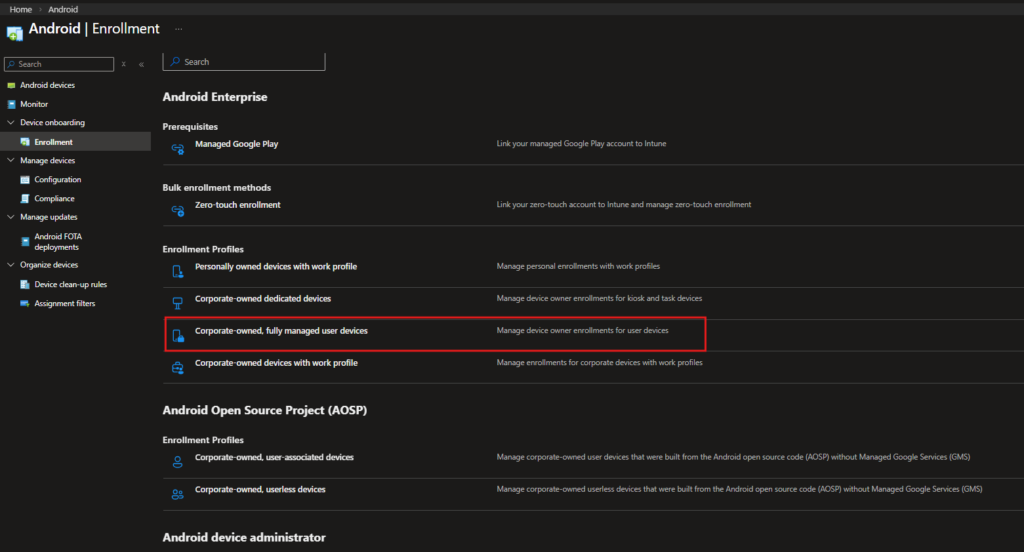
In the Microsoft Intune admin center, navigate to the Android enrollment section. This page shows all supported Android enrollment methods, grouped by platform and ownership model.
Under Android Enterprise → Enrollment Profiles, four enrollment options are available:
- Personally owned devices with work profile (BYOD)
- Corporate-owned dedicated devices (Kiosk or Dedicated)
- Corporate-owned, fully managed user devices
- Corporate-owned devices with work profile (COPE)
For a COBO deployment, select Corporate-owned, fully managed user devices. This enrollment type provisions the device in Android Enterprise Device Owner mode and enables full device-level management.
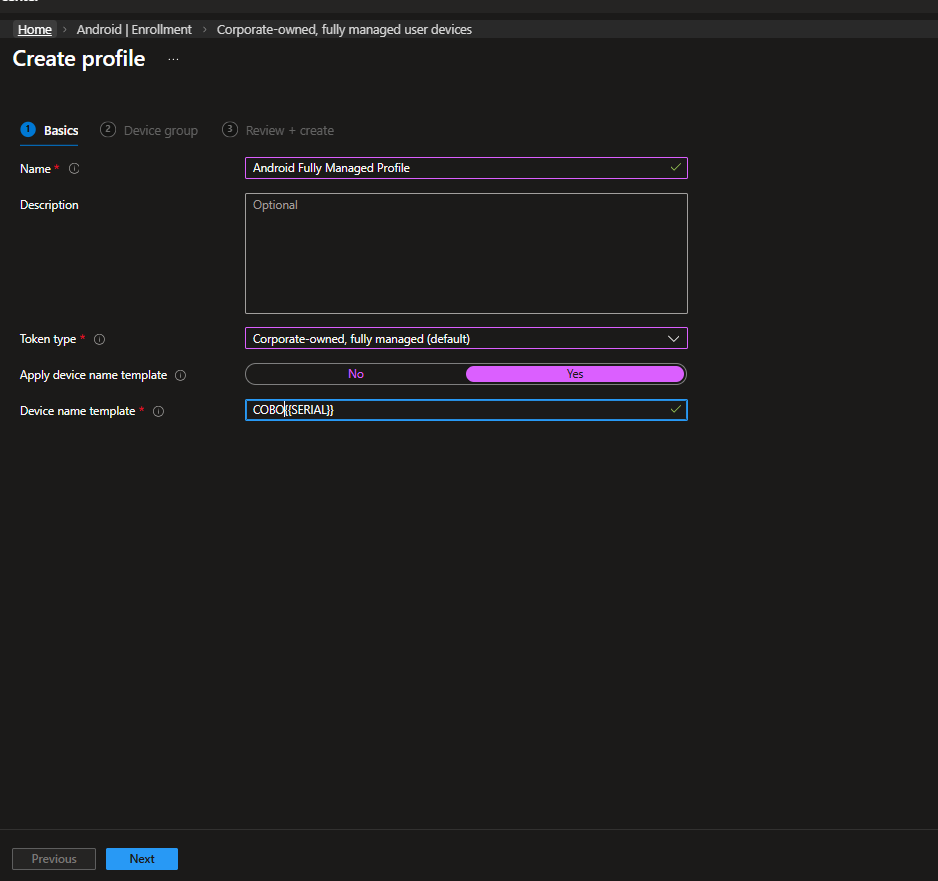
Click Create profile and configure the following settings:
- Name:
Android Fully Managed Profile
Use a clear and descriptive name that identifies this profile as a COBO enrollment profile. - Token type:
Corporate-owned, fully managed (default)
This value should be left unchanged. - Apply device name template:
Yes - Device name template:
COBO{SERIAL}
This automatically assigns a predictable and unique device name based on the hardware serial number.
Using a consistent naming convention simplifies device identification in large environments. It also makes assignment filters easier to validate and reduces ambiguity when troubleshooting enrollment or compliance issues.
Complete the assignment step and save the profile.
Once the profile is created, Intune generates an enrollment token and QR code. This QR code is used during the initial Android setup process and is required for device-side enrollment. Keep this page accessible, as the same QR code will be scanned on each device during provisioning.
Step 2: Create the Compliance Policy
A compliance policy defines the minimum security baseline that a device must meet to access corporate resources. It does not enforce settings directly on the device. Instead, it evaluates device state and reports compliance status to Microsoft Entra ID and Conditional Access.
Compliance policies are configured separately from device configuration policies and are evaluated independently.
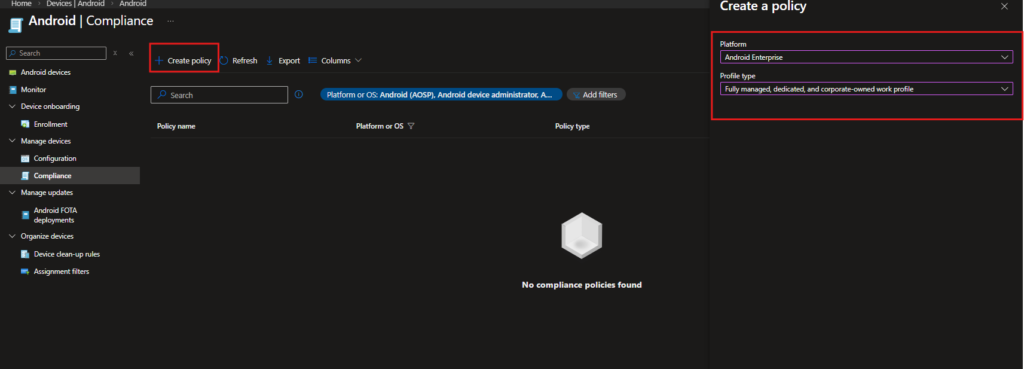
Navigation: Devices → Android → Compliance
Create a new policy with the following settings:
- Platform: Android Enterprise
- Profile type: Fully managed, dedicated, and corporate-owned work profile
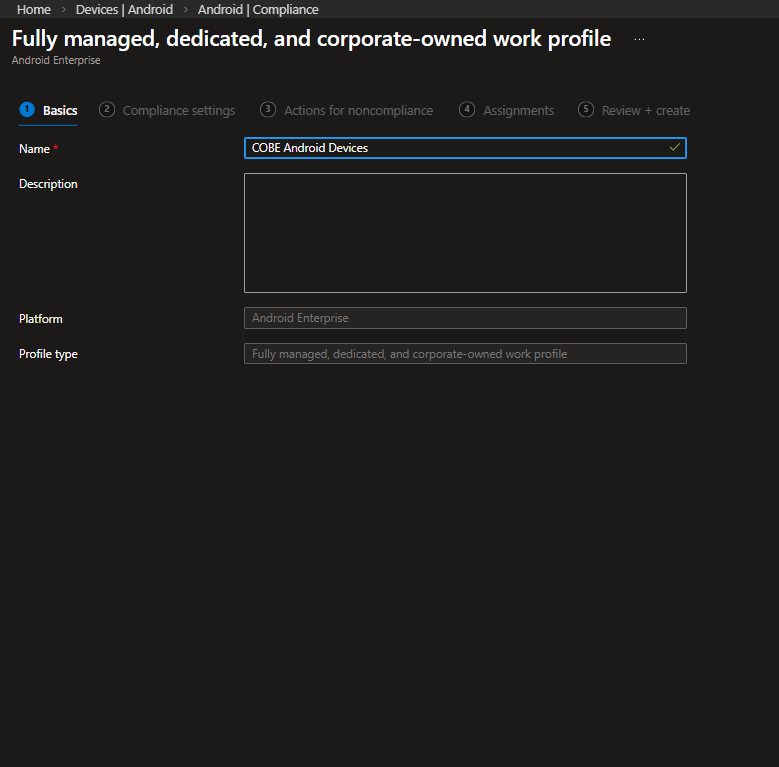
Basics
Assign a clear and descriptive name to the policy. In this example, the policy is named COBO Android Devices. The platform and profile type are pre-filled based on the previous selection.
Compliance Settings
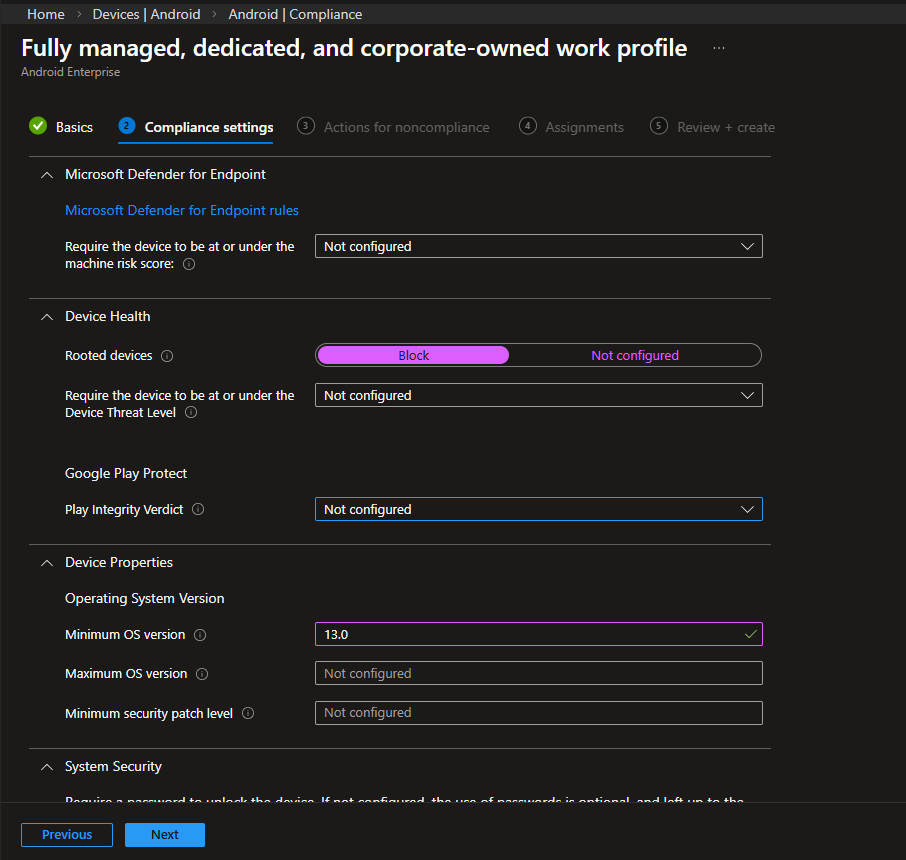
This section defines the security requirements the device must satisfy. These settings are evaluated continuously, and any violation immediately marks the device as non-compliant.
Device Health
- Rooted devices: Block
Rooted devices bypass Android’s security model and must never be trusted in a COBO deployment. - Play Integrity verdict: Not configured
Play Integrity evaluation is not enforced in this baseline; device trust is established through other compliance and configuration controls
Device Properties
- Minimum OS version:
13.0
This ensures the fleet runs a supported Android version that still receives security updates.
System Security
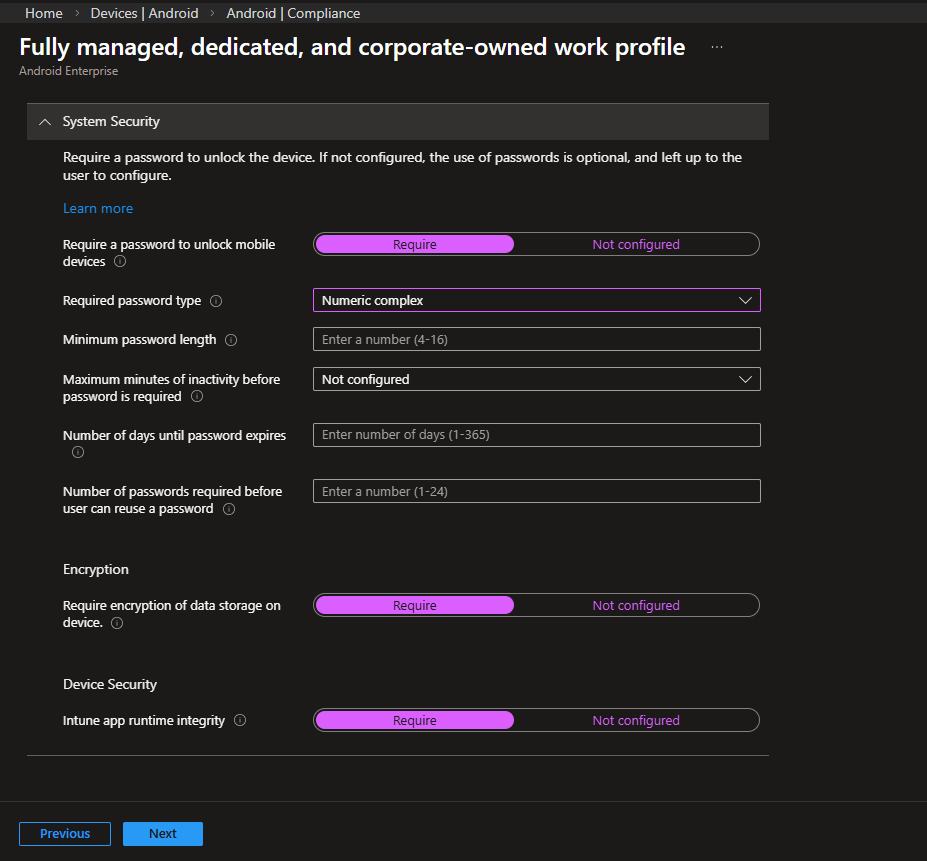
- Require a password to unlock mobile devices: Require
- Required password type: Numeric complex
Prevents simple or sequential PINs. - Require encryption of data storage on device: Require
Although modern Android devices encrypt storage by default, enforcing this at policy level provides clear audit evidence. - Intune app runtime integrity: Require
Ensures the Intune management app itself has not been modified.
Actions for Noncompliance
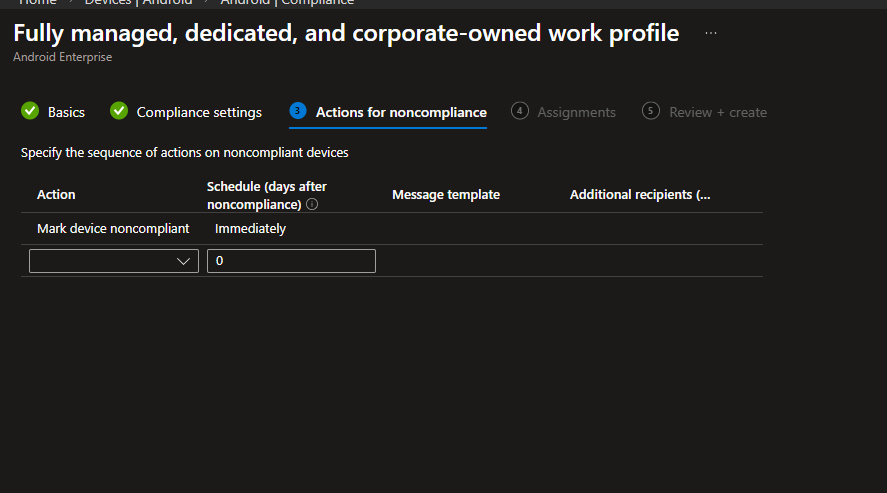
Set the default action to Mark device noncompliant: Immediately.
In a COBO scenario, delayed enforcement provides little value. The moment a device falls below the defined security baseline, access to corporate resources should be blocked by Conditional Access.
Assignments
Assign the policy to All Users and scope it using an assignment filter so that it applies only to COBO-enrolled devices.
- Included groups: All Users
- Filter behavior: Include filtered devices
- Filter rule:
device.enrollmentProfileName -eq "Android Fully Managed Profile"
This approach avoids the need for separate device groups and ensures the compliance policy does not affect BYOD or COPE devices.
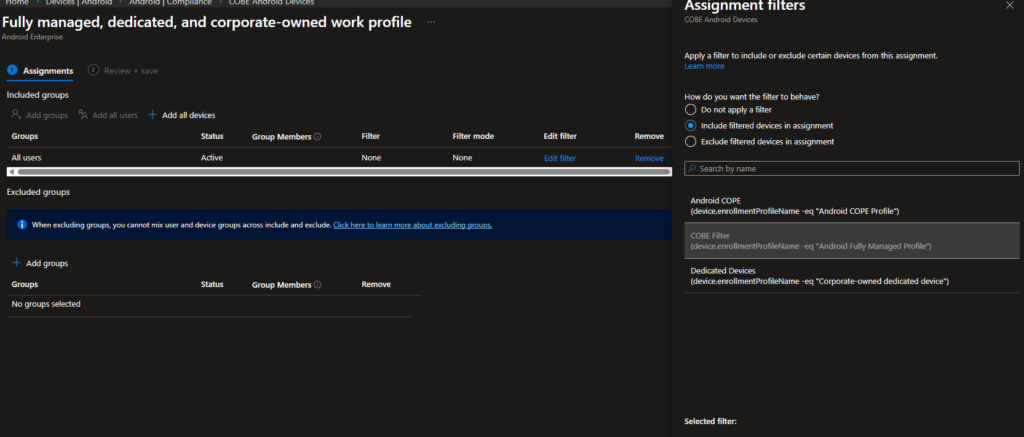
Save the policy once assignments are complete.
Step 3: Create the Device Configuration Policy (Device Restrictions)
While the compliance policy determines whether a device is trusted, the device configuration policy defines how the device behaves. This policy enforces restrictions directly on the device and controls which features are available to the user.
Device configuration policies are evaluated and applied independently from compliance policies. Both are required for a complete COBO deployment.
Navigation: Devices → Android → Configuration
Select Create → New policy and configure the following options:
- Platform: Android Enterprise
- Profile type: Templates
- Template: Fully Managed, Dedicated, and Corporate-Owned Work Profile
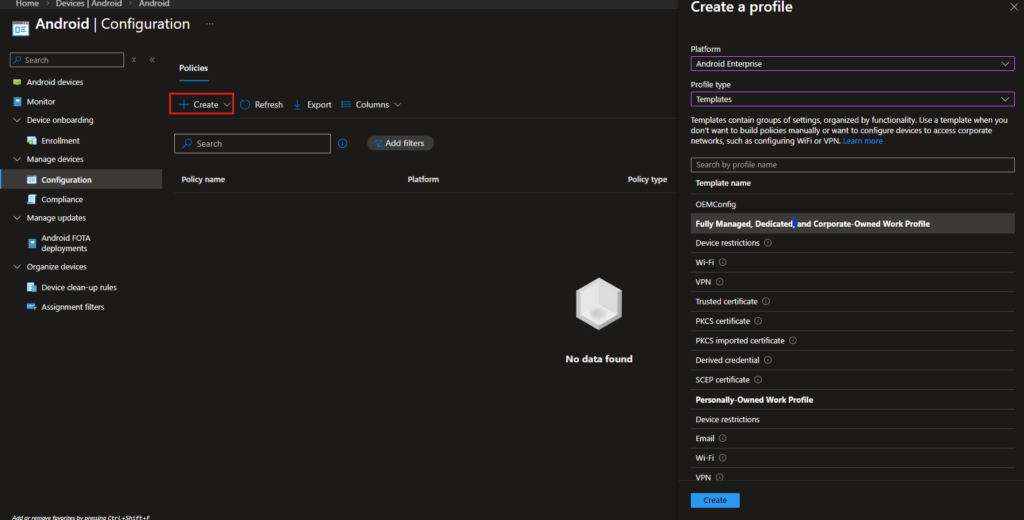
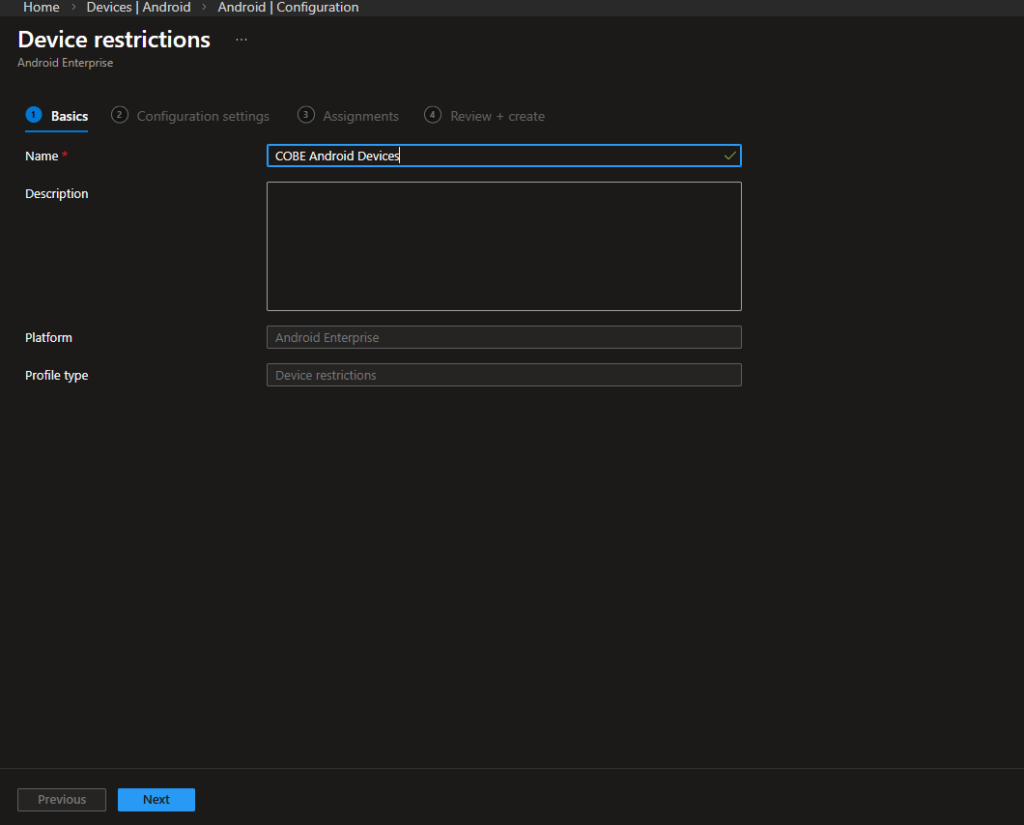
Basics
Name the policy COBO Android Devices.
The platform and profile type are automatically populated. Note that the profile type here is listed as Device restrictions, which is different from the profile type used in the compliance policy. This distinction is expected and correct.
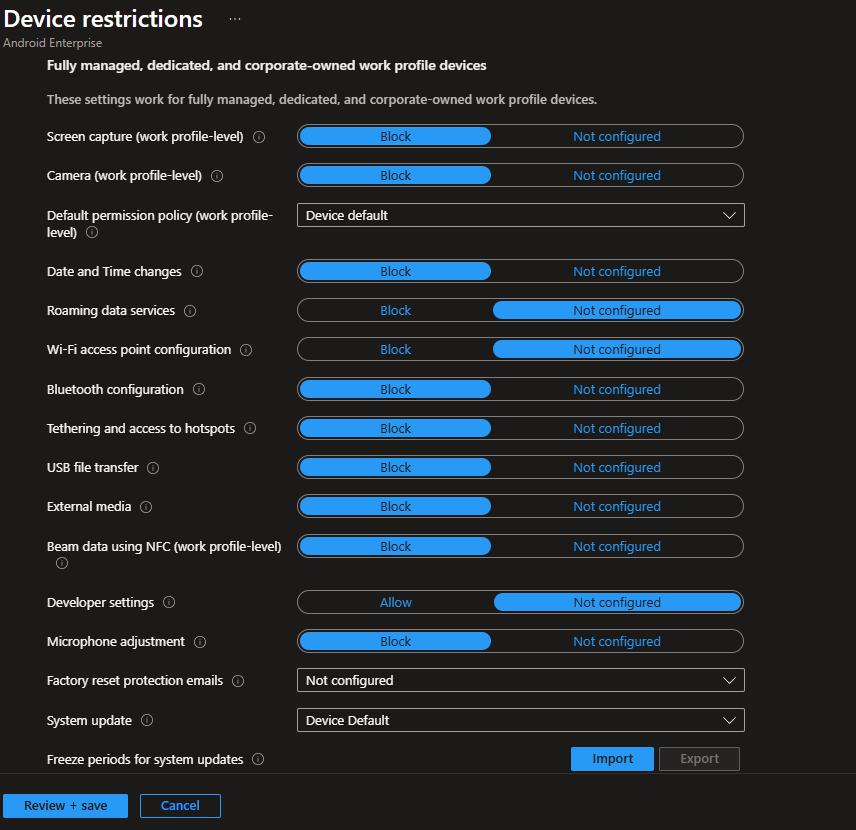
Configuration Settings: General Device Restrictions
This section contains device-level controls that apply to fully managed, dedicated, and corporate-owned work profile devices. These settings directly affect hardware access and system behavior.
| Setting | Configured Value | Rationale |
|---|---|---|
| Screen capture (work profile-level) | Block | Prevents data exfiltration via screenshots within managed apps |
| Camera (work profile-level) | Block | Image capture is not required in this environment and may present a data leakage risk |
| Default permission policy (work profile-level) | Device default | Allows Android to handle runtime permissions while still respecting other enforced restrictions |
| Date and time changes | Block | Prevents users from manipulating time-based security or certificate validation |
| Roaming data services | Not configured | Left unmanaged to avoid disrupting users who legitimately operate across regions |
| Wi-Fi access point configuration | Not configured | Network access is controlled via profiles rather than a hard device-level block |
| Bluetooth configuration | Block | Prevents pairing with unauthorized peripherals |
| Tethering and access to hotspots | Block | Prevents sharing corporate connectivity with other devices |
| USB file transfer | Block | Reduces the risk of data extraction via physical connections |
| External media | Block | Prevents data movement using removable storage |
| Beam data using NFC (work profile-level) | Block | Disables NFC-based data sharing |
| Developer settings | Not configured | Left unmanaged to avoid impacting diagnostics during rollout and testing |
| Microphone adjustment | Block | Prevents users from disabling the microphone in controlled environments |
| Factory reset protection emails | Not configured | Not required, as factory reset is already blocked elsewhere |
| System update | Device default | Allows OEM and Android update behavior to remain unchanged |
| Freeze periods for system updates | Not configured | Update timing is not restricted in this deployment |
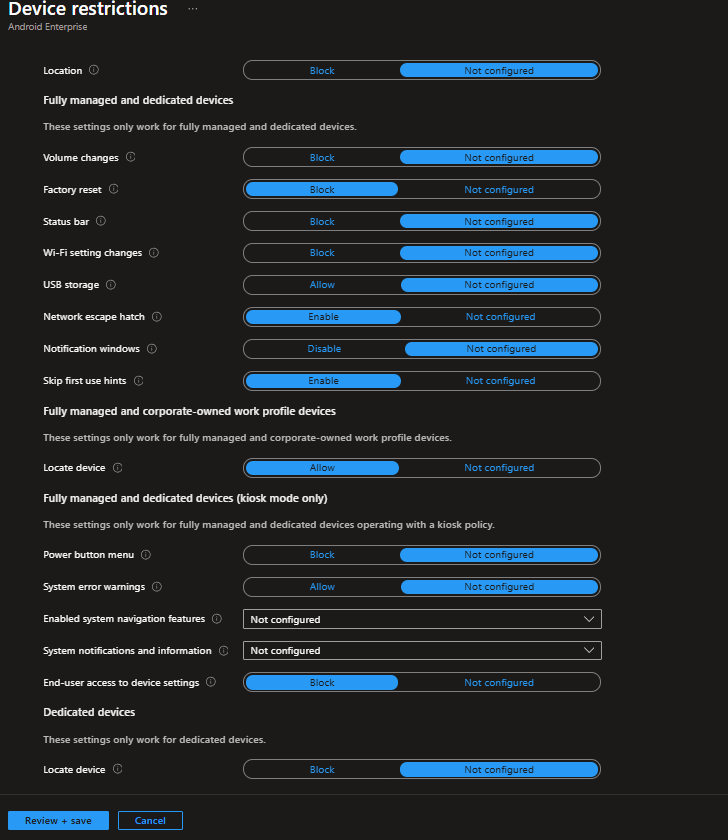
Configuration Settings: Fully Managed and Dedicated Device Controls
The following settings apply only to fully managed and dedicated devices. These controls focus on preventing user actions that could bypass management or alter the intended device experience.
| Setting | Configured Value | Rationale |
|---|---|---|
| Location | Not configured | Location access is not restricted at the device level in this scenario |
| Volume changes | Not configured | Users are allowed to control volume to avoid usability issues |
| Factory reset | Block | Prevents users from wiping and unenrolling the device |
| Status bar | Not configured | Not restricted here to keep basic device usability intact during rollout |
| Wi-Fi setting changes | Not configured | Wi-Fi control is handled through profiles rather than locking the UI at this stage |
| USB storage | Not configured | Not enforced in this baseline (storage behavior remains default) |
| Network escape hatch | Enable | Allows recovery if network connectivity is lost during enrollment |
| Notification windows | Not configured | Pop-up restrictions are not enforced in this baseline |
| Skip first use hints | Enable | Simplifies the initial user experience |
Additional scopes visible in the UI:
- Locate device (fully managed and corporate-owned work profile devices): Allow
Enabled to support device recovery and operational tracking. - Kiosk-specific settings:
These remain Not configured, as this deployment does not use kiosk mode.
System Security and Device Password Settings
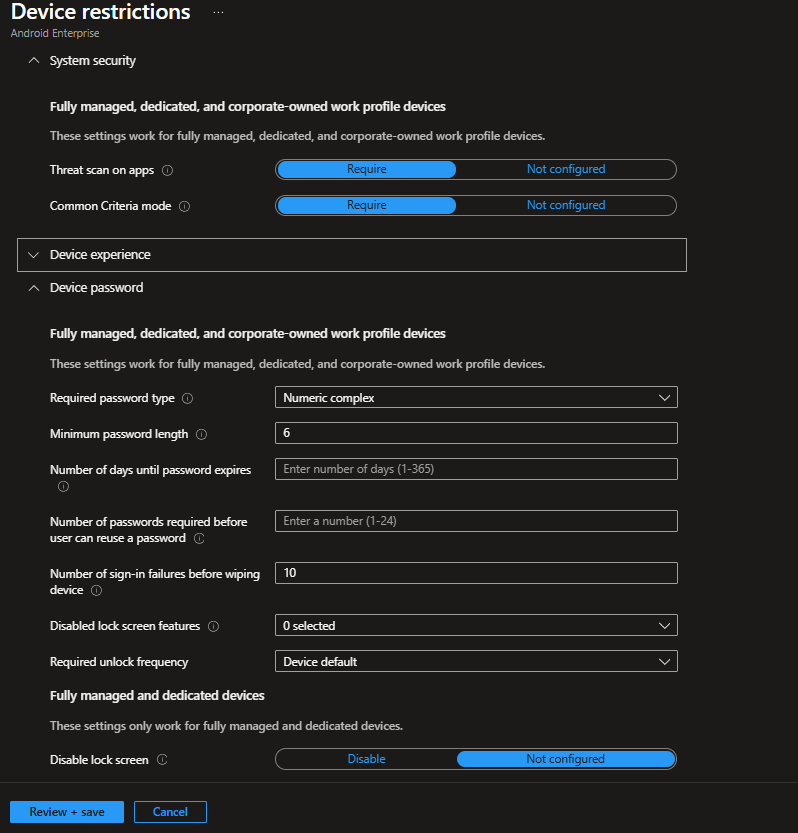
These settings enforce security controls directly on the device. They complement the compliance policy by ensuring requirements are applied at setup time.
It is important to remember the distinction here. The configuration policy enforces password requirements. The compliance policy later verifies that those requirements are still met.
System Security
| Setting | Configured Value | Rationale |
|---|---|---|
| Threat scan on apps | Require | Ensures Google Play Protect scans all installed apps |
| Common Criteria mode | Require | Enables enhanced Android security controls required in regulated environments |
Device Password
| Setting | Configured Value | Rationale |
|---|---|---|
| Required password type | Numeric complex | Prevents simple or sequential PINs |
| Minimum password length | 6 | Balances security and usability |
| Password expiration | Not configured | Avoids forced rotation without a defined policy requirement |
| Password history | Not configured | No reuse restriction defined for this deployment |
| Number of sign-in failures before wiping device | 10 | Automatically protects data if the device is compromised |
| Disabled lock screen features | Not configured | Lock screen behavior remains minimal but functional |
| Required unlock frequency | Device default | Uses Android’s default unlock behavior |
| Disable lock screen (fully managed and dedicated devices) | Not configured | Ensures the device always requires autLock screen behavior remains default; authentication is still enforced through password requirements |
Users, Accounts, and Application Settings
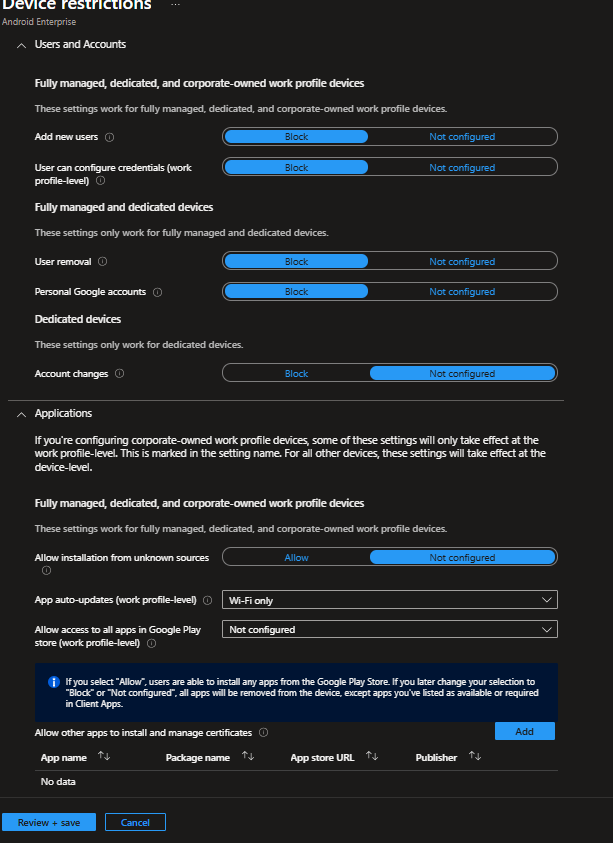
This section controls account management and application behavior at the device level.
Users and Accounts
| Setting | Value | Rationale |
|---|---|---|
| Add new users | Block | Prevents creation of secondary accounts |
| User can configure credentials | Block | Keeps certificate and credential control with IT |
| User removal | Block | Prevents removal of the enrolled corporate account |
| Personal Google accounts | Block | Ensures the device remains business-only |
Applications
| Setting | Value | Rationale |
|---|---|---|
| Allow installation from unknown sources | Not configured | Left unmanaged in this baseline; app delivery is handled through Managed Google Play assignments |
| App auto-updates | Wi-Fi only | Reduces cellular data usage |
| Allow access to all apps in Google Play store | Not configured | Keeps Play Store limited to approved apps |
Assignments
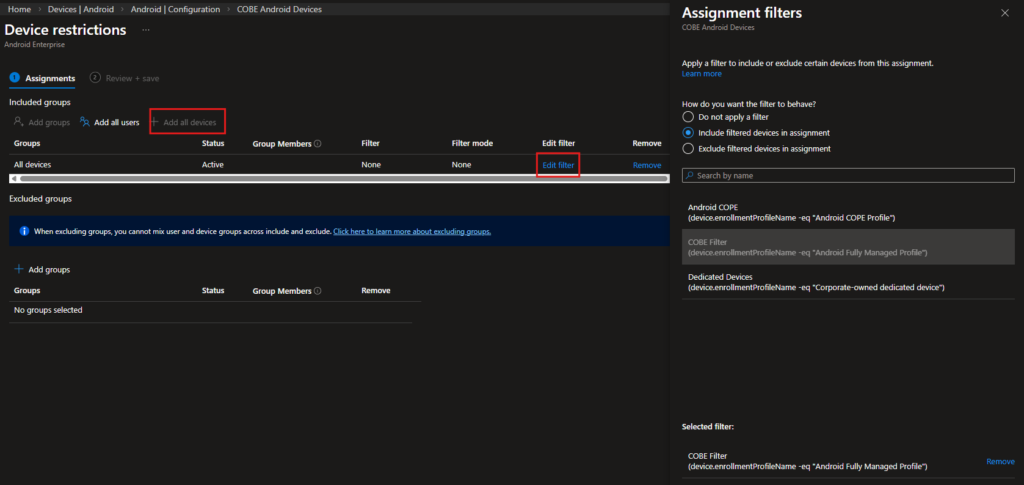
Assign the device configuration policy to All Devices and scope it using the same enrollment profile filter used for compliance.
- Included group: All Devices
- Filter behavior: Include filtered devices
- Filter rule:
device.enrollmentProfileName -eq "Android Fully Managed Profile"
Compliance policies are assigned to users because compliance is evaluated per user-device relationship. Configuration policies are assigned to devices because they enforce behavior at the device level.
Save the policy once assignments are complete.
Intune Configuration Summary
At this stage, the Intune-side configuration for COBO devices is complete.
| Component | Location | Assignment |
|---|---|---|
| Enrollment Profile | Devices → Android → Enrollment | QR code based |
| Compliance Policy | Devices → Android → Compliance | All Users with filter |
| Device Configuration Policy | Devices → Android → Configuration | All Devices with filter |
The environment is now prepared for device enrollment. The QR code generated during enrollment profile creation will be used to provision devices and apply all configured policies.
Device-Side Enrollment: QR Code Provisioning and User Experience (COBO)
With the Intune configuration complete, the next step is enrolling a physical device using the QR code generated in the enrollment profile. This section walks through the entire process as it appears on the device, screen by screen, from first boot to a fully enrolled and compliant COBO device.
The device used in this walkthrough is a Samsung Galaxy Tab A9+ running Android 15. The overall flow is consistent across Android Enterprise–supported devices, although wording and screen layout may vary slightly by manufacturer and Android version.
Important: The device must be in a factory reset state. COBO enrollment using a QR code can only be triggered during the initial Android setup wizard. If the device has been used previously, it must be reset before proceeding.
Triggering QR Code Enrollment
QR code enrollment is initiated directly from the Android setup wizard. There is no application to install and no visible option labeled “Scan QR code.”
On the first welcome or language selection screen after a factory reset, tap the screen six times in the same area. This gesture activates the Android Enterprise QR code scanner. Once the camera opens, scan the QR code generated in the Intune enrollment profile.
After the QR code is scanned, Android validates the enrollment token and automatically downloads the Android Device Policy controller. From this point forward, the device provisioning process is guided by on-screen prompts.
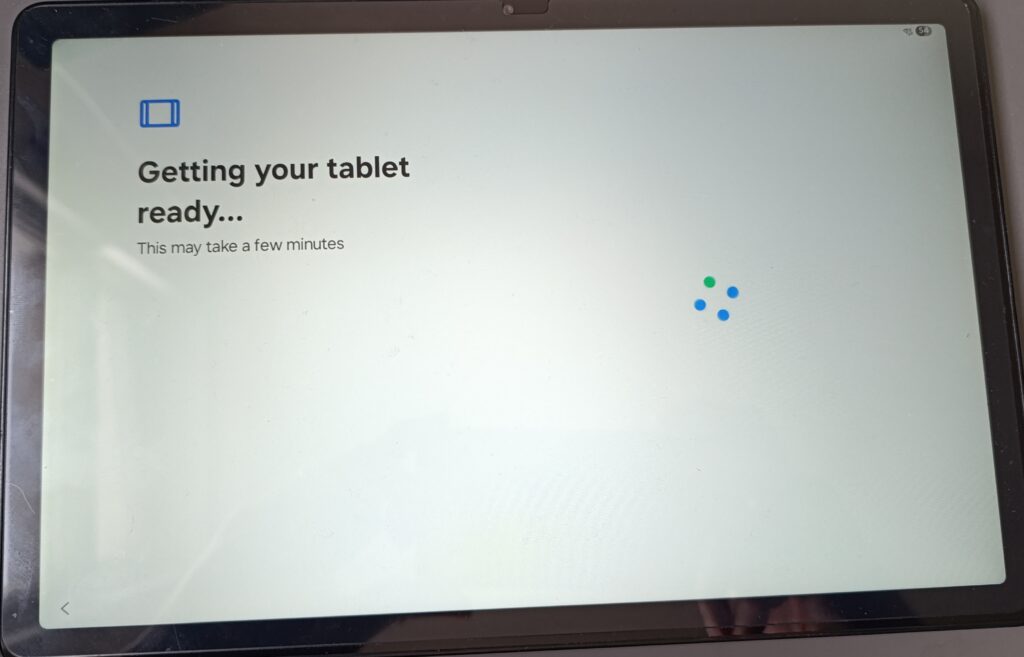
Device Provisioning and Device Owner Mode
While the “Getting your tablet ready…” screen is displayed, Android performs several background actions:
- Downloads the Android Device Policy controller
- Establishes Device Owner mode
- Prepares the device for full corporate management
Depending on network speed, this step typically takes a few minutes.
Once Device Owner mode is set, it cannot be removed without performing a factory reset. This behavior is by design and prevents users from unenrolling the device by removing a management application.
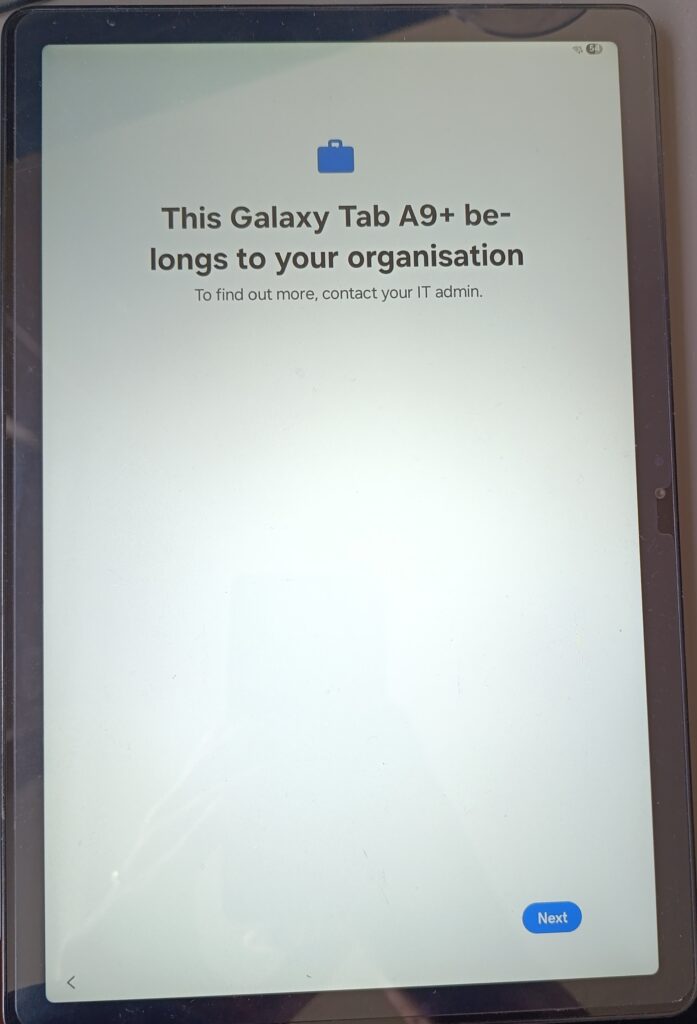
Corporate Ownership Disclosure
After provisioning completes, the first user-facing screen appears with a clear ownership message indicating that the device belongs to the organization.
This screen explicitly informs the user that the device is corporate-owned and managed. The user must acknowledge this message to continue.
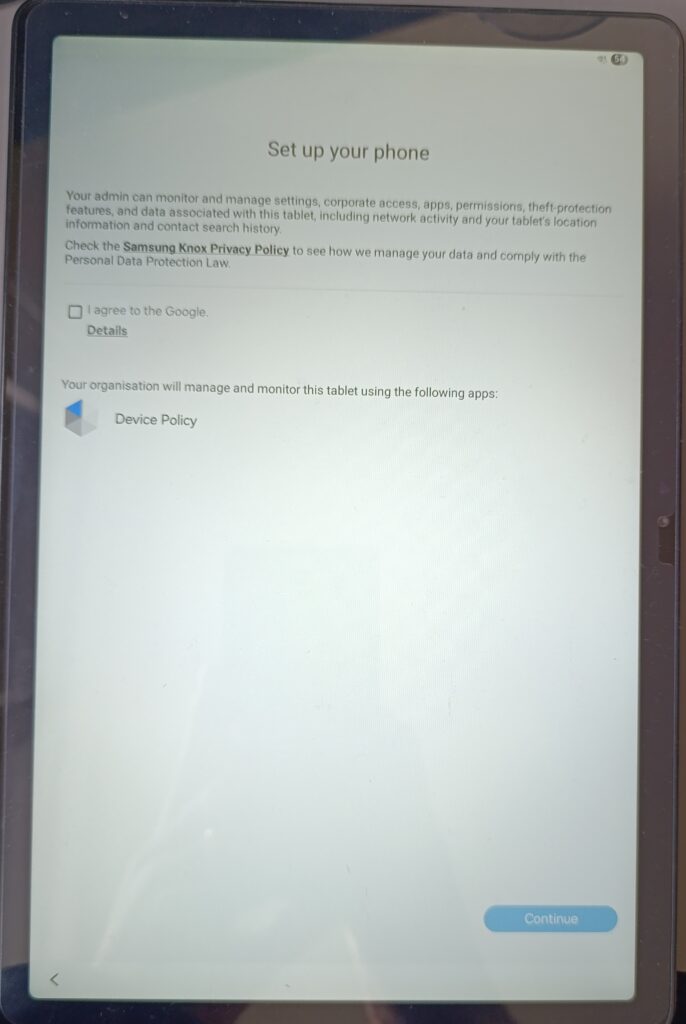
Management Disclosure and Google Agreement
The next screen presents the Android Enterprise management disclosure. This screen explains what the organization can manage on the device, including:
- Device settings and security configuration
- Installed applications and permissions
- Network activity and device location
The screen also identifies Android Device Policy as the application responsible for managing the device. The user must accept the Google terms to proceed.
This step ensures transparency and confirms that the user is aware of the management scope before enrollment continues.
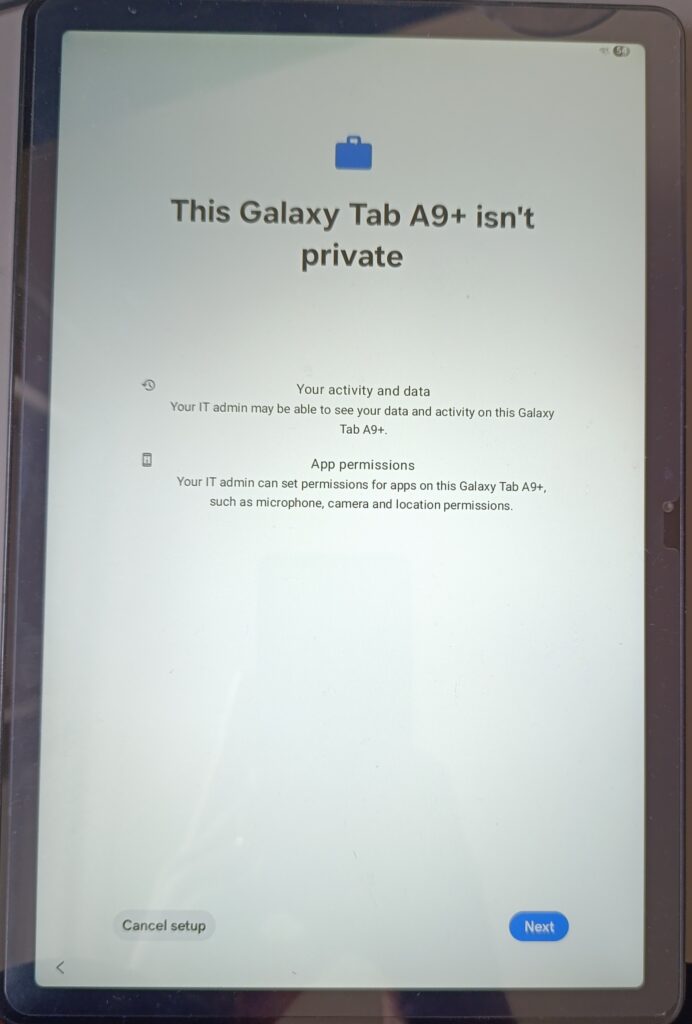
Privacy Notice
The privacy notice clearly states that the device is not private and that activity on the device may be visible to the organization. This is a key disclosure from a legal and compliance perspective.
If the user chooses to cancel at this stage, enrollment is aborted. Proceeding indicates acceptance of the management terms.
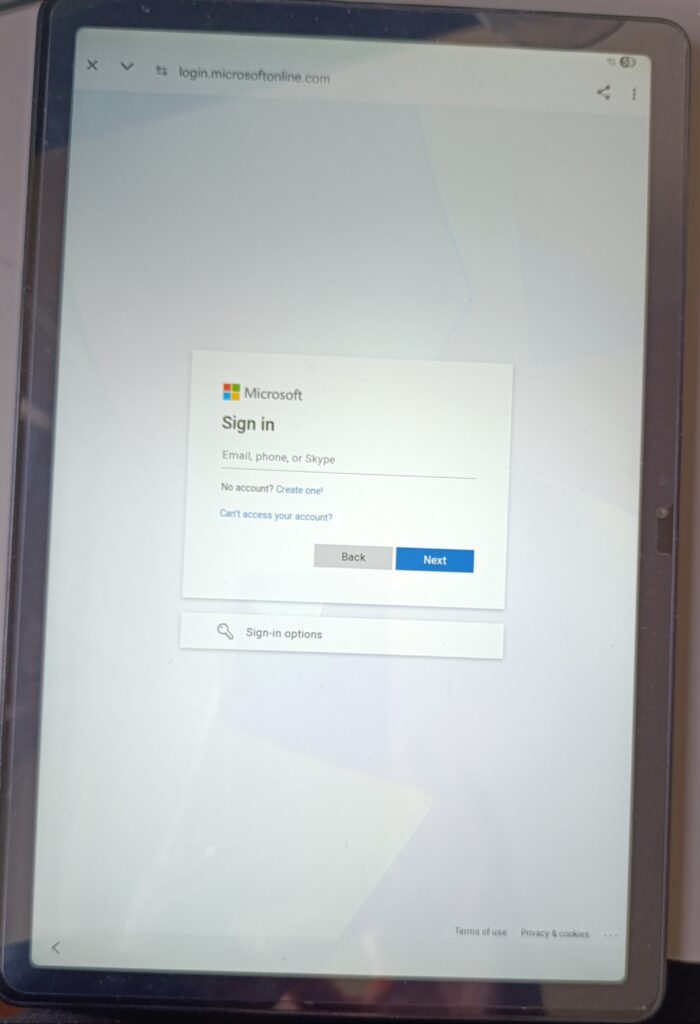
Microsoft Entra ID Sign-In
After accepting the privacy notice, the device redirects to the Microsoft sign-in page. The user authenticates using their Microsoft Entra ID credentials. If multi-factor authentication is configured, it is enforced here.
The account used at this stage becomes the primary user of the device in Intune. User-based app assignments and policies are evaluated against this identity.
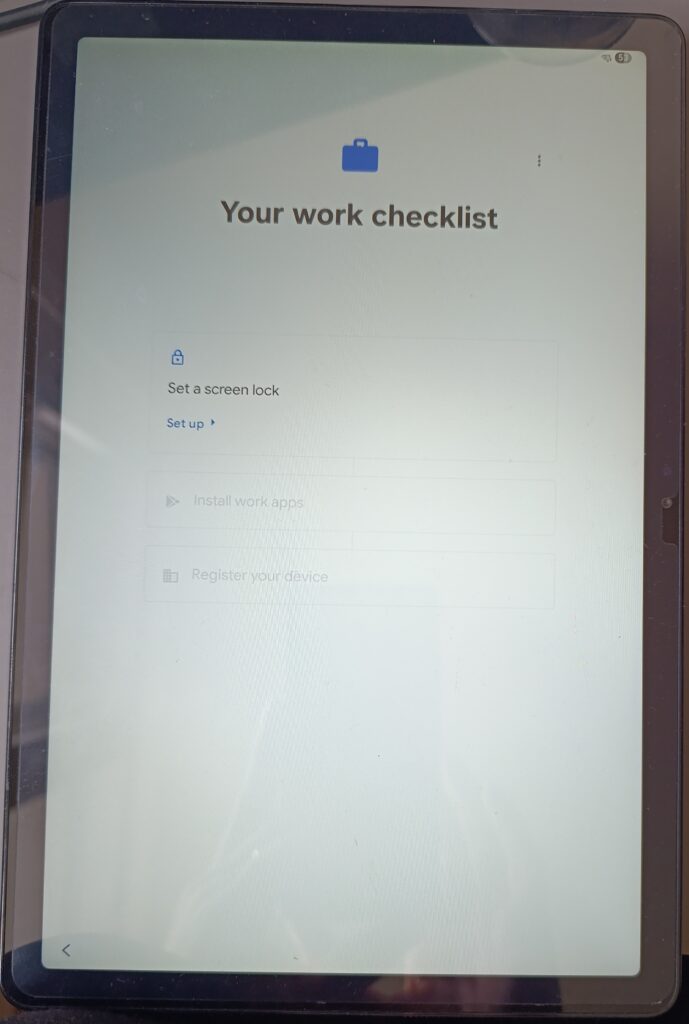
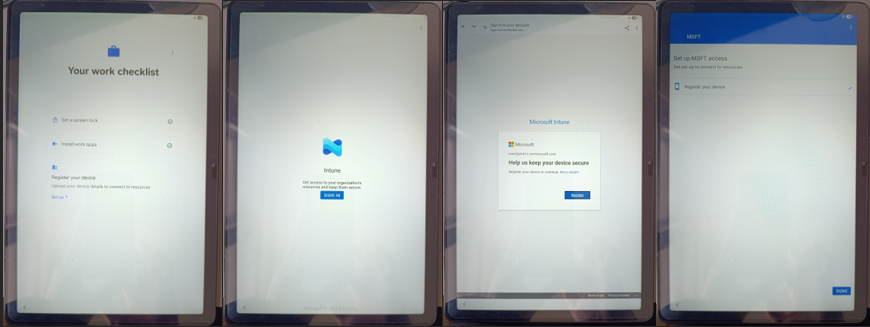
Enrollment Progress: Work Checklist
Once authentication completes, the enrollment process continues with the Work Checklist. This checklist guides the user through the remaining steps required to complete enrollment:
- Set a screen lock
- Install work apps
- Register the device
Each step must be completed in order before the next becomes available.
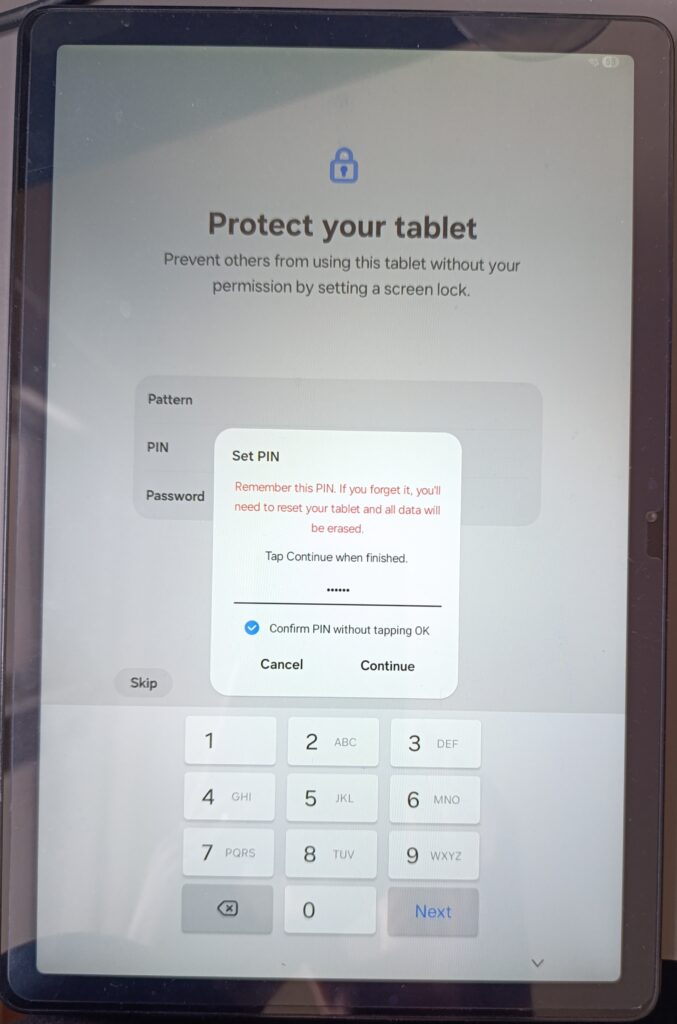
Setting the Device PIN
The first checklist item requires the user to configure a screen lock. The available options are governed by the device configuration policy.
Because a numeric complex PIN with a minimum length of six digits is enforced, the device rejects simple or sequential PINs. The requirement is enforced at the operating system level.
Users are also informed that forgetting the PIN will require a factory reset, which aligns with the configured wipe threshold.
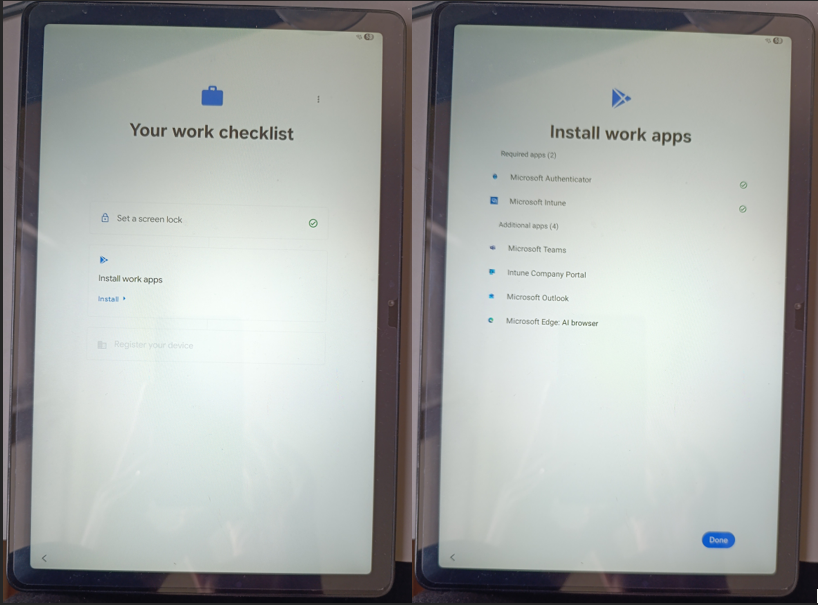
Application Installation
After the screen lock is set, the checklist advances to application installation. Required applications install automatically, while additional applications assigned as available are presented to the user.
In this deployment:
- Required apps are installed without user interaction
- Available apps can be installed immediately or later from Managed Google Play
This distinction allows IT to enforce mandatory tooling while still providing flexibility where appropriate.
Device Registration
The final checklist step registers the device with Intune and Microsoft Entra ID. This step finalizes the management relationship and uploads device identity and compliance information.
Once registration completes, the device begins reporting its state to Intune and compliance evaluation starts immediately.
Post-Enrollment Experience
After enrollment completes, the device is fully managed:
- The lock screen enforces the configured PIN
- Only approved applications appear in Managed Google Play
- Restricted settings display an “Action not allowed” message
- Screenshot attempts are blocked by policy
These behaviors confirm that device restrictions are enforced at the Device Owner level.
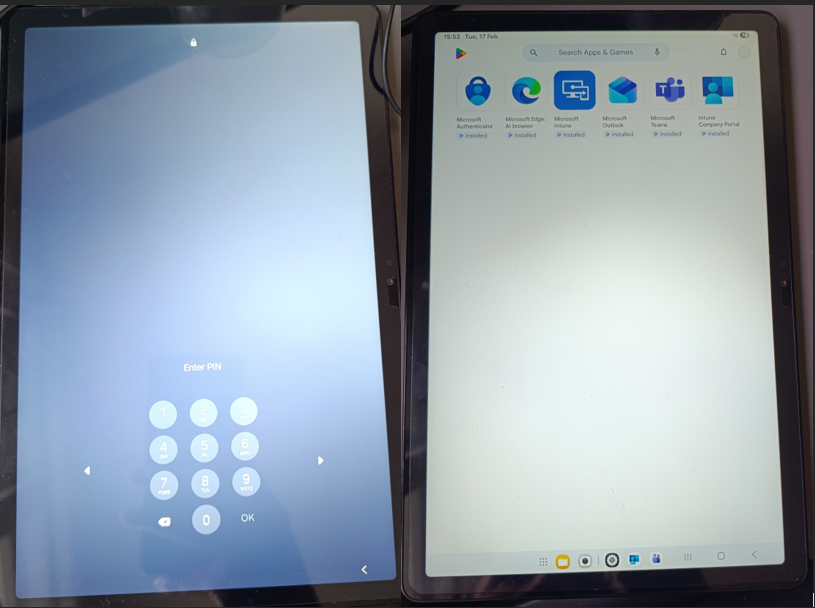
[ Lock screen – Managed Google Play]
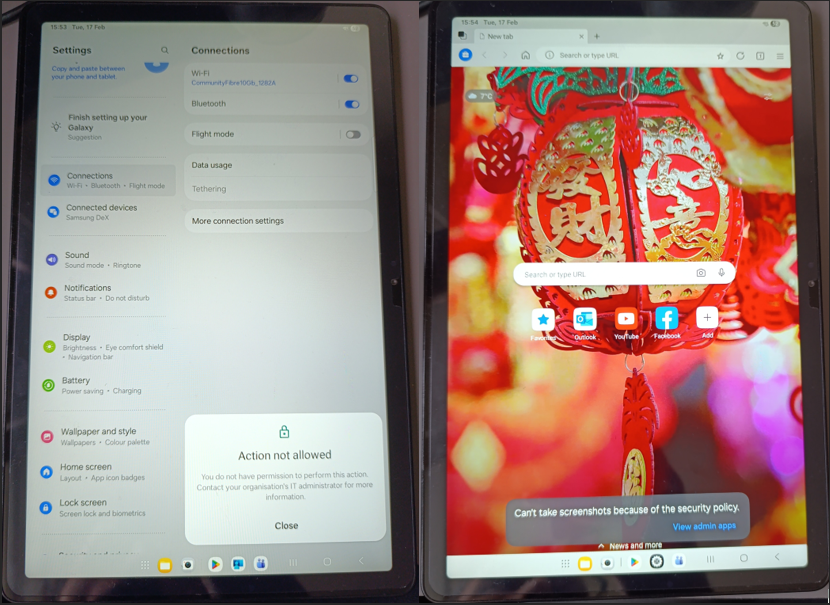
[Restricted settings message – Screenshot blocked notification]
Intune Admin Center Verification
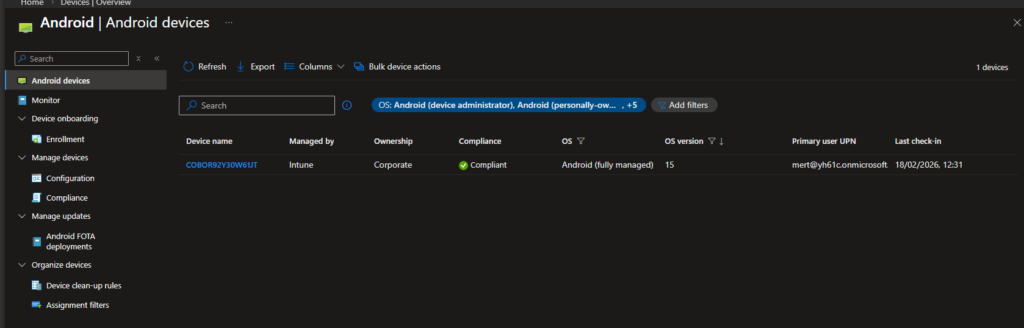
In the Intune admin center, the device appears with the expected attributes:
- Ownership: Corporate
- Management: Intune
- Enrollment type: Android (fully managed)
- Compliance state: Compliant
The device name reflects the configured naming template, confirming that enrollment completed through the correct profile.
COBO represents the point where device ownership and control are fully aligned with corporate security requirements. It is the model to choose when the device itself is treated as a corporate asset, not a personal workspace.
In the next article, we’ll move on to corporate-owned dedicated devices and explore how Android Enterprise and Intune handle single-purpose and kiosk-style deployments.
References
- Microsoft Learn – Android Enterprise enrollment guide
https://learn.microsoft.com/en-us/intune/intune-service/fundamentals/deployment-guide-enrollment-android