How to Migrate SCCM Applications to Intune with IntuneGet (Step-by-Step Guide)
Introduction
Migrating applications from Microsoft Configuration Manager (SCCM/MECM) to Microsoft Intune is often one of the most time-consuming parts of any cloud migration project. While moving devices is usually straightforward, applications require much more work. Install commands, detection rules, packaging, and deployment settings often have to be recreated before an application is ready for Intune.
This is where IntuneGet comes in.
IntuneGet is a free and open-source tool that simplifies application management in Microsoft Intune. Besides allowing you to search and deploy thousands of WinGet applications as Win32 apps, it also includes an SCCM Migration feature that helps migrate existing Configuration Manager applications to Intune.
Instead of recreating every public application manually, IntuneGet can import your SCCM applications, match them with available WinGet packages, and deploy them directly to Microsoft Intune.
In this guide, I’ll walk through the complete process using a small lab environment. The export contains six SCCM applications, and by the end of the guide, those applications will be available in Microsoft Intune.
Prerequisites
Before getting started, make sure you have:
- Configuration Manager Console installed
- Permissions to read SCCM applications
- An IntuneGet account
- Permissions to create applications in Microsoft Intune
Step 1 – Create a New Migration
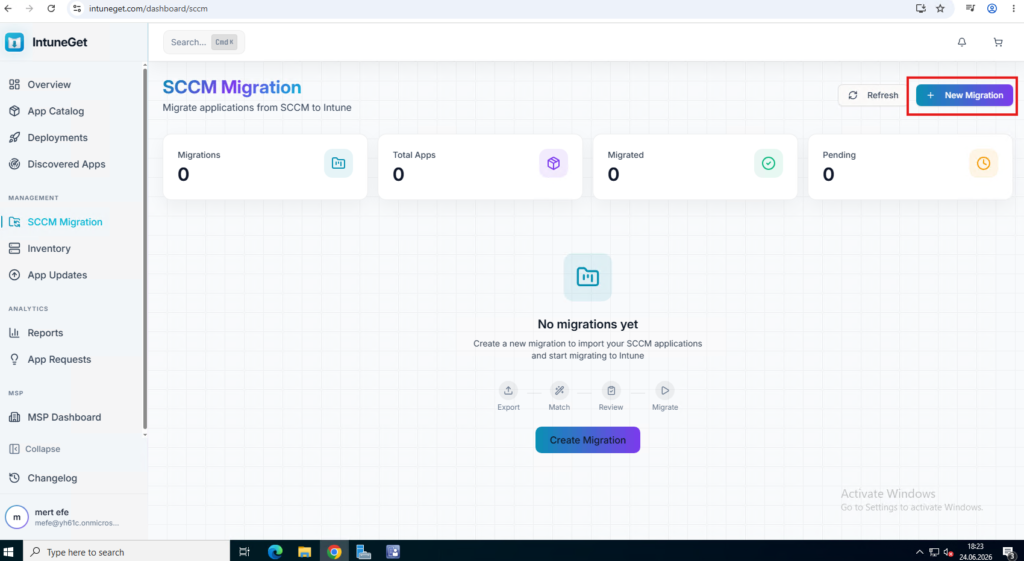
After signing in to IntuneGet, open SCCM Migration from the left-hand menu.
Click New Migration to create a new migration project.
Each migration is stored separately, so if you’re migrating multiple environments or simply want to keep previous migrations for reference, everything remains organized in its own workspace.
Step 2 – Download the Export Script
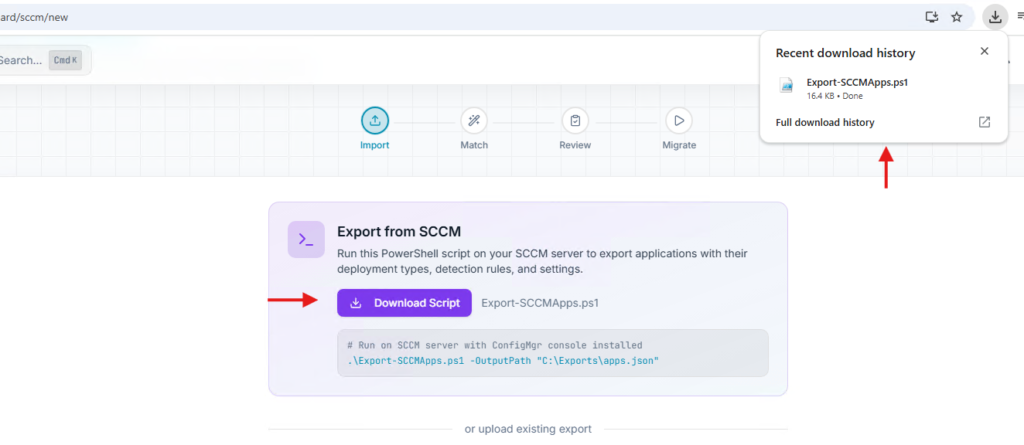
Once the migration has been created, IntuneGet provides a PowerShell script called Export-SCCMApps.ps1.
Download the script and copy it to your Configuration Manager server, or any machine where the Configuration Manager PowerShell module is available.
The script reads your SCCM applications and exports everything IntuneGet needs into a single JSON file.
Step 3 – Export Applications from SCCM
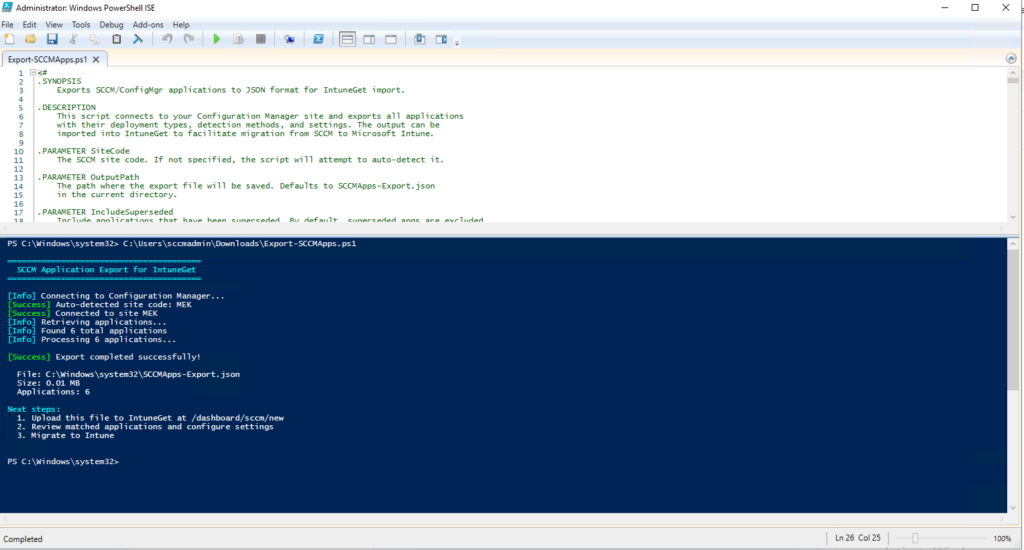
Open PowerShell as Administrator and run the export script.
.\Export-SCCMApps.ps1
The script automatically detects the Configuration Manager site, connects to it, reads your applications, and creates the export file.
In my lab, the process completed in a few seconds and exported six applications.
The generated JSON file is what we’ll import into IntuneGet in the next step.
Step 4 – Import the JSON File
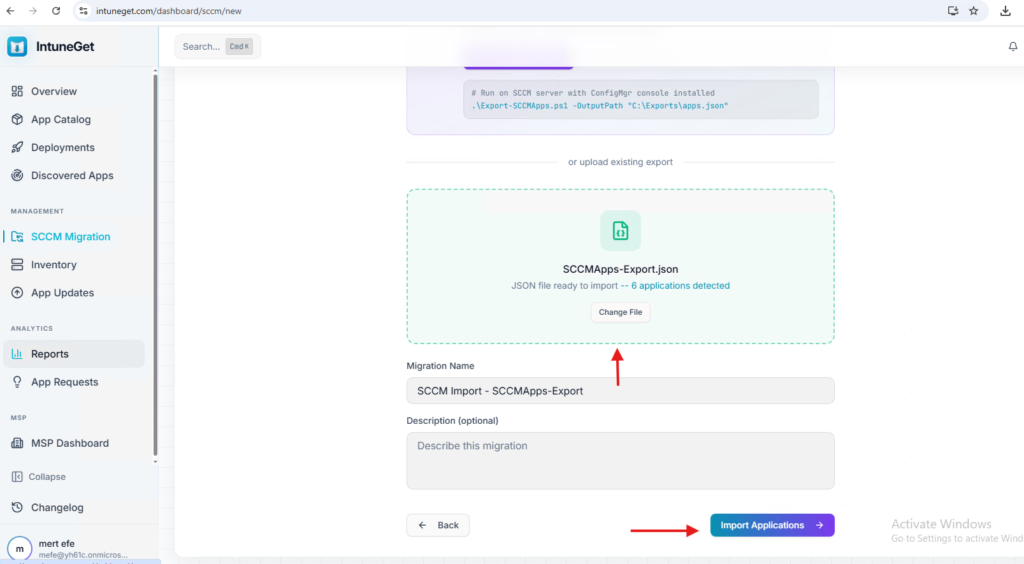
Go back to IntuneGet and upload the JSON file generated by the export script.
Once the file is selected, IntuneGet validates it and shows how many applications were found.
Click Import Applications to continue.
Step 5 – Review the Imported Applications
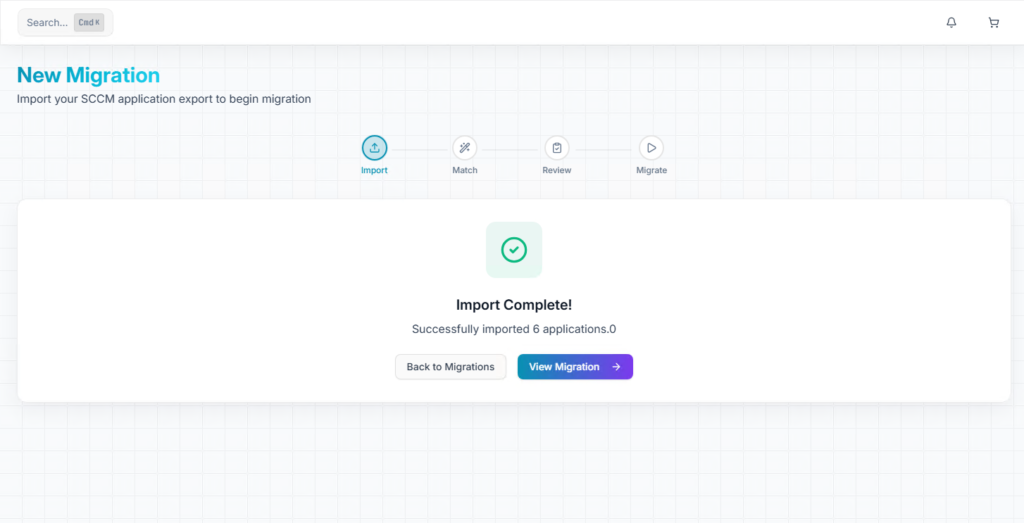
When the import finishes, IntuneGet confirms that all applications have been imported successfully.
Click View Migration to open the migration dashboard.
At this stage, the applications are imported, but they haven’t been matched to WinGet packages yet.
Step 6 – Match Applications
Now it’s time for the interesting part.
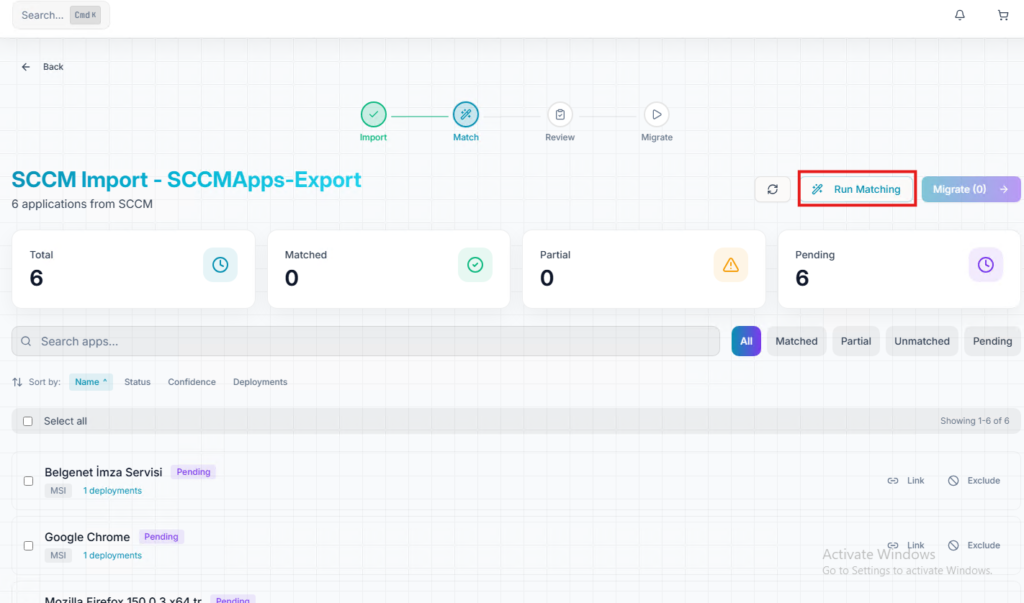
Click Run Matching.
IntuneGet compares your imported SCCM applications with its built-in mappings and available WinGet packages to identify applications that can be migrated automatically.
The process only takes a few seconds.
Step 7 – Review the Matching Results
After matching finishes, review the results before starting the deployment.
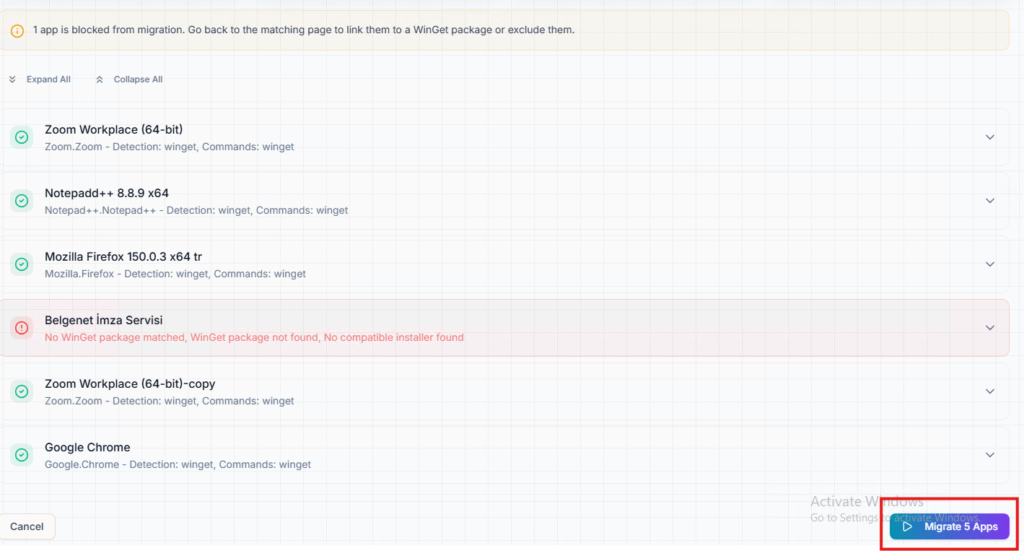
In my example, five applications were matched successfully.
One application, Belgenet İmza Servisi, remained unmatched.
This is completely expected. Internal or line-of-business applications usually don’t exist in the WinGet repository, so they can’t be matched automatically. Those applications can still be migrated later by packaging them as Win32 applications manually.
Everything else is ready to deploy.
Step 8 – Deploy the Applications
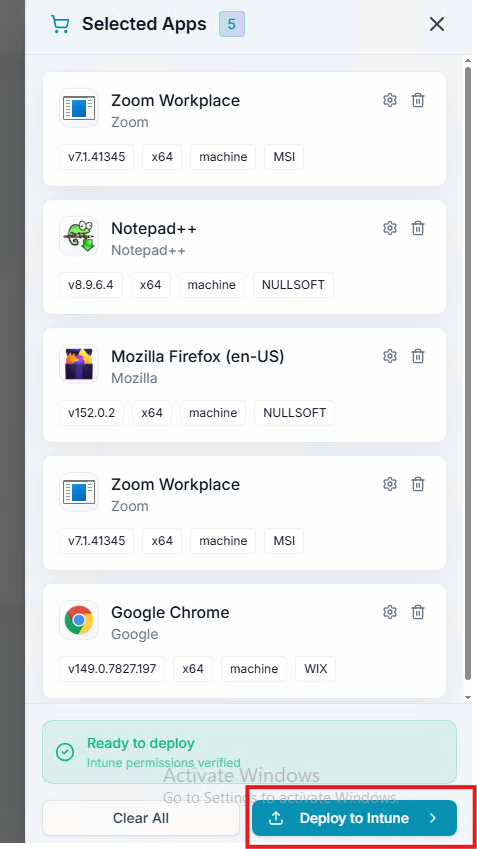
Select the applications you want to migrate and click Deploy to Intune.
From this point on, IntuneGet handles the heavy lifting.
It downloads the required package, prepares the Win32 application, uploads it to Microsoft Intune, and creates the application automatically.
For public applications, this removes most of the manual work that would normally be required.
Step 9 – Monitor the Deployment
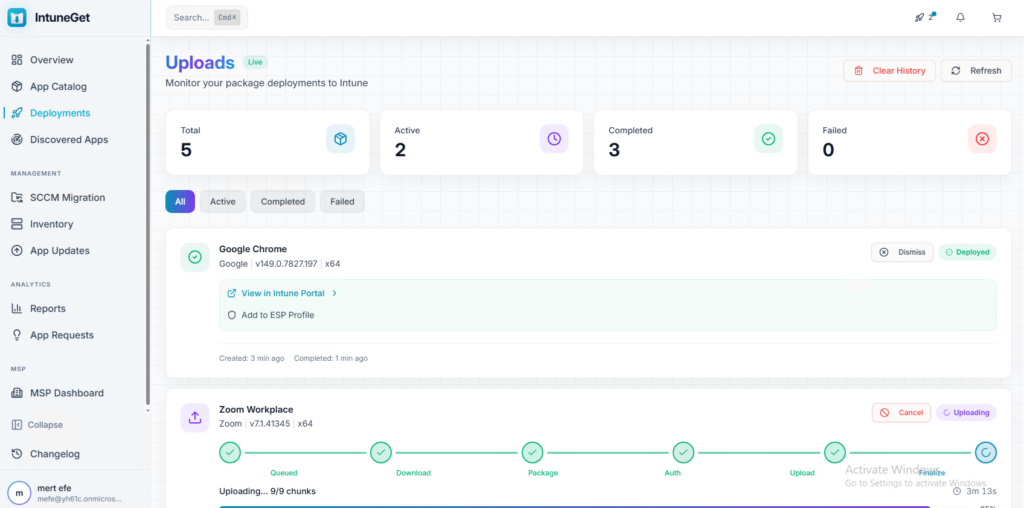
While the deployment is running, you can monitor the progress of every application.
IntuneGet clearly shows each stage of the deployment process, including downloading, packaging, authentication, uploading, and finalizing.
If something goes wrong, this view also makes it much easier to see where the deployment stopped.
Step 10 – Verify the Result
Finally, open the Microsoft Intune admin center and verify that the application has been created successfully.
In my lab, Google Chrome appeared as a Win32 application only a few moments after the deployment finished.
From here, it’s just like any other Intune application you can assign it to users or devices and continue managing it as usual.
Figure 10 – Google Chrome successfully created in Microsoft Intune
Things to Keep in Mind
A few things are worth mentioning before you start using the SCCM Migration feature in production.
- Applications that exist in WinGet are the best candidates for automatic migration.
- Internal or custom applications may remain unmatched because they don’t exist in the WinGet repository.
- Those unmatched applications can still be migrated manually by packaging them as Win32 applications.
- Before deploying applications to production, it’s always a good idea to verify the installation commands, detection rules, and assignments.
Conclusion
The new SCCM Migration feature in IntuneGet makes migrating supported applications from Configuration Manager to Microsoft Intune much easier than doing everything manually.
In just a few steps, I was able to export my SCCM applications, import them into IntuneGet, match them automatically, and deploy them directly to Intune.
If you’re planning an SCCM to Intune migration, this feature is definitely worth trying. It won’t eliminate every manual task especially for internal applications but it can significantly reduce the amount of work required for public applications that already exist in the WinGet ecosystem.