Microsoft Configuration Manager 2603: What Changed, What Got Fixed, and How to Upgrade Using Early Update Ring
Microsoft released Configuration Manager 2603 in May 2026. Unlike some recent Current Branch updates that led with major new features, this one takes a different approach. The focus is squarely on security hardening, stability, maintenance, and hybrid management improvements. No flashy additions just the kind of solid, production-focused work that keeps large SCCM environments healthy.
That said, there is one strategic headline worth paying attention to: Microsoft is moving Configuration Manager to an annual release model. The first annual release will be 2609. So in a sense, 2603 is the last update before that model kicks in a stabilization checkpoint before the cadence changes. This post covers what changed in 2603 and then walks through the full upgrade process using Early Update Ring, with screenshots from a real lab environment
The Character of This Release
If you had to put a label on 2603, it would be production stabilization release rather than feature release.
This is not a criticism it is exactly what large environments need. The sites most likely to benefit are:
- Large SCCM infrastructures with many clients and distribution points
- Environments running co-management alongside Microsoft Intune
- Hybrid endpoint management setups where ConfigMgr and Intune share workloads
| About the annual release model |
| Starting with version 2609, Microsoft is moving ConfigMgr to a yearly release cadence. 2603 is the stepping stone to that model it cleans things up and sets a stable baseline before the new rhythm begins. |
What Changed and What Got Fixed
1. Security Hardening – The Main Focus
Security is the headline of this release. Microsoft has been rolling out its Secure Future Initiative across all its products, and ConfigMgr is now getting more aggressive attention on this front.
The most notable changes in 2603:
- Security tightening around Network Access Account (NAA) usage
- Improved access validation across site systems
- Authentication process improvements
- General security posture enhancements
| A word on NAA |
| Microsoft is actively working to reduce reliance on Network Access Account over time. The improvements in 2603 are part of a longer transition. If your environment still uses NAA heavily, now is a good time to start planning your migration path to alternative authentication mechanisms. |
2. Stronger Prerequisite and Dependency Checks
One of the more practical improvements in 2603 is that the prerequisite checker is now significantly more thorough. Microsoft’s goal is to catch problems before the upgrade starts rather than in the middle of it.
In the past, a lot of SCCM upgrade failures happened mid-installation because of things like:
- Missing or outdated SQL components
- Incompatible ODBC drivers
- A pending system reboot
- .NET Framework version mismatches
2603 addresses this with deeper checks on SQL dependencies, ODBC validation, .NET requirements, and site system prerequisites. For production environments, this is a meaningful risk reduction. A failed upgrade that rolls back halfway through a site server is a bad day.
3. Software Update Stability Improvements
Several fixes landed in the Software Update components, particularly for larger environments where these issues were more visible:
- Update scan behavior and client-side detection reliability
- Software Update deployment stability
- Sync timeout scenarios that caused incomplete synchronization
- Update compliance reporting inconsistencies
- Deployment state delays and incorrect status display in Software Center
4. Software Center Improvements
These might look minor on paper, but for teams managing thousands of clients, small Software Center annoyances generate a disproportionate number of helpdesk tickets. 2603 addresses:
- Application visibility issues
- Deployment refresh behavior
- UI response lag in certain scenarios
- Status reporting delays
5. Co-Management Scenario Fixes
This is one of the more important sections for organizations running SCCM and Intune side by side. The goal is a more stable experience when workloads are shared between the two platforms.
Specific improvements cover:
- Co-management workload transitions
- Policy ownership behavior
- Workload slider scenarios
- Cloud attach processes
| In particular, issues with workload conflicts, duplicate policy behavior, and authority mismatch errors have been reduced. These were some of the more frustrating edge cases in hybrid environments. |
6. Connected Cache and Telemetry Updates
2603 also brings Connected Cache improvements, telemetry optimizations, and better diagnostic reporting. For large deployments that rely on bandwidth optimization, these changes can have a noticeable impact on content distribution efficiency.
7. Hotfix Rollup Approach
Rather than delivering earlier hotfixes as separate packages, 2603 bundles them into a single update. This means:
- Less manual patch tracking and management
- A cleaner, more stable baseline after upgrading
- A simpler servicing model going forward
For teams who have been manually applying individual hotfixes over the past few months, this is a genuine quality-of-life improvement.
The Bigger Picture: Microsoft’s Strategic Direction
Beyond the technical details, 2603 is a clear signal about how Microsoft sees ConfigMgr’s role going forward. The division of responsibility is becoming increasingly well-defined:
| Area | Primary Platform | Trend |
| On-premises management | ConfigMgr | Stability & maintenance |
| OS Deployment, Task Sequences | ConfigMgr | Holding strong |
| Modern device management | Intune | Active development |
| Cloud innovation | Intune | Where new features land |
| Compliance, Conditional Access | Intune | Growing emphasis |
ConfigMgr is not going anywhere. Plenty of enterprise environments still depend on it for complex application deployments, OS imaging, task sequences, and on-premises software distribution. But new feature investment is clearly moving toward Intune.
2603 fits neatly into this story: it keeps ConfigMgr solid and trustworthy while the innovation center of gravity shifts to the cloud. The co-management and cloud attach improvements in this release are a direct reflection of that philosophy making the two platforms work together more smoothly during what is ultimately a long transition period.
Step-by-Step Upgrade Guide
When 2603 was first released, it wasn’t immediately visible to all sites. Microsoft uses a staged (phased) rollout, so during the first few weeks only sites enrolled in the Early Update Ring can see and install the update. The steps below show how to get your site into that ring and take it through to completion.
Step 1 – Enable Early Update Ring with PowerShell
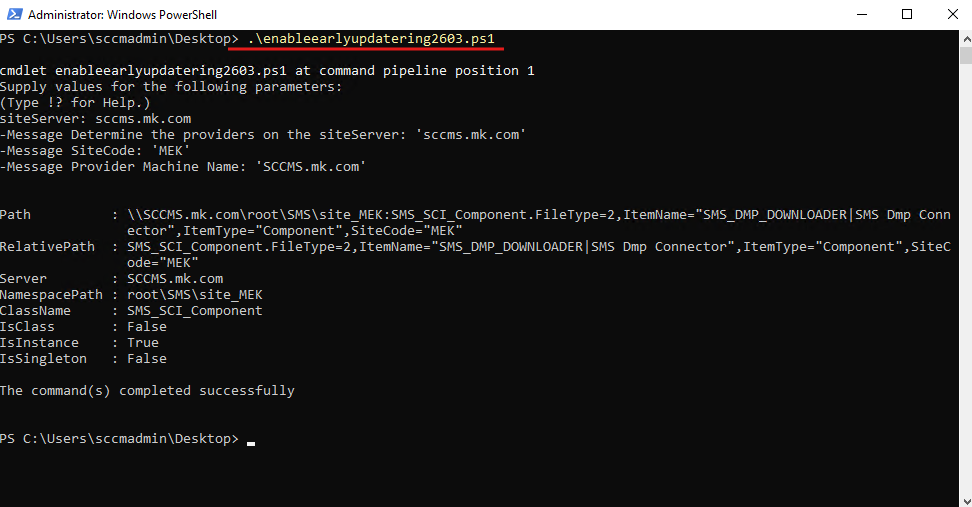
Run Microsoft’s enableearlyupdatering2603.ps1 script on the site server with administrator privileges. The script automatically detects the site server and site code, then updates the SMS_SCI_Component record to enroll your site.
PS C:\Users\sccmadmin\Desktop> .\enableearlyupdatering2603.ps1

cmdlet enableearlyupdatering2603.ps1 at command pipeline position 1
Supply values for the following parameters:
siteServer: sccms.mk.com

-Message SiteCode: 'MEK'
-Message Provider Machine Name: 'SCCMS.mk.com'

ClassName   : SMS_SCI_Component
IsInstance  : True

The command(s) completed successfully
| How long until the update appears? |
| After the script runs, it can take 10 to 15 minutes for the update to show up in the console. Click “Check for updates” or restart the SMS_DMP_DOWNLOADER component to speed things up. |
Step 2 – Confirm 2603 Appears in the Console
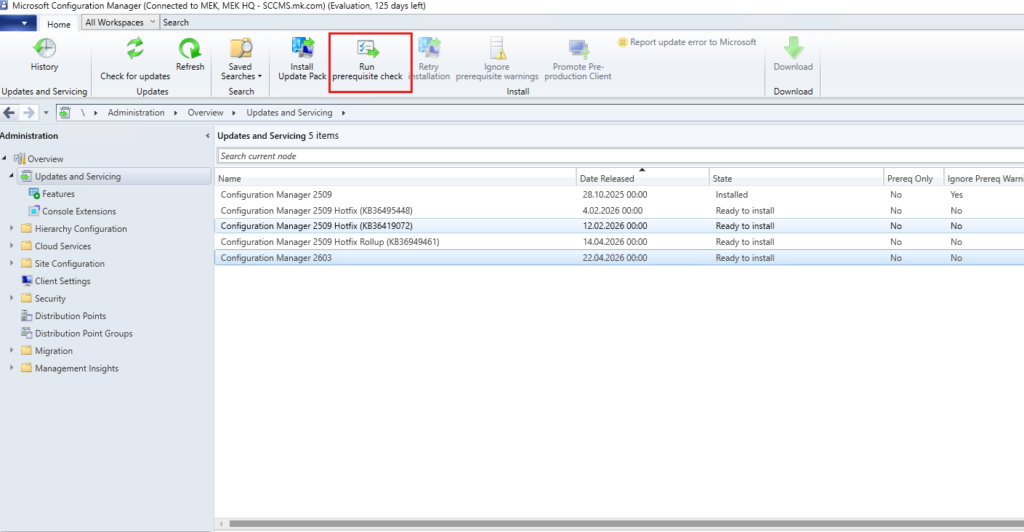
Once the script has processed, go to Administration → Updates and Servicing in the console. You should see Configuration Manager 2603 listed with a status of Ready to install
Step 3 – Run the Prerequisite Check
With 2603 selected, click Run prerequisite check in the toolbar. Do not skip this. One of 2603’s improvements is exactly here catching problems before they become mid-installation failures
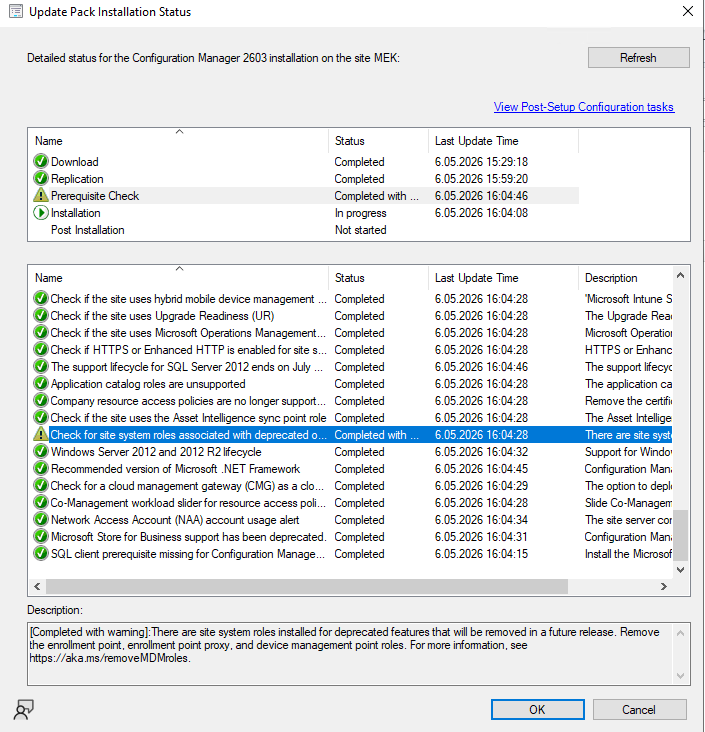
Prerequisite check results. Items marked “Completed with warning” should be reviewed. Read the Description field for each one before proceeding.
| What was the warning in this example? |
| “Check for site system roles associated with deprecated features” the hierarchy has enrollment point, enrollment point proxy, and device management point roles installed. These will be removed in a future release. In production, clean them up. In a lab, you can proceed. |
Step 4 – Launch the Installation Wizard
After reviewing the prerequisite results, click Install Update Pack. The General page of the wizard lists what this update contains. If you only received warnings (not errors) and are satisfied they do not affect your environment, you can check “Ignore any prerequisite check warnings and install this update regardless of missing requirements“ to proceed.
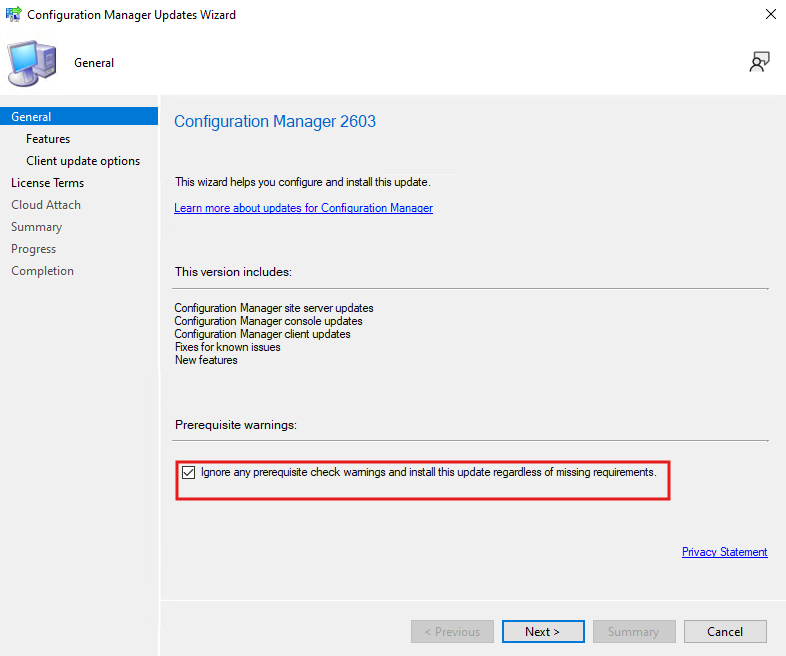
The “Ignore prerequisite warnings” checkbox. Note: this does nothing if you have an actual error. Errors must be resolved before installation can proceed.
Step 5 – Choose Your Client Update Strategy
The Client update options page gives you two paths for handling the client package update
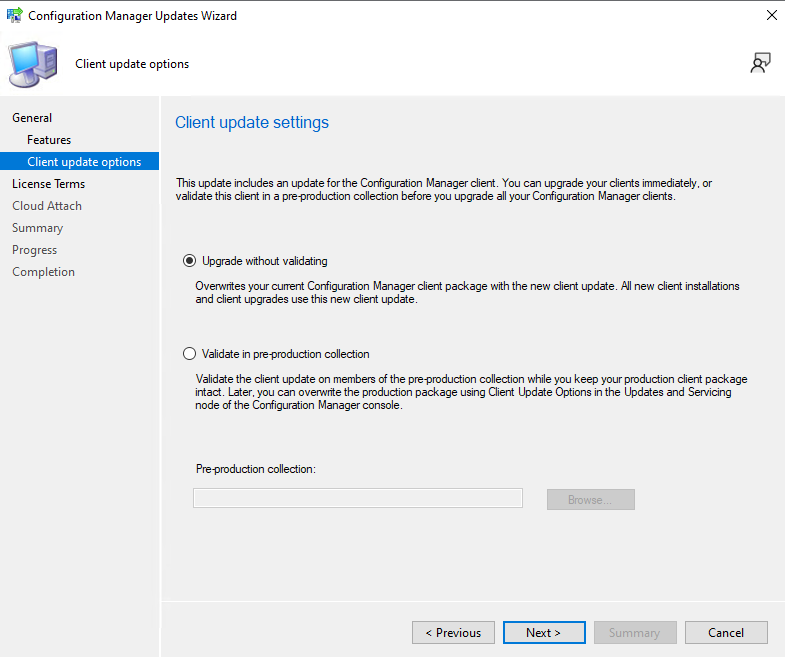
“Validate in pre-production collection” keeps your production client package intact while you test the new version on a smaller group first. This is the recommended approach for production environments.
| Option | What it does | When to use |
| Upgrade without validating | Overwrites the current client package. All new installs and upgrades use the new client immediately. | Lab and test environments |
| Validate in pre-production collection | Production package stays intact. The update applies only to the collection you select. | Production (recommended) |
Step 6 – Configure Cloud Attach
The Cloud Attach page lets you configure whether to upload Microsoft Defender for Endpoint data for reporting on devices uploaded to Microsoft Intune.
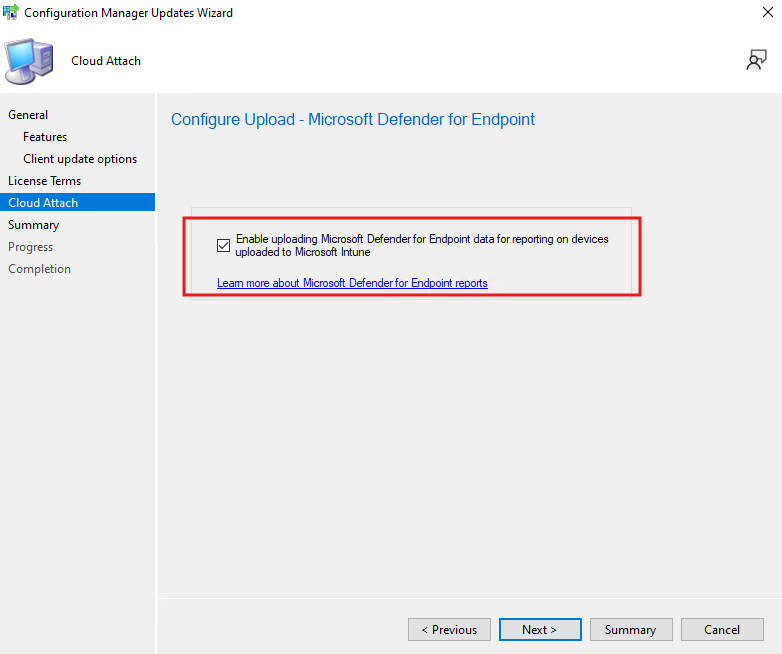
For environments using Tenant Attach or co-management, enabling this option enriches Defender reporting in Intune. If you are not using either, you can leave it disabled.
| This step is optional. If you are not using Tenant Attach or co-management, simply leave the checkbox unchecked and continue. |
Step 7 – Wizard Completes, Installation Runs in Background
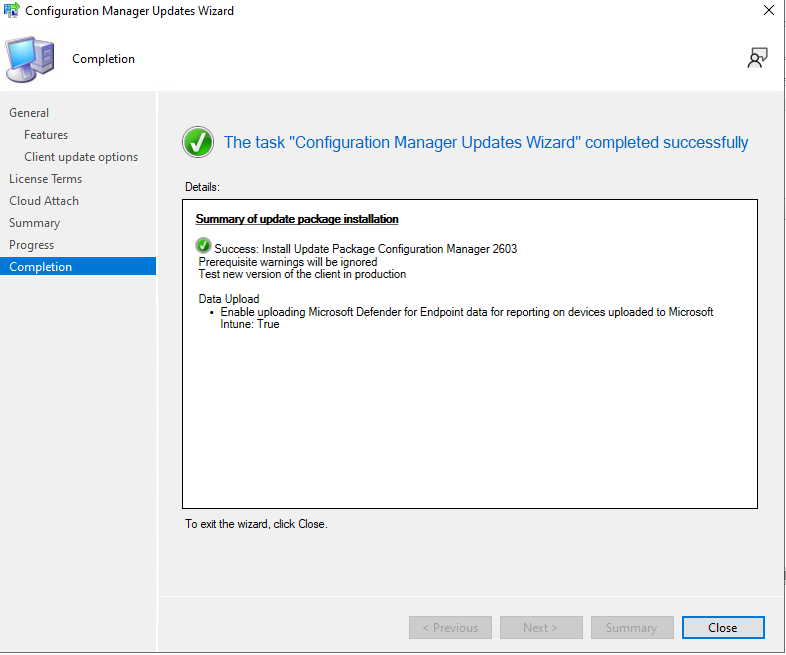
The Completion screen shows a summary of your selections. When you click Close, the wizard exits but the installation continues running in the background. To monitor progress, select the 2603 package in Updates and Servicing and open the Installation Status window. You can watch each phase Download, Replication, Prerequisite Check, Installation, Post Installation in real time.
Step 8 – Update the Console Immediately
Once the site server finishes upgrading to 2603, if you continue using the old console you will see a yellow warning banner across the top.

A new version of the console is available (5.2603.1035.1000). Working in the old console (5.2509.1036.1200) might corrupt data.”
| Update the console right away. |
| Running an old console against a newer site server can corrupt data. Click “Install the new console version” in the warning banner and complete the update before doing anything else. |
Step 9 – Verify the Version
After the console update completes, open Help → About Microsoft Configuration Manager and confirm the version numbers match what is expected:
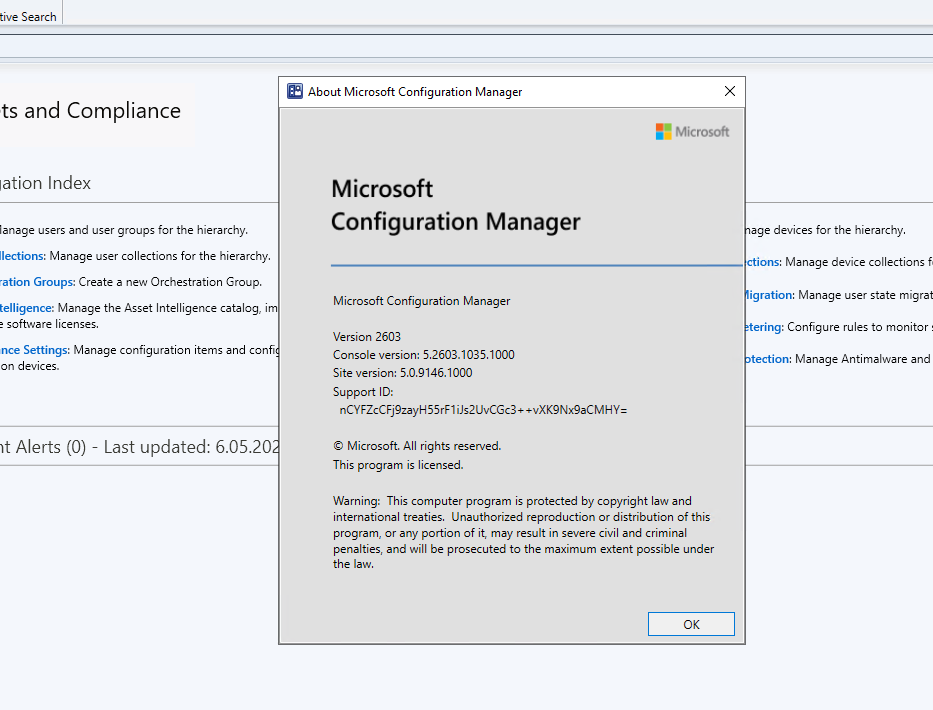
Expected values after a successful upgrade to 2603.
| Component | Expected Value |
| Configuration Manager Version | 2603 |
| Console version | 5.2603.1035.1000 |
| Site version | 5.0.9146.1000 |
| Upgrade complete. |
| Site server, console, and clients (based on the strategy you chose) are now on version 2603. |
Summary
As for the release itself: 2603 is not a feature release, but it is a consequential one for production environments. The security hardening work, the stronger prerequisite checks, the co-management stability improvements, and the hotfix rollup together make this a release that is genuinely worth prioritizing for organizations running SCCM at scale.
| Looking ahead: annual release model |
| 2603 is the last update before Microsoft shifts ConfigMgr to a yearly release cadence. Version 2609 will be the first annual release. This change should make servicing planning more predictable, so it is worth factoring into your upgrade roadmap. |
Source : https://learn.microsoft.com/en-us/intune/configmgr/core/servers/manage/checklist-for-installing-update-2603