
Secure Boot Certificate Update Issues in Windows 11 : How to Detect and Fix with Intune
The Secure Boot certificate infrastructure protecting Windows devices since 2011 is being replaced. The new Secure Boot 2023 certificates must be present in the UEFI database on managed Windows 11 devices before June 2026. After that point, devices that have not completed the migration may fail to receive future Secure Boot-related security updates correctly.
The challenge is that installing the May 2026 cumulative update does not guarantee the migration actually completed. Some devices stall mid-process waiting for a reboot. Others never receive the automatic trigger because Microsoft’s telemetry-gated rollout skips systems it cannot classify as high confidence. In co-managed environments, the same device can appear healthy in both Intune and SCCM while the actual UEFI certificate database remains unchanged.
This post walks through a production-ready Secure Boot CA 2023 detection and remediation workflow using Intune Remediations. The solution includes two PowerShell scripts, a six-state compliance model, day-based restart notifications, UEFI database validation, and a verification checklist for real-world deployments.
This part focuses on the Intune implementation. SCCM Configuration Baseline and co-managed deployment scenarios will be covered separately in the next part.
Scope: Windows 11 devices with Secure Boot enabled, managed through Intune or co-management with the Compliance workload moved to Intune. Windows 10 scenarios require separate servicing and validation considerations and are outside the scope of this guide.
How the Secure Boot Certificate Update Works
Windows uses a registry-triggered servicing workflow, not a standard update package. When HKLM:\SYSTEM\CurrentControlSet\Control\SecureBoot\AvailableUpdates is set to 0x5944, Windows triggers the built-in scheduled task:
\Microsoft\Windows\PI\Secure-Boot-UpdateThe task runs approximately every 12 hours and applies the Secure Boot certificate changes across one or two reboots.
HKLM:\SYSTEM\CurrentControlSet\Control\SecureBoot\Servicing
  UEFICA2023Status          → NotStarted | InProgress | Updated
  WindowsUEFICA2023Capable  → 0 | 1 | 2
The problem with using only these registry values for compliance detection: UEFICA2023Status = Updated tells you the servicing workflow thinks it completed not that the certificate is actually in the UEFI database. Firmware write failures and mid-reboot interruptions can leave the registry showing Updated while the UEFI DB is unchanged.
The detection script handles this with two layers. Layer 1 reads the registry. Layer 2 calls Get-SecureBootUEFI to verify the Microsoft Windows Production PCA 2023 thumbprint is actually present in the UEFI Signature Database. Only when both pass does the device reach Compliant.
Compliance State Model
Rather than treating devices as simply compliant or non-compliant, the workflow uses six operational states that map directly to remediation and escalation actions.
| State | Exit | Event ID | Action |
| Compliant | 0 | 1000 | Nothing to do |
| PendingRemediation | 1 | 1001 | Remediation script runs |
| PendingRestart | 1 | 1002 | Toast notification sent |
| Failed | 1 | 1003 | Escalate stuck 7+ days |
| ManualReview | 1 | 1004 | OEM firmware investigation |
| NotApplicable | 0 | 1005 | Secure Boot disabled out of scope |
Every detection run writes one of these events to the Windows Application log under source SecureBootCA2023. This makes the states queryable via CMPivot and Log Analytics without parsing log files.
Detection and Remediation Scripts
Both scripts run as SYSTEM in 64-bit PowerShell. Running in a 64-bit process is mandatory because Secure Boot servicing registry paths can return incomplete or misleading results when accessed from a 32-bit PowerShell host.
Detection Script
The detection script is completely read-only. It evaluates state, writes operational events, and exits. It never modifies the registry or triggers remediation actions.
Detection workflow
- Confirm the script is running in a 64-bit process
- Confirm Secure Boot is enabled
- If disabled →
NotApplicable(exit 0)
- If disabled →
- Layer 1 -Validate servicing state from the registry
NotStarted→PendingRemediation(exit 1)InProgress+ timestamp < 7 days →PendingRestart(exit 1)InProgress+ timestamp ≥ 7 days →Failed(exit 1)Updated+Capable ≠ 2→ManualReview(exit 1)Updated+Capable = 2→ continue to Layer 2
- Layer 2 – Validate the UEFI DB directly
- Call
Get-SecureBootUEFI -Name "db" - Scan for the Microsoft Windows Production PCA 2023 thumbprint
- Call
Results:
- Thumbprint found →
Compliant(exit 0) - Thumbprint missing →
ManualReview(exit 1) - Cmdlet unavailable → fallback to Layer 1 result with validation caveat
The Failed state relies on a RemediationTimestamp registry value written by the remediation script during its first successful run. If detection is deployed before remediation has ever executed, devices in the InProgress state remain in PendingRestart until the timestamp becomes available.
Download Detection Script : Detect-SecureBootCA2023.ps1
Remediation Script
The remediation script does three things and nothing else:
- Sets AvailableUpdates = 0x5944 to trigger the servicing mechanism
- Starts the \Microsoft\Windows\PI\Secure-Boot-Update scheduled task
- Sends a toast notification to the logged-on user
No forced reboots are used. Restart control stays with the user to avoid disrupting active sessions and production workload
Day-based notification tiers
The script tracks state across runs using three registry values it writes itself:
| Registry Value | Purpose |
| RemediationTimestamp | Written once on first run — anchor for day calculations |
| RemediationAttemptCount | Incremented on every run |
| LastNotificationDay | Tracks which notification tier was last sent |
This is what drives the escalating notification experience:
| Day | Tone | Toast Actions |
| Day 1 | Informational | Restart Now / Remind Me Later |
| Day 3 | Reminder | Restart Now / Remind Me Later |
| Day 5 | Urgent (persistent banner) | Restart Now / I Understand |
| Day 7+ | IT Escalation (persistent banner) | Restart Now / Contact IT Support |
Each tier fires exactly once. The script compares DaysSinceFirstRun against LastNotificationDay to determine whether a notification is due on each run.
Sending Notifications from SYSTEM Context
Intune runs scripts as SYSTEM, which has no access to the user’s desktop. The script creates a temporary scheduled task under the logged-on user’s SID, runs the toast code in that context, waits five seconds, and removes the task. If no user is logged on, the notification is skipped and fires on the next scheduled run.
Download Remediation Script : Remediate-SecureBootCA2023.ps1
Why Not Use Settings Catalog?
Intune Settings Catalog includes a Secure Boot policy node, but it introduces reliability problems in mixed-edition environments. Devices originally deployed as Windows Pro and later upgraded to Enterprise through subscription activation can return Error 65000 through the CSP layer. The policy itself may apply successfully, but the compliance signal becomes unreliable.
In fleets containing a mix of Windows Pro and Enterprise licensing states which is common in real-world environments this creates inconsistent reporting with no dependable way to dynamically target only unaffected devices.
The script-based remediation approach avoids the CSP dependency entirely and behaves consistently across supported Windows 11 editions.
Creating the Package
Navigate to Devices > Remediations > Create.
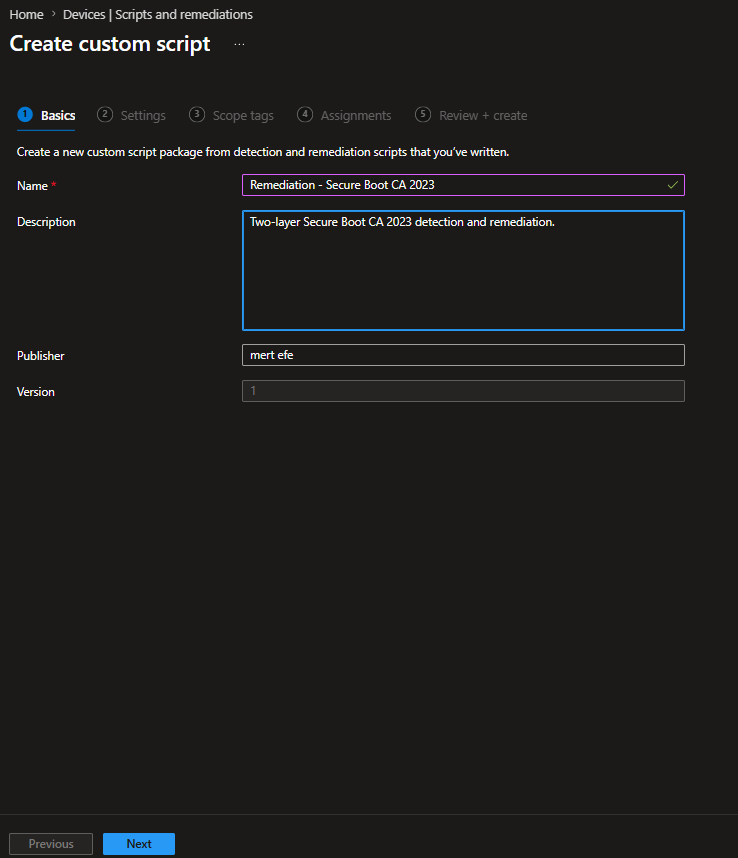
Basics tab
| Field | Value |
| Name | Remediation – Secure Boot CA 2023 |
| Description | Two-layer Secure Boot CA 2023 detection and remediation. |
| Publisher | Your organisation |
| Version | 2.0 |
Settings tab
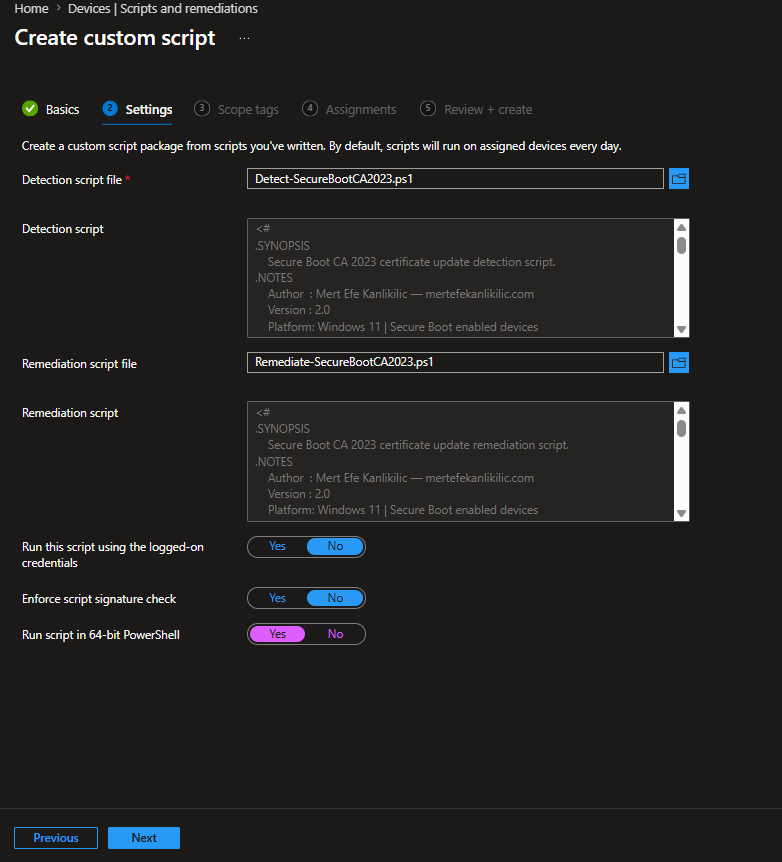
| Field | Value |
| Detection script | Upload Detect-SecureBootCA2023.ps1 |
| Remediation script | Upload Remediate-SecureBootCA2023.ps1 |
| Run using logged-on credentials | No |
| Enforce script signature check | No |
| Run script in 64-bit PowerShell | Yes ← do not miss this |
Assignments
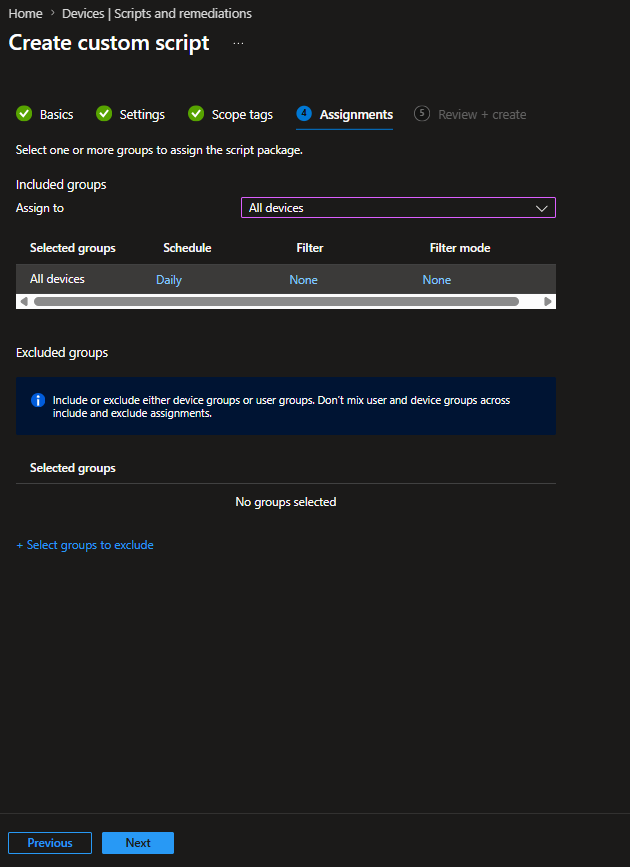
Target group: Create or use a group containing your Intune-managed Windows 11 devices. For co-managed environments, target devices where the Compliance workload is assigned to Intune.
Dynamic group rule for Intune-enrolled devices:
| (device.deviceManagementAppId -eq “0000000a-0000-0000-c000-000000000000”) |
Schedule: Daily. The detection script on a compliant device completes in under three seconds daily evaluation is not a performance concern.
Verifying It Works
Before broad deployment, validate on a single test device. Four things to check.
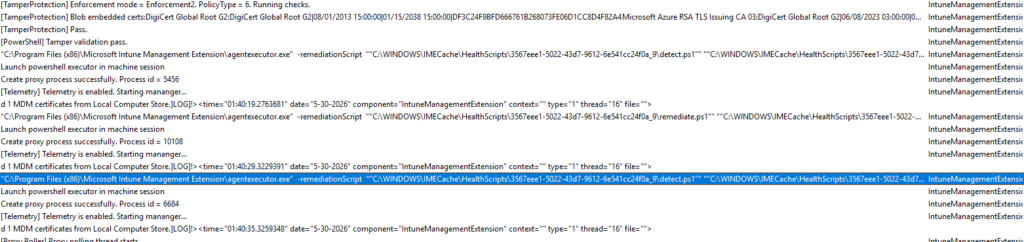
1. Intune Management Extension log
%ProgramData%\Microsoft\IntuneManagementExtension\Logs\IntuneManagementExtension.log
This is where Intune’s execution chain begins. When the remediation schedule triggers, the IME invokes agentexecutor.exe with the detection script first, then the remediation script if detection returns exit code 1. The scripts are cached locally under C:\WINDOWS\IMECache\HealthScripts\ with a GUID-based folder name that maps to your remediation package in the portal.
2. Script log files
%ProgramData%\Microsoft\IntuneManagementExtension\Logs\SecureBoot-Detection.log
%ProgramData%\Microsoft\IntuneManagementExtension\Logs\SecureBoot-Remediation.log
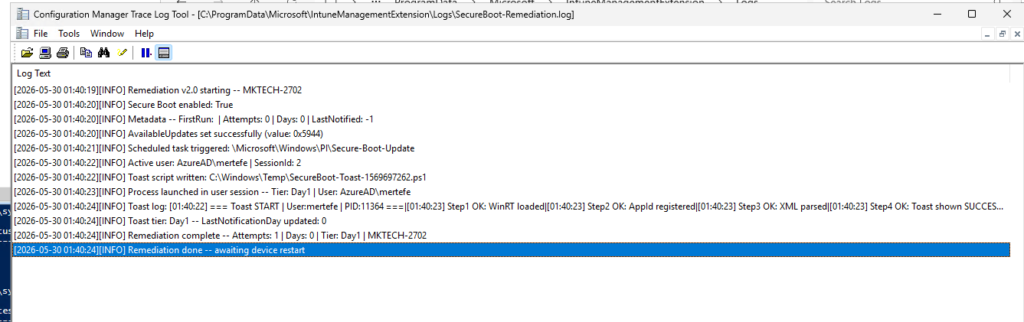
The remediation log confirms the critical sequence: AvailableUpdates set to 0x5944, scheduled task \Microsoft\Windows\PI\Secure-Boot-Update triggered, user session identified, and toast notification dispatched.
3. Toast notification
The notification arrives in the logged-on user’s session without any interaction from SYSTEM context. On Day 1 the tone is informational. The user sees two options and keeps control of when they restart.
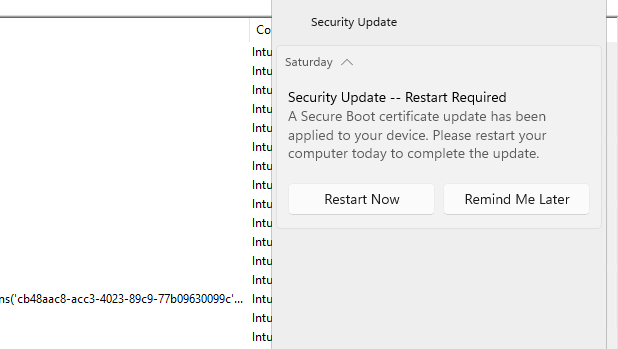
This is delivered via WTSQueryUserToken and CreateProcessAsUser rather than a scheduled task. The scheduled task approach fails silently on Entra ID joined devices because Windows Task Scheduler cannot resolve S-1-12-1-* cloud SIDs to an active logon session. The Win32 session token approach works consistently across domain-joined, Entra ID joined, and hybrid configurations.
4. Registry state
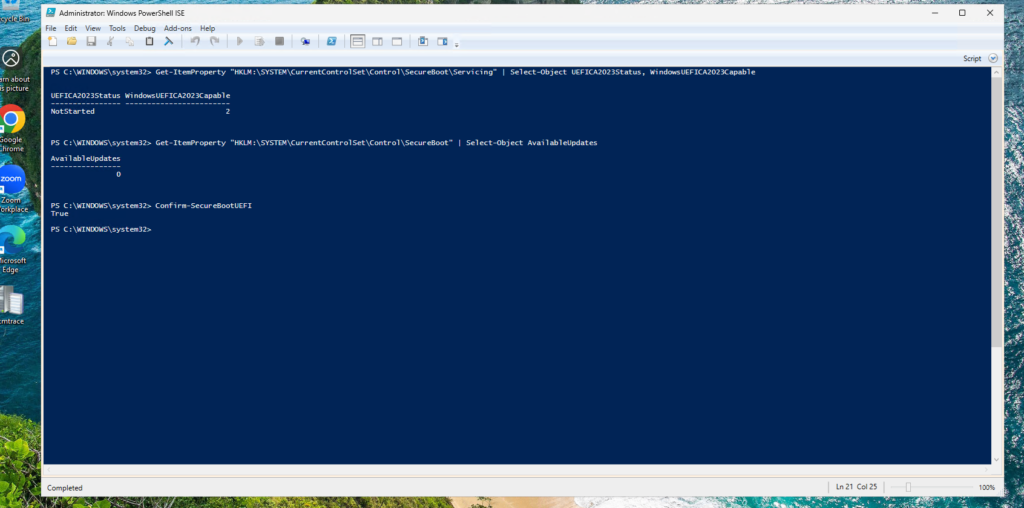
Before remediation runs, the device shows the unmodified state:
UEFICA2023Status = NotStarted
WindowsUEFICA2023Capable = 2
AvailableUpdates = 0
After remediation and restart, the servicing workflow has completed:
UEFICA2023Status = Updated
WindowsUEFICA2023Capable = 2
AvailableUpdates = 16384
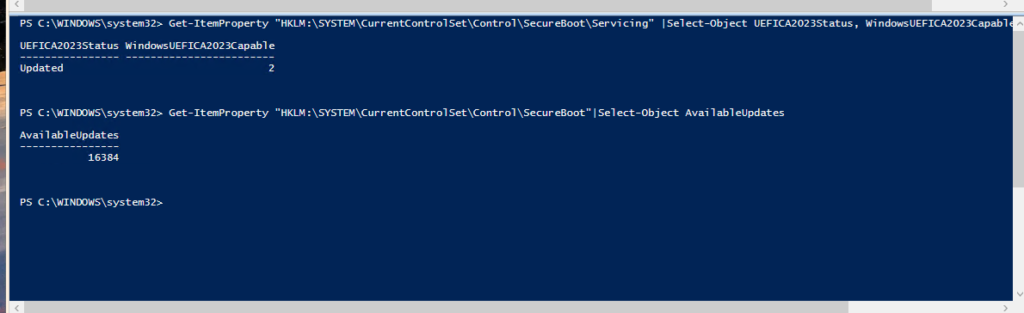
AvailableUpdates = 16384 (0x4000) is written by Windows itself after the servicing task completes it replaces the 0x5944 trigger value the remediation script sets. Seeing this value means Windows processed the update, not just that the script ran
5. Windows Event Log
Event Viewer → Windows Logs → Application → Filter by Source: SecureBootCA2023
The detection script writes a structured event on every run. The progression on a device that goes through the full workflow:
| Event ID | State | When |
| 1001 | PendingRemediation | First detection run, update not started |
| 1002 | PendingRestart | After remediation runs, before restart |
| 1000 | Compliant | After restart, both layers pass |
Monitoring in the Intune Portal
Navigate to Devices → Remediations → Remediation Secure Boot CA 2023 → Device status.
The Pre-remediation detection output column shows the state string from the detection script for each device. This is your operational view you can see at a glance which devices are PendingRestart (one reboot away) versus ManualReview (need OEM investigation).
For a closer look at specific states, export the device list as a CSV from the portal and filter by the Pre-remediation detection output column
Closing
At this point you have a Remediation package deployed, a test device verified, and a clear view of what each compliance state means operationally. The detection script runs daily, the remediation fires when needed, and users get a notification that escalates if they keep ignoring it without anything being forced on them silently.
A few things to keep in mind as you roll this out more broadly:
The devices that end up in ManualReview after a few days are not a script failure they are a firmware problem the script correctly identified and cannot fix. Track them separately and handle them through OEM support or a hardware refresh cycle.
The devices that stay in PendingRestart for a long time are a user behaviour problem, not a technical one. If Day 7 notifications are not moving them, that is a conversation for your end-user communication plan, not a script change.
And if you see a device flip from Compliant back to a non-compliant state after a Windows feature update or a BIOS reset, the remediation will re-trigger automatically on the next evaluation cycle. The idempotent design handles regression without any manual intervention.
| Part 2 → Deploying the same scripts through SCCM Configuration Items and Baselines collection design, the co-management “Always apply” setting, and DCMAgent.log verification. |