How to Build Proactive Windows Endpoint Management with Intune Remediations
Remediations is a feature in Microsoft Intune that lets you run PowerShell scripts on managed devices on a schedule not just to detect problems, but to fix them automatically.
The idea is simple. You write two scripts: one that checks whether something is wrong, and one that fixes it if it is. Intune runs the detection script on the device regularly. If it returns a problem, the remediation script kicks in. No manual intervention, no support ticket, no user impact.
For anyone coming from a Configuration Manager background, think of it as the cloud-native version of Configuration Items and Baselines but with faster feedback and built directly into Intune.
| Requirement | Details |
|---|---|
| Licensing | Windows Enterprise E3 or E5, Education A3 or A5, or Windows VDA per user |
| Device join type | Microsoft Entra joined or Hybrid Entra joined |
| Management | Intune-managed |
| Supported editions | Windows Enterprise, Professional, or Education |
| Co-management | Supported |
| Script package limit | Maximum 200 per tenant |
Microsoft 365 Business Premium does not include Remediations. Intune Plan 1 standalone does not include it either.
Enabling Remediations in Your Tenant
Before creating any script package, two tenant-level settings need to be enabled. Without them, the + Create button on the Remediations page stays greyed out.
Navigate to Intune admin center > Tenant administration > Connectors and tokens > Windows data
Enable both toggles:
- Enable features that require Windows diagnostic data in processor configuration — required for Remediations and other Endpoint Analytics features to function
- I confirm that my tenant owns one of these licenses — this is the licensing acknowledgement; script packages cannot be created without it
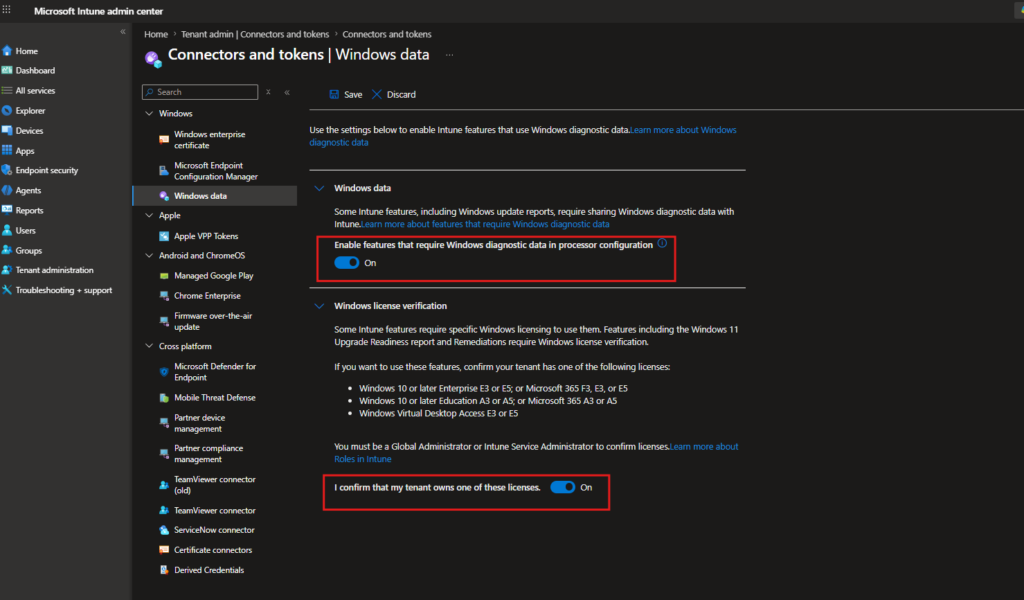
Save the changes, then go to Devices > Scripts and remediations > Remediations
If the tenant settings are not yet enabled, you will see a blue warning banner: “Use of remediations requires Windows license verification to be enabled.”
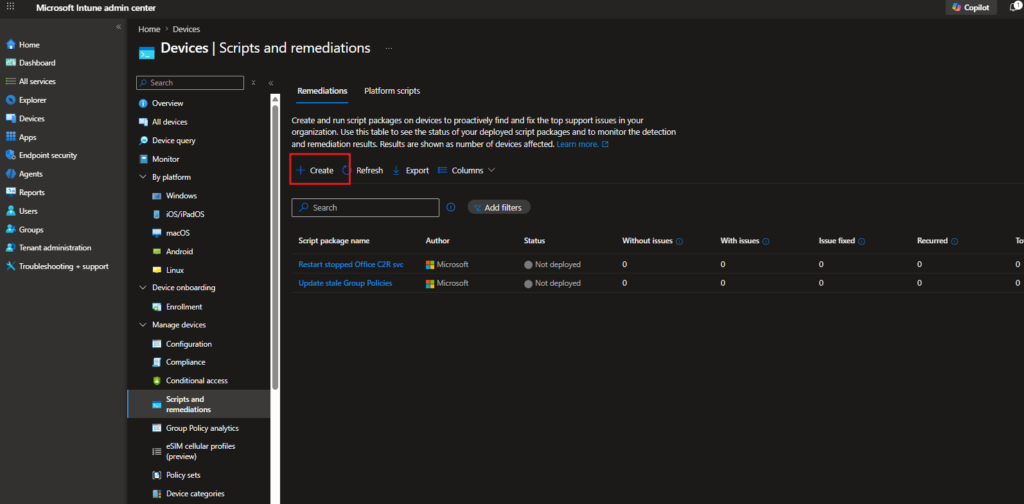
Once both toggles are saved, the banner disappears and + Create becomes active.
To keep things practical, I will walk through three scenarios that come up regularly in real environments:
- Windows Update Health & Drift Control — detecting and fixing a broken update stack before devices drift out of compliance
- Win32 App Detection & Auto Remediation — catching missing or corrupted application files and triggering an automatic reinstall
- Intune Management Extension (IME) Health Fix — keeping the IME itself healthy so the management channel never goes silent
Windows Update Health & Drift Control
One of the most common issues in enterprise environments is Windows Update silently breaking services stop, the update stack gets stuck, and devices start drifting out of compliance. Users rarely notice until something else goes wrong. This is a perfect fit for Remediations.
What this script package does:
The detection script checks three things on every run: whether the Windows Update service (wuauserv), Background Intelligent Transfer Service (BITS), and Update Orchestrator Service (UsoSvc) are running with the correct startup types, and how many days have passed since the last successful Windows Update scan. If any service is stopped or misconfigured, or if the device has gone too long without a successful update scan, the script returns exit 1 and triggers remediation. If everything looks healthy, it returns exit 0 and nothing happens.
The remediation script sets all three services back to their correct startup types and restarts them if needed, then clears the update scan flag to force a fresh check.
PowerShell Gallery links:
Creating the Script Package
Navigate to Devices > Scripts and remediations > Remediations and click + Create.
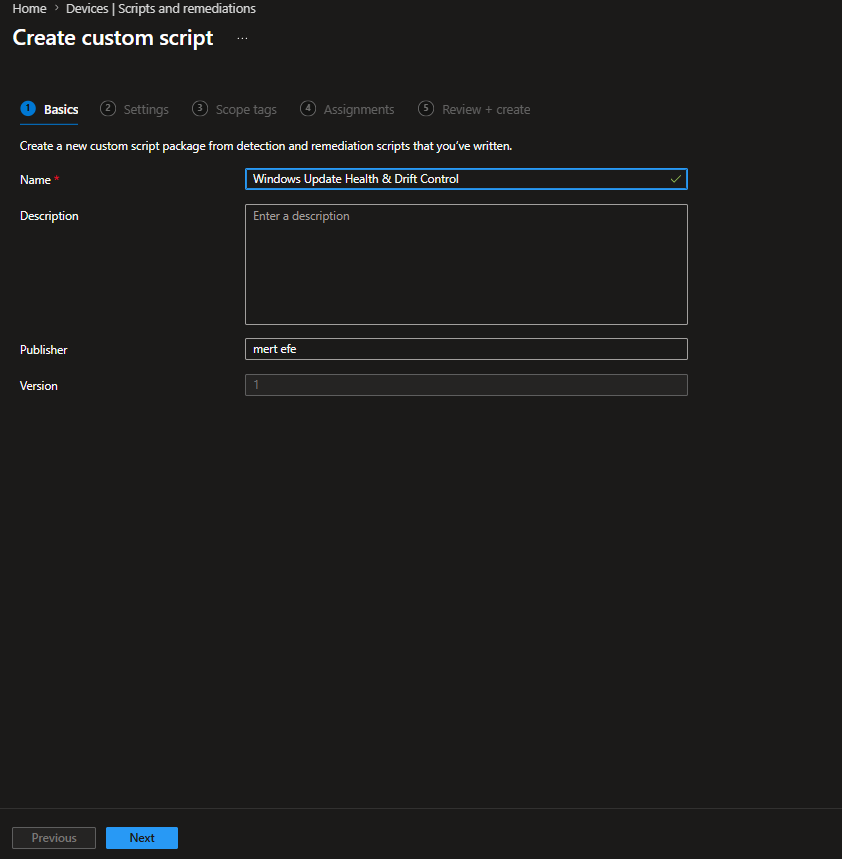
On the Basics tab, give the package a name. Something descriptive works well here Windows Update Health & Drift Control tells you exactly what it does when you come back to it six months later.
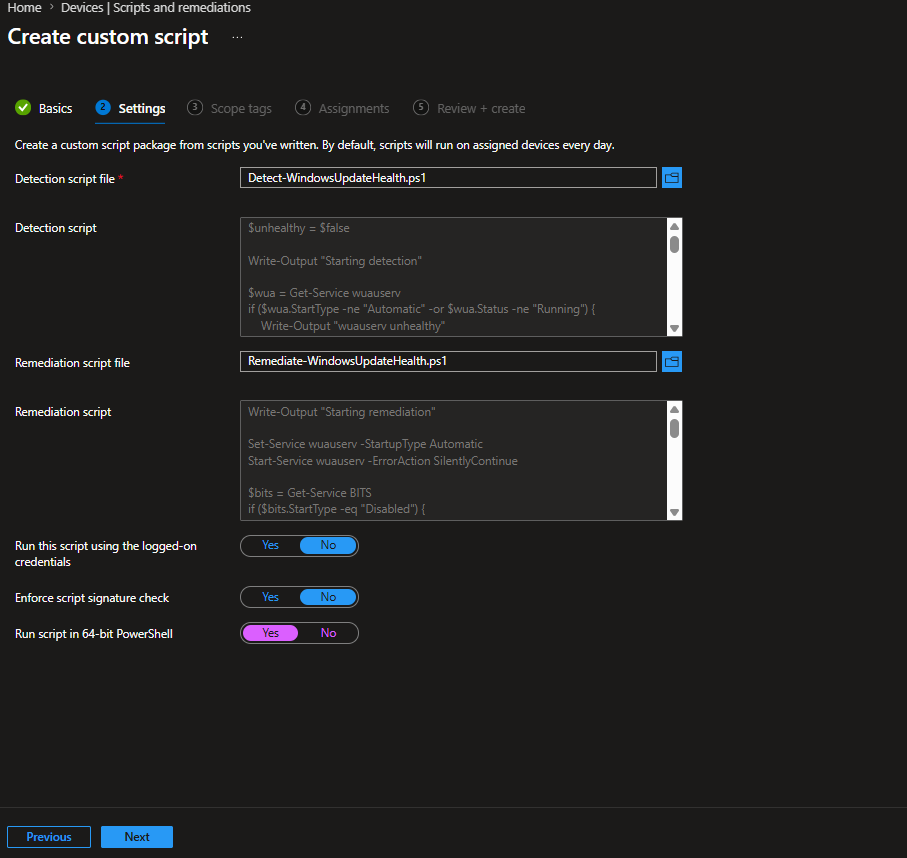
On the Settings tab, upload your detection and remediation script files. Three options to pay attention to at the bottom:
- Run this script using the logged-on user credentials > No — these scripts need to interact with services and the update stack, so they must run as SYSTEM
- Enforce script signature check > No — unless your organisation enforces script signing policy
- Run script in 64-bit PowerShell > Yes — always use 64-bit for service management scripts to avoid WOW64 redirection issues
On the Assignments tab, assign to your target group. Click the Schedule link next to the assigned group to set the run frequency. The available options are Once, Hourly, and Daily. For an update health check, Daily is the right choice set a time that works for your environment and optionally enable Use UTC to keep timing consistent across time zones.
Putting It to the Test
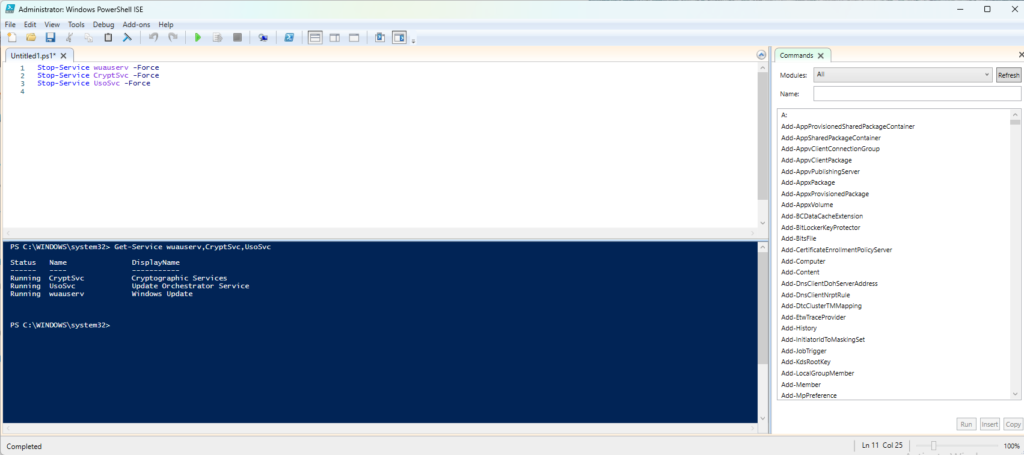
To verify the logic works end to end, I needed a controlled way to trigger the detection. Windows Update uses several background services to function stopping a few of them manually is a straightforward way to simulate the kind of drift this script is designed to catch.
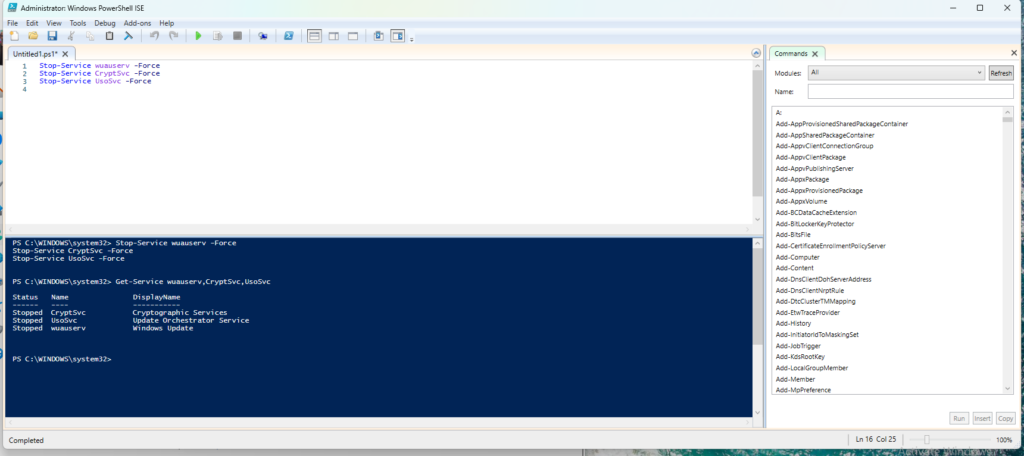
With the services down, the detection script will return exit 1 on its next run, which triggers the remediation script. The remediation brings the services back up.
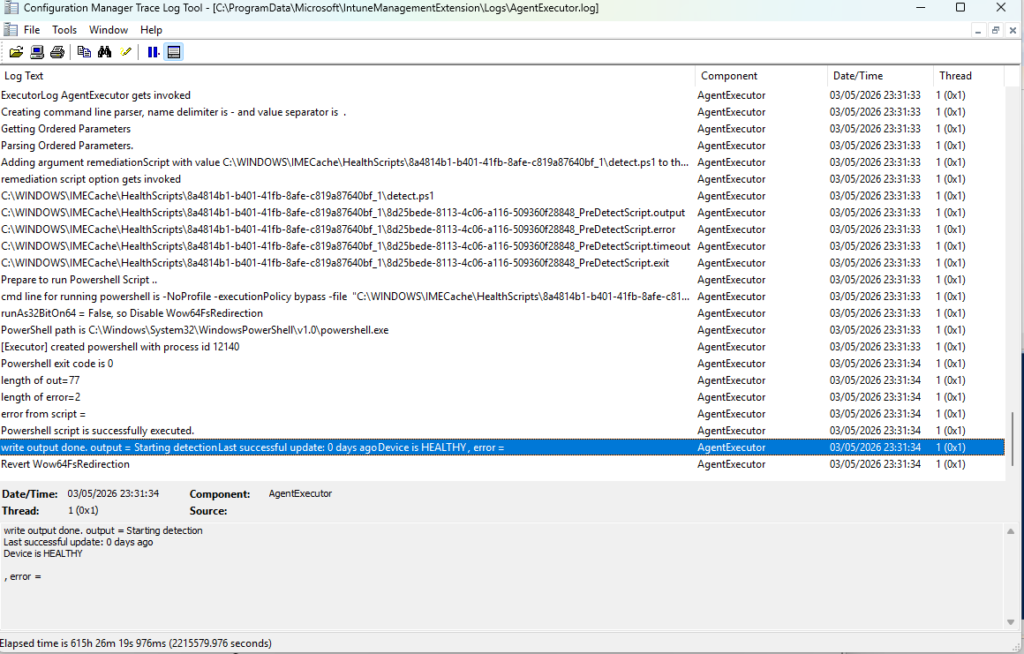
The AgentExecutor log at C:\ProgramData\Microsoft\IntuneManagementExtension\Logs\AgentExecutor.log confirms everything happened as expected. The highlighted line shows the detection output: Starting detection, Last successful update: 0 days ago, Device is HEALTHY which means the remediation ran successfully and the device passed the post-remediation detection check.
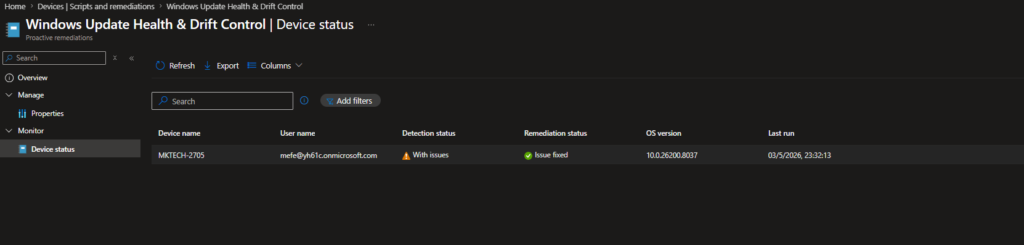
The Result in Intune
Back in the portal, the Device status view tells the full story. The device MKTECH-2705 shows Detection status: With issues (the problem was caught) and Remediation status: Issue fixed automatically, without a support ticket, without anyone touching the device.
Win32 App Detection & Auto Remediation
Win32 app deployments through Intune work well until they don’t. An app might install successfully during initial deployment, but somewhere down the line a user accidentally deletes a file, an update goes wrong, or the installation quietly corrupts. From Intune’s perspective the app was deployed, so no action is taken. From the user’s perspective, the app is broken.
This is where Remediations fills a gap that standard Win32 app deployment leaves open. Instead of waiting for a user to report the issue, the detection script checks whether the application is actually in a healthy state on disk, and if it isn’t, the remediation script reinstalls it automatically.
PowerShell Gallery links:
Creating the Script Package
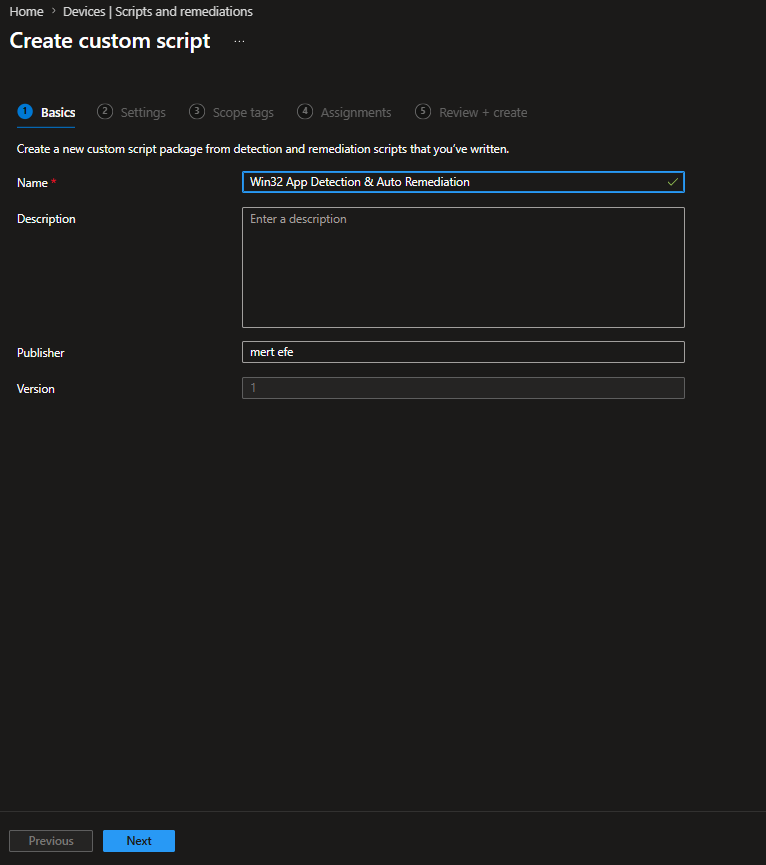
On the Basics tab, give the package a descriptive name. Win32 App Detection & Auto Remediation works well or if you plan to run similar packages for multiple apps, include the app name directly, like 7-Zip Health & Auto Remediation.
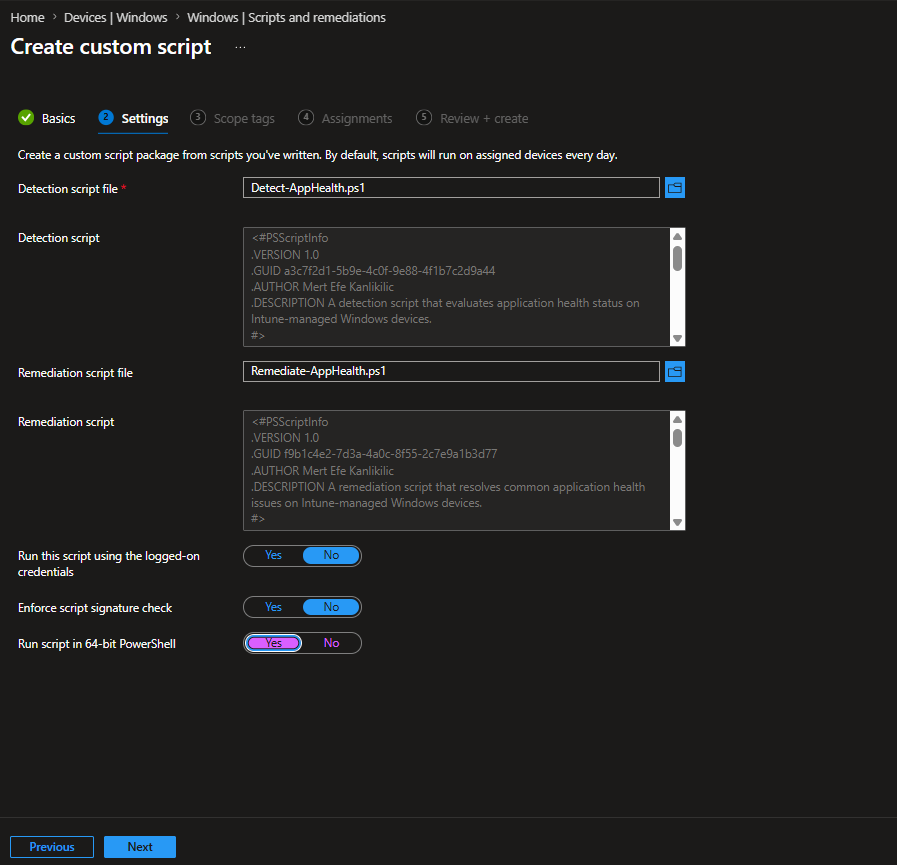
On the Settings tab, upload the detection and remediation scripts. The detection script checks whether 7z.exe exists at the expected installation path. The remediation script triggers a silent reinstall if the file is missing.
- Run this script using the logged-on user credentials > No
- Enforce script signature check > No
- Run script in 64-bit PowerShell > Yes
Putting It to the Test
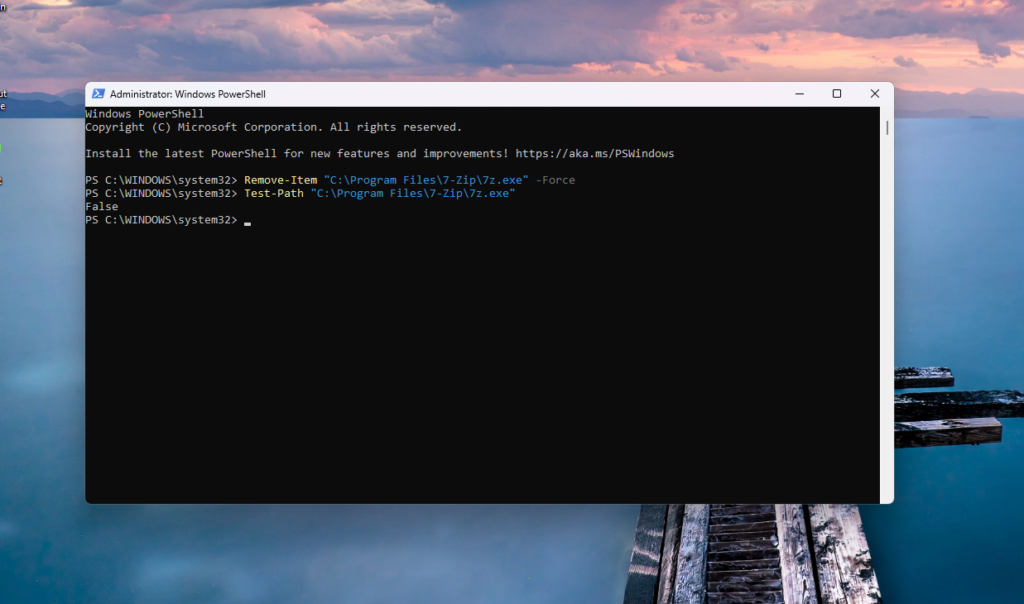
To simulate the problem, I deleted 7-Zip’s executable directly. It sounds dramatic, but this kind of thing happens a user cleans up disk space and removes the wrong file, or a failed update leaves the installation in a broken state.
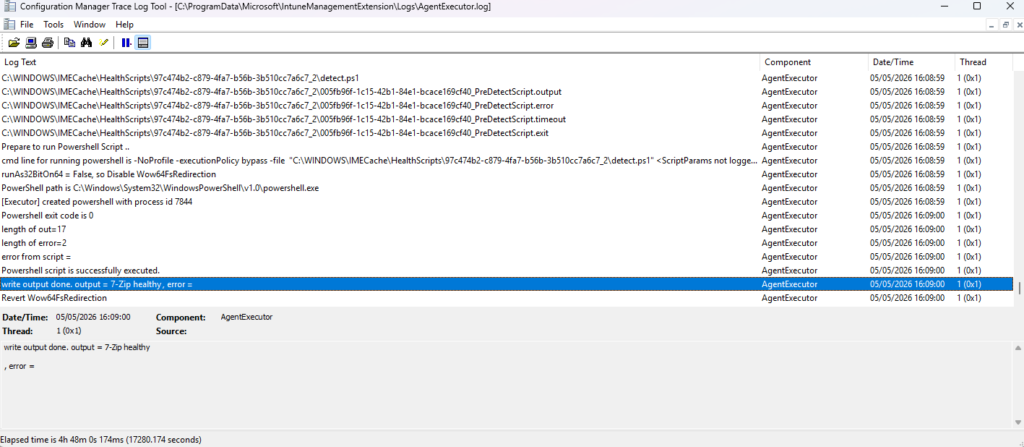
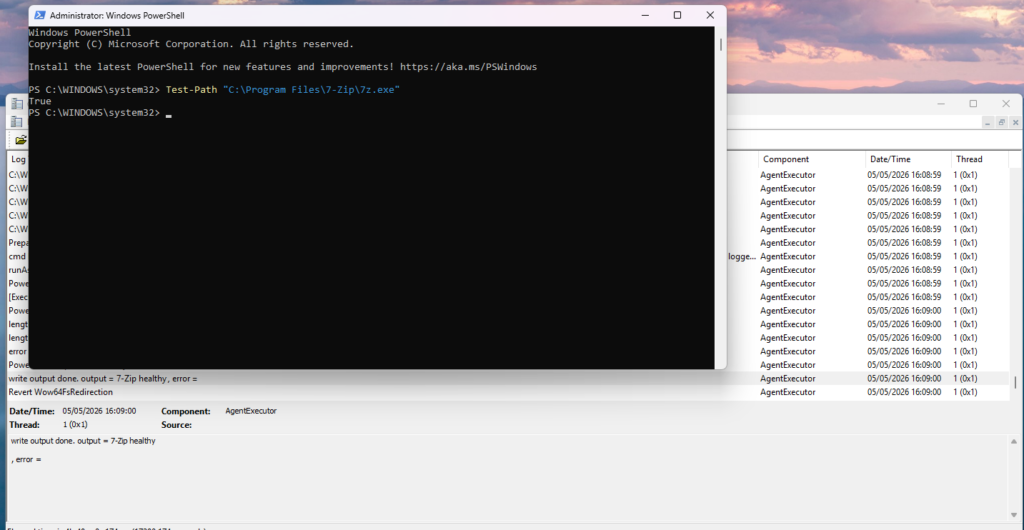
With the file missing, the detection script returns exit 1 on its next run and the remediation kicks in. The AgentExecutor log confirms the detection output: 7-Zip healthy meaning the remediation ran, reinstalled the application, and the post-remediation detection check passed.
A quick Test-Path confirms the file is back where it belong
Why This Matters
The same approach works for any Win32 application you can write a detection condition for a file path, a registry key, a service state, a version check. If the app matters to your users, it is worth having a Remediation watching over it.
Intune Management Extension (IME) Health Fix
There is something almost ironic about this one. The Intune Management Extension is the agent responsible for running Remediations on devices without it, nothing works. Scripts do not run, policies do not apply, reporting goes silent. And because IME issues tend to be subtle rather than catastrophic, they can go unnoticed for a while. The service might still be listed as running while the agent has quietly stopped doing anything useful.
This script package monitors IME’s own health and restarts it when something looks off.
What the detection script checks:
It looks at three things in order. First, whether the IntuneManagementExtension service is actually in a Running state. Second, whether the IME log directory exists at the expected path. Third, whether the logs have been written to within the last two hours. A service can show as Running while the agent has effectively stalled stale logs are often the first sign that something is wrong before any other symptom appears.
If any of these checks fails, the script returns exit 1 and remediation kicks in.
What the remediation script does:
It first attempts a clean service restart. If that succeeds, it exits. If the restart fails for any reason, it falls back to a process-level recovery forcefully stopping the IME process, waiting briefly, then starting the service again. The script also writes its own log to C:\ProgramData\IntuneRemediations\IMEHealth.log, which makes troubleshooting straightforward if the remediation itself needs investigation.
PowerShell Gallery links:
Creating the Script Package
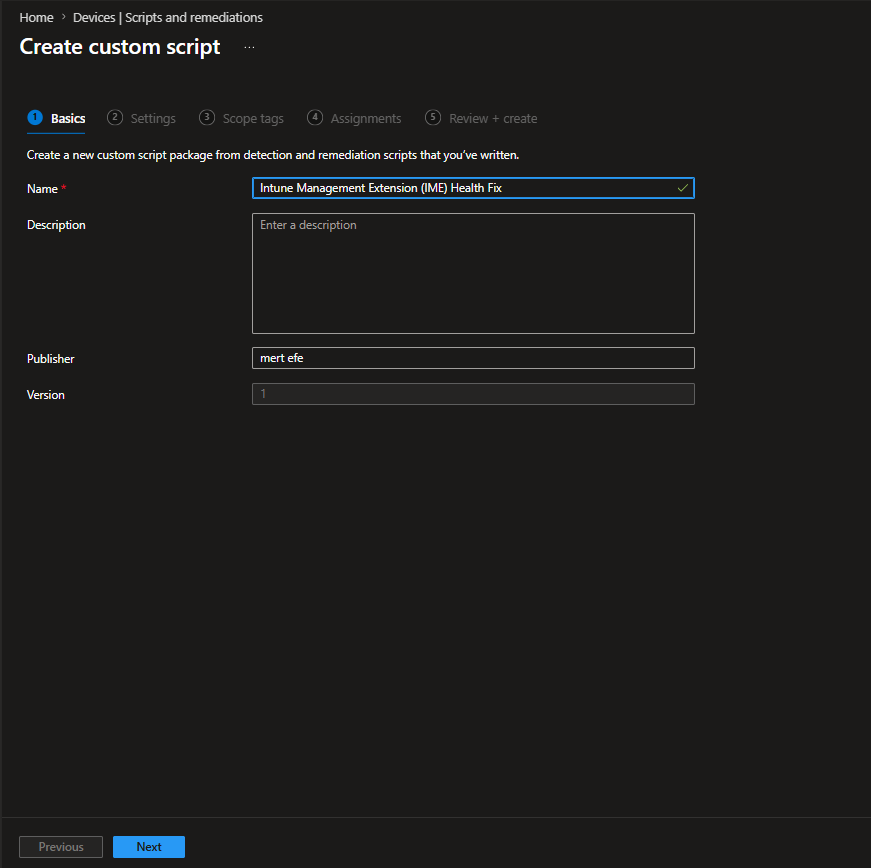
On the Basics tab, name the package Intune Management Extension (IME) Health Fix.
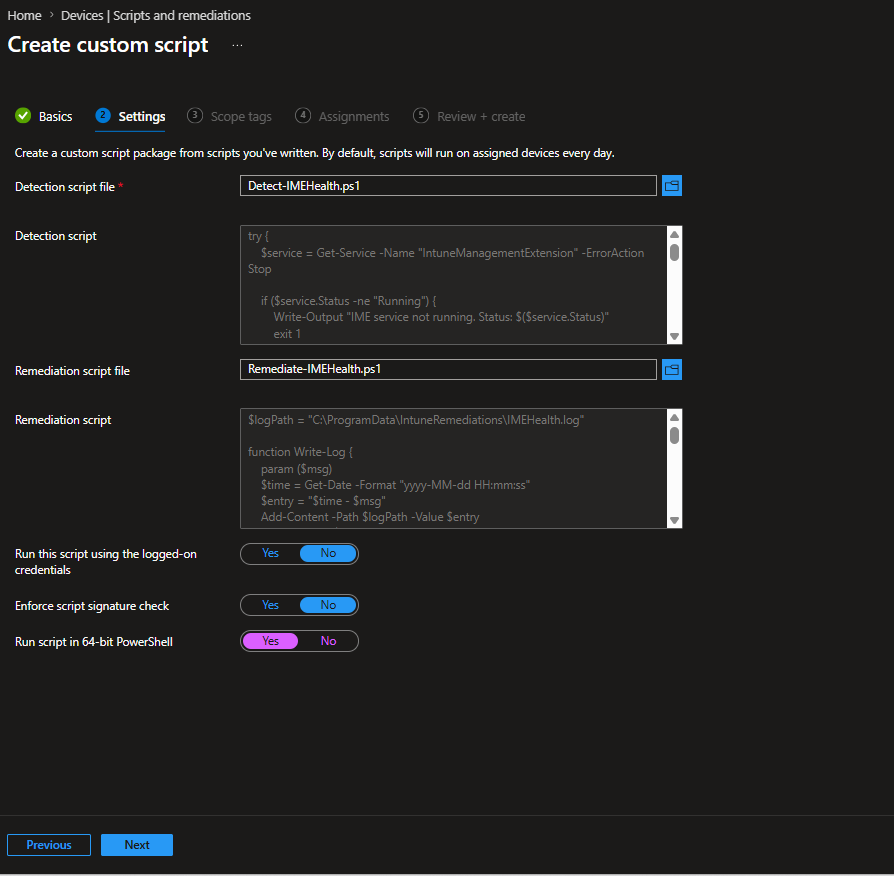
On the Settings tab, upload Detect-IMEHealth.ps1 and Remediate-IMEHealth.ps1.
- Run this script using the logged-on user credentials > No
- Enforce script signature check > No
- Run script in 64-bit PowerShell > Yes
For the schedule, Hourly makes sense here. IME is the backbone of your Intune management on the device catching a stalled agent quickly matters more than it does for most other scenarios.
Putting It to the Test
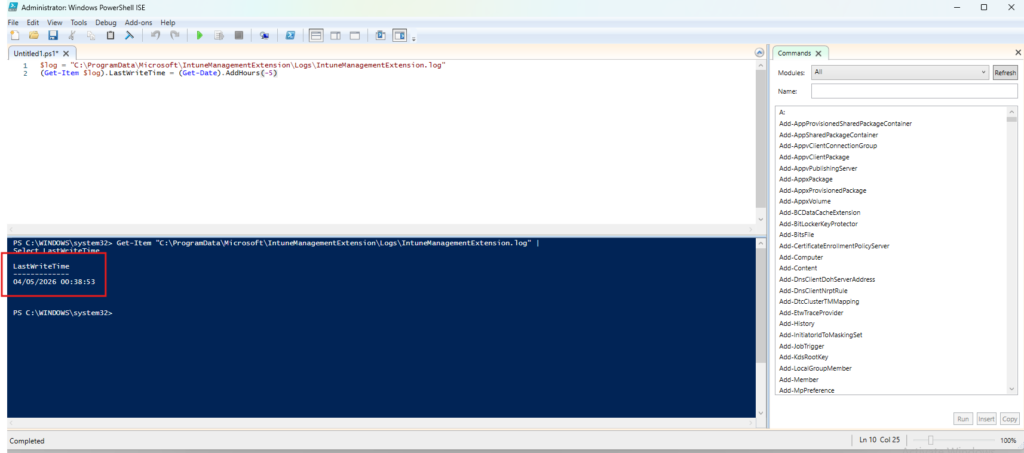
The detection script flags a problem when IME logs have not been written to for more than two hours. To simulate this without actually breaking anything, I rolled back the log file’s last write time by five hours directly in PowerShell.
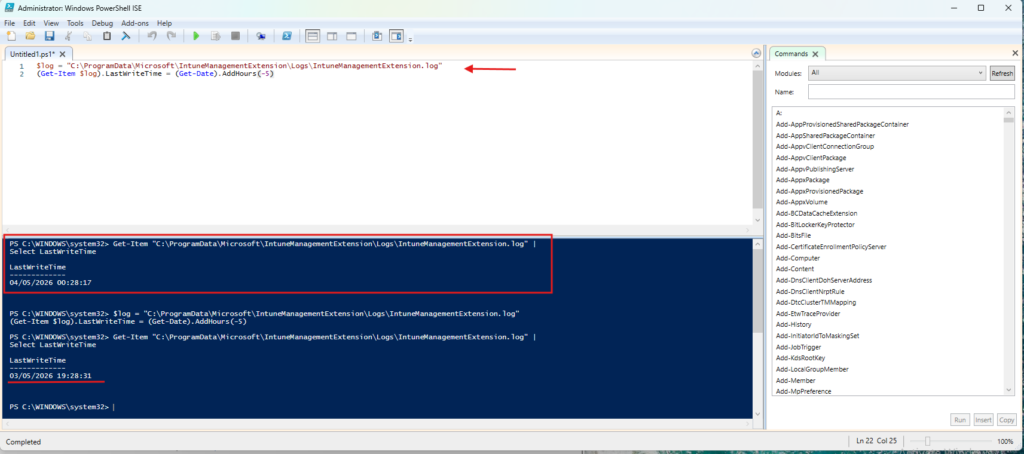
With stale logs in place, the detection script returns exit 1 on its next run and remediation kicks in, restarting the IME service and triggering fresh log activity. The AgentExecutor log confirms the detection ran cleanly and the device came back healthy.
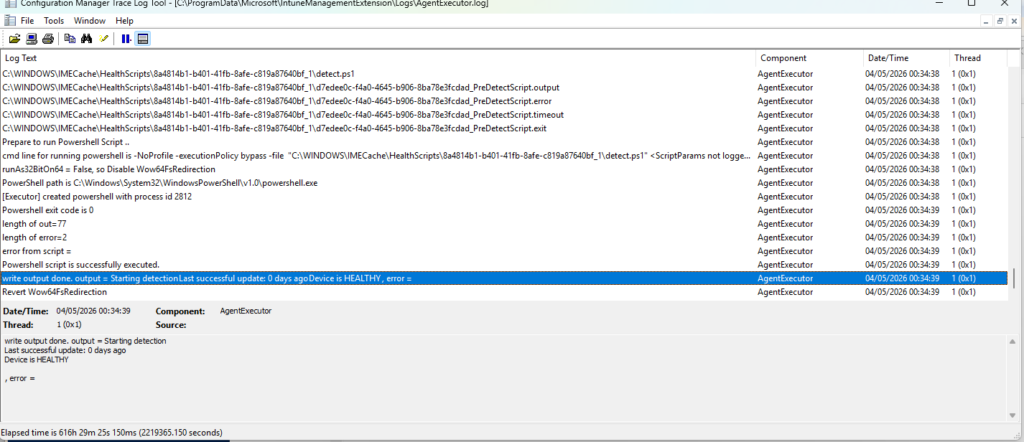
Checking the log file’s LastWriteTime again shows it has been updated and the agent is active again.
Most Remediations fix things users interact with directly. This one operates a layer below keeping the management channel itself healthy. A device where IME has stalled is effectively invisible to Intune, and without something watching for it, that can go undetected for days.
Remediations is one of those features that quietly becomes indispensable once you start using it. The three scenarios in this post are just a starting point the real value shows up when you start bringing your own recurring problems into it.