Secure Boot Certificate Update Issues in Windows 11: How to Detect and Fix with SCCM
This is Part 2 of the Secure Boot CA 2023 series. Part 1 covered the full detection logic, the six-state compliance model, the day-based notification escalation system, and the Intune Remediations implementation. If you have not read Part 1, start there. This part assumes you are familiar with how the scripts work and focuses entirely on delivering them through SCCM.
The remediation logic remains largely identical to Part 1. The detection script was simplified for Configuration Manager because Configuration Item discovery scripts are more restrictive regarding script output additional logging and event log writes that work fine in Intune cause evaluation failures in SCCM. What changes beyond the detection script is the packaging, the delivery mechanism, and how you verify results on the client side.
Scope: Windows 11 devices with the SCCM client installed. In co-managed environments where the Compliance workload remains with SCCM, this is the correct delivery path. If your Compliance workload has already moved to Intune, use Part 1 instead or use both, which is also a valid approach and covered below.
Why SCCM Configuration Baseline
Before getting into the steps, it is worth being explicit about why the Configuration Baseline framework is the right tool here rather than a Compliance Policy, a PowerShell script deployment, or a software package.
Compliance Policies in SCCM evaluate device state and report it, but they do not run scripts. You cannot attach a remediation action to a Compliance Policy rule that executes arbitrary PowerShell. That eliminates them for this scenario.
Script deployments (via Packages or Applications) run once and move on. They do not re-evaluate whether the device stayed compliant. If a device regresses after a feature update or a BIOS reset, a package deployment will not catch it. The baseline framework re-evaluates on every scheduled cycle, which means regression is automatically detected and remediated without any manual intervention.
Configuration Baselines with script-based Configuration Items give you exactly what is needed: a detection script that runs on a schedule, a compliance rule that evaluates the output, and a remediation script that triggers only when the rule fails. The SCCM engine handles the orchestration. You get compliance state reporting in the console, remediation history tracking, and per-device drill-down all without building anything custom outside the framework.
Compliance State Model
The detection script reports one of six states as its output string. SCCM evaluates this output against the compliance rule and takes action accordingly.
| State | What it means |
|---|---|
| Compliant | Both registry and UEFI DB validation passed |
| PendingRemediation | Servicing has not started AvailableUpdates not set |
| PendingRestart | Remediation completed, restart required to finalize migration |
| Failed | Stuck in InProgress for 7+ days without completing |
| ManualReview | Registry says Updated but certificate is not in UEFI DB |
| NotApplicable | Secure Boot is disabled out of scope |
In the Intune version, these states are visible in the Pre-remediation detection output column. In SCCM, you see the same strings in the compliance detail reports and through CMPivot if you query the event log source SecureBootCA2023.
Configuration
Create the Configuration Item
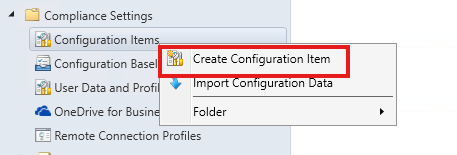
In the SCCM console, go to Assets and Compliance > Compliance Settings > Configuration Items, right-click and select Create Configuration Item.
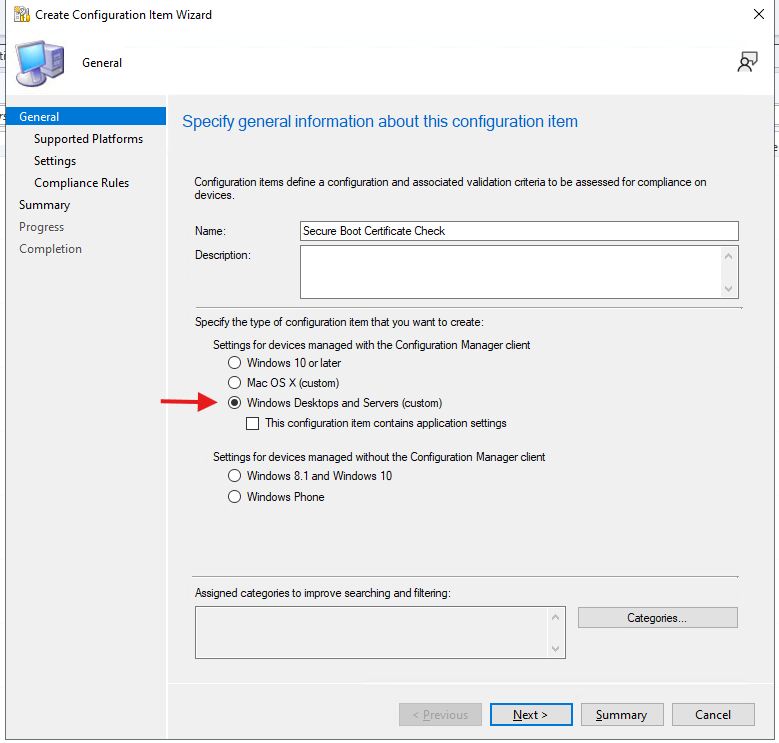
On the General tab:
- Name:
Secure Boot Certificate Check - Type:
Windows Desktops and Servers (custom)
For script-based compliance scenarios, Windows Desktops and Servers (custom) provides the flexibility required to run both discovery and remediation PowerShell scripts.
On the Supported Platforms tab, expand the Windows 11 node and select all three variants:
- All Windows 11 (ARM64)
- All Windows 11 Enterprise multi-session
- All Windows 11 (x64)
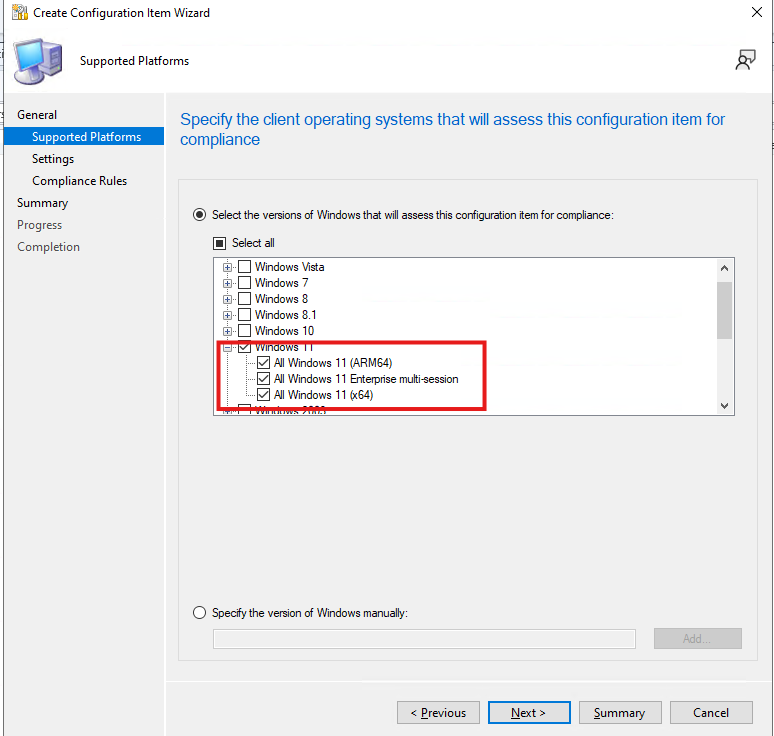
Selecting all Windows 11 variants ensures the CI applies correctly across different hardware architectures and licensing configurations in your environment.
Create the Setting
On the Settings tab, click New.
In the Create Setting window:
- Name:
Secure Boot CA Status - Setting type:
Script - Data type:
String
The setting type must be Script, and the data type must be String. The detection script returns one of the six state strings listed above. SCCM stores this return value and evaluates it against the compliance rule you define in the next step.
Click Edit Script next to the Discovery script field and paste the detection script. Then click Edit Script next to the Remediation script field and paste the remediation script.
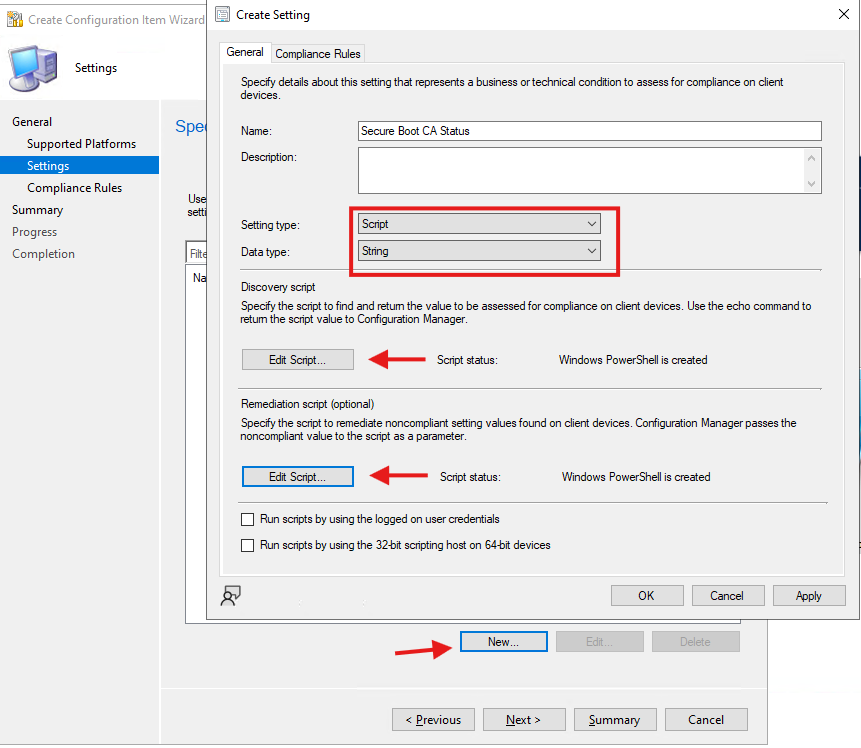
Two checkboxes at the bottom of this window require attention:
Run scripts by using the logged on user credentials leave this unchecked. The detection and remediation scripts access SYSTEM-level registry hives and make Win32 API calls for toast notification delivery. They must run as SYSTEM. Running them as the logged-on user will cause access failures.
Run scripts by using the 32-bit scripting host on 64-bit devices leave this unchecked. The Secure Boot registry paths and the Get-SecureBootUEFI cmdlet can return incomplete or incorrect results from a 32-bit PowerShell process. The scripts must run in a 64-bit host. This is the same requirement as the “Run script in 64-bit PowerShell” toggle in the Intune Remediations settings tab.
Script links:
- Discovery Script: Detect-SecureBootCA2023SCCM
- Remediation Script: Remediate-SecureBootCA2023SCCM
Create the Compliance Rule
Switch to the Compliance Rules tab and click New.
On the Compliance Rules tab, also check Track remediation history when supported before opening the Create Rule window.
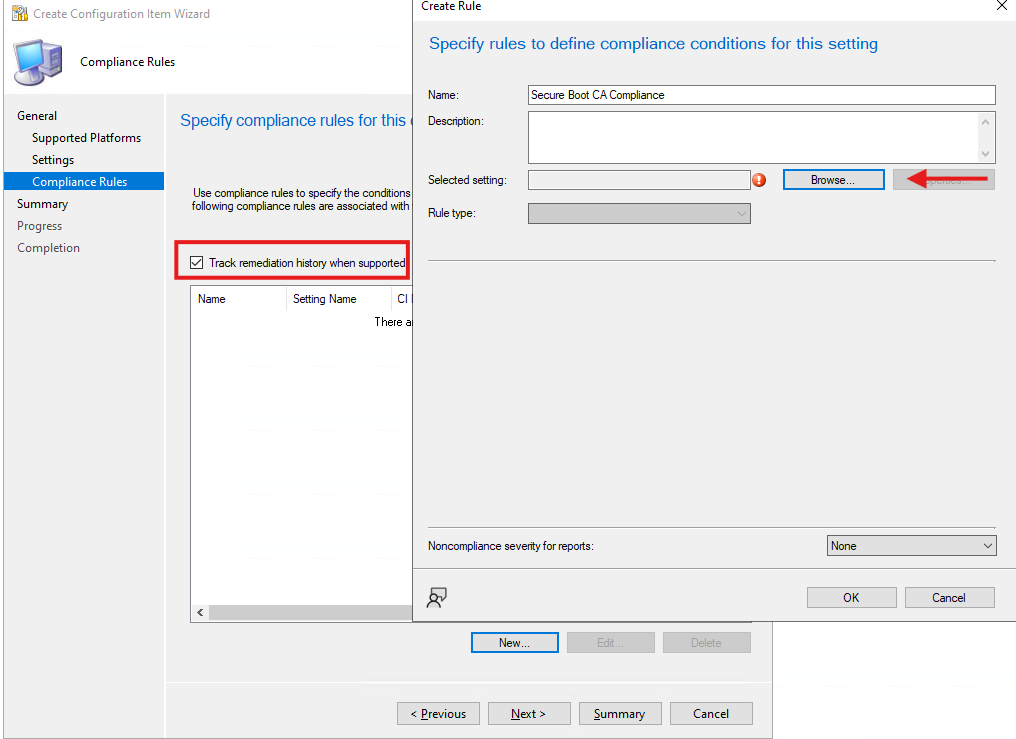
This setting records a history entry each time the remediation script runs on a device. Once you are in production, this is how you confirm that a specific device received the fix and when useful when a device stays noncompliant and you need to rule out whether remediation ever ran.
In the Create Rule window:
- Name:
Secure Boot CA Compliance - Selected setting: Click Browse and select
Secure Boot Certificate Check \ Secure Boot CA Status - Rule type:
Value - Operator:
Equals - For the following values:
Compliant - Check Run the specified remediation script when this setting is noncompliant
- Noncompliance severity for reports:
Critical with event
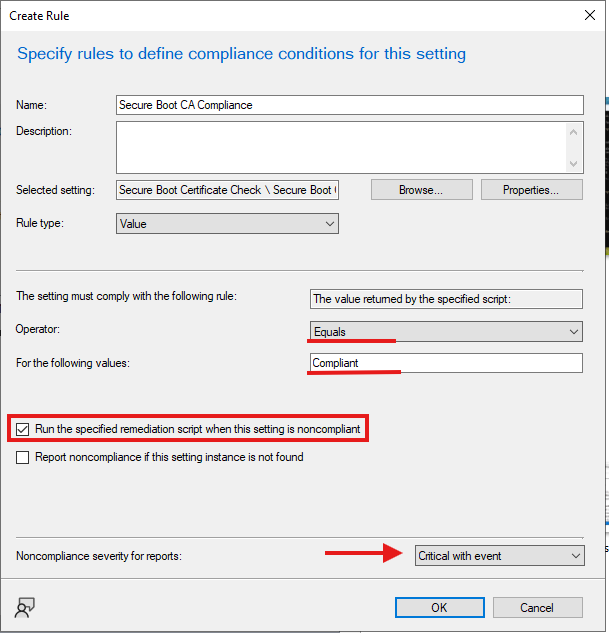
The “Run the specified remediation script when this setting is noncompliant” checkbox is what connects the detection result to the remediation action. Without it, SCCM evaluates compliance state and reports it, but never triggers the fix. This is the equivalent of the detection-plus-remediation pairing in Intune Remediations.
Setting the noncompliance severity to “Critical with event” writes a Windows event when a device is found noncompliant. This makes the state queryable via event log queries and CMPivot without needing to go through the Compliance reports each time.
Complete the wizard.
Create the Configuration Baseline
Go to Assets and Compliance > Compliance Settings > Configuration Baselines, right-click and select Create Configuration Baseline.
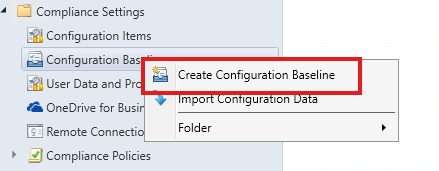
In the dialog:
- Name:
Secure Boot Certificate Compliance Baseline - Click Add and select the
Secure Boot Certificate CheckCI. Confirm the Purpose column shows Required. - Check Always apply this baseline even for co-managed clients
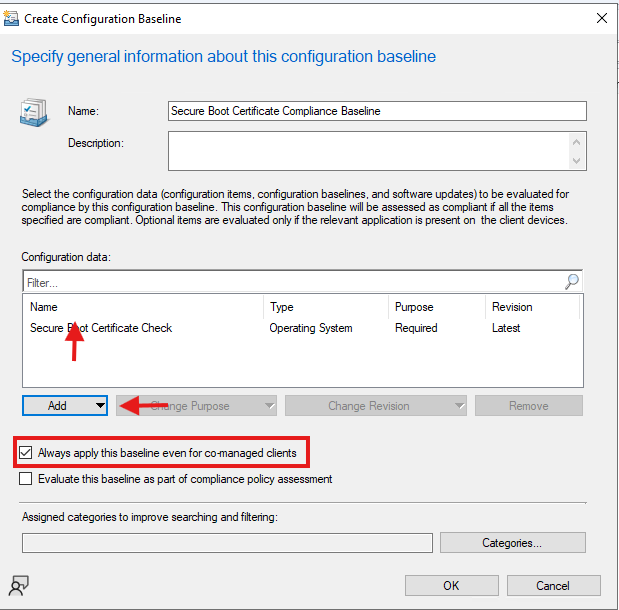
The “Always apply this baseline even for co-managed clients” option deserves a specific explanation.
In a co-managed environment, management responsibilities are divided between Configuration Manager and Intune through workload assignments. Depending on how those workloads are configured, compliance-related processing may be handled by Intune rather than Configuration Manager.
Enabling this option ensures that the Configuration Baseline continues to be evaluated on co-managed devices and prevents the baseline from being excluded solely because the device is operating in a co-managed state.
For this project, the option was enabled to support both SCCM-only and co-managed scenarios using the same baseline deployment. This allowed the solution to remain applicable regardless of the device management model being used.
Deploy the Baseline
Right-click the baseline and select Deploy.
In the deployment dialog:
- Check Remediate noncompliant rules when supported
- Check Allow remediation outside the maintenance window
- Collection: Select your Windows 11 device collection. The example uses
Windows 11 Devices. - Schedule: Simple schedule, 15 Minutes ( For Test)
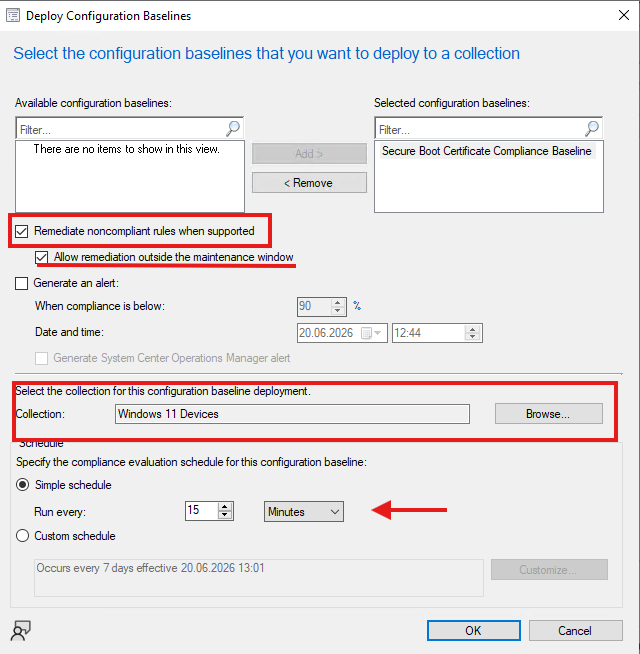
Remediate noncompliant rules when supported must be enabled. Without this option, the baseline will still evaluate compliance but the remediation script will never be executed. This deployment-level setting works together with the Configuration Item remediation option, and both must be enabled for remediation to occur automatically.
Allow remediation outside the maintenance window is recommended for this scenario. The Secure Boot certificate update is a security-related remediation, and delaying it until the next maintenance window may leave devices in a non-compliant state for an extended period. Since the remediation process does not force an immediate restart and instead presents a user notification, there is typically little operational impact from allowing remediation to run outside maintenance windows.
For testing purposes, I configured the baseline to evaluate every 15 minutes. This allows changes to be detected quickly and makes validation significantly easier during deployment testing.
In production, you may prefer a longer evaluation interval based on your organization’s requirements, since the Secure Boot certificate update state is not something that changes frequently.
Co-Management Scenarios
The table below clarifies which delivery method applies to which configuration. Both approaches use the same scripts, so running them in parallel on the same device is safe. The scripts are idempotent — a second execution on an already-compliant device does nothing except confirm the state and exit.
| Scenario | Recommended approach |
|---|---|
| SCCM-only managed devices | This guide — SCCM Configuration Baseline |
| Intune-only managed devices | Part 1 — Intune Remediations |
| Co-managed, Compliance workload on Intune | Part 1, with SCCM baseline as backup using “Always apply” |
| Co-managed, Compliance workload on SCCM | This guide — SCCM Configuration Baseline |
Both approaches use the same remediation logic, making it possible to support SCCM-only, Intune-only, and co-managed environments using a consistent operational model.
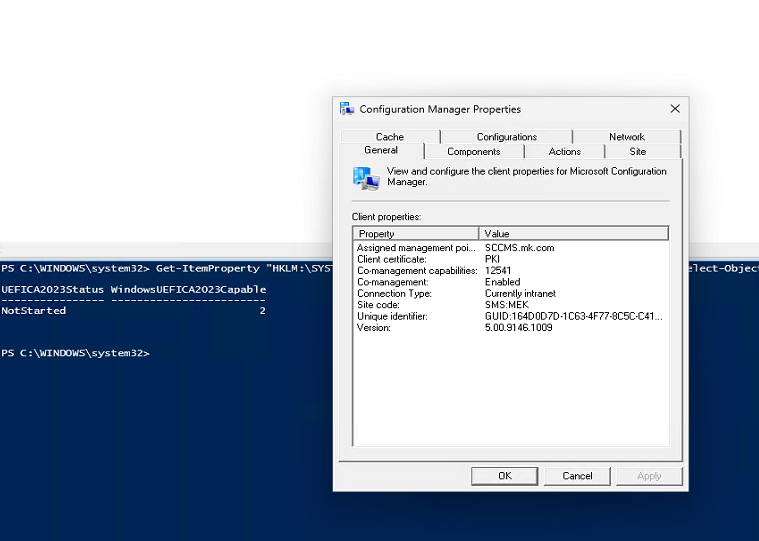
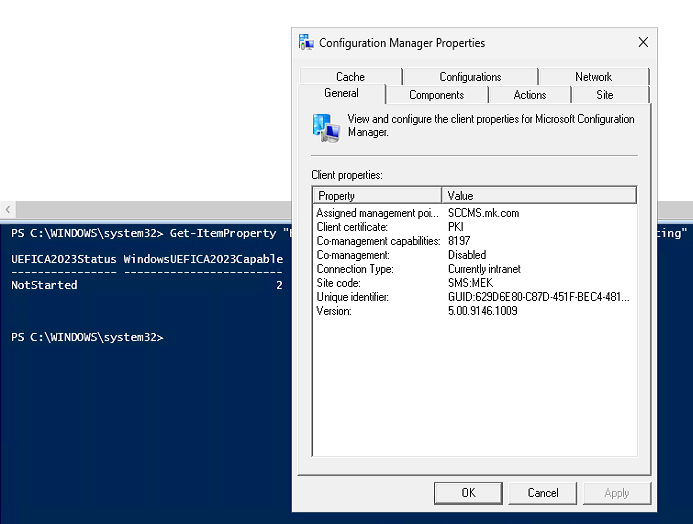
To verify whether a device is co-managed, open Configuration Manager Properties and review the General tab.
A co-managed device / Co-management Enabled, capabilities 12541
A device without co-management / Co-management Disabled, capabilities 8197:
Testing on the Client
After the baseline is deployed, you do not need to wait for the next scheduled poll. Open Configuration Manager Properties on a test device, go to the Actions tab, and run Machine Policy Retrieval & Evaluation Cycle.
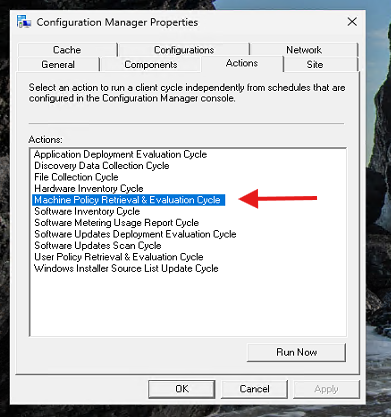
This forces the client to contact SCCM and retrieve the new baseline assignment immediately. Allow a minute or two after the cycle completes for the DCM engine to begin evaluation.
The primary verification source on the client side is:
C:\Windows\CCM\Logs\DCMAgent.log
This log records the full evaluation lifecycle for every baseline. When the baseline runs for the first time on a non-compliant device, you will see the detection script execute, return a state other than Compliant, and the remediation script trigger immediately afterwards. On subsequent runs after the device restarts and completes the certificate migration, the detection script returns Compliant and the remediation script does not run.
Look for log entries related to the following stages to track the evaluation lifecycle:
- Configuration Item evaluation starting
- Compliance state determination
- Remediation script execution being triggered
- Remediation script completion
- Baseline processing result
The exact log line format varies by SCCM version and client build. Use CMTrace or a text filter on DCMAgent to isolate entries for the Secure Boot Certificate Check Configuration Item specifically.
If you see repeated non-compliant evaluations across multiple cycles with no remediation script activity appearing in the log, confirm that both the deployment-level Remediate noncompliant rules when supported option and the CI-level Run the specified remediation script when this setting is noncompliant option are enabled.
You should also verify that the Configuration Baseline has been successfully deployed to the device and that the client has received the latest machine policy.
Restart Notification
After the remediation script executes and a user is actively logged on, a restart notification is displayed in the user’s session.
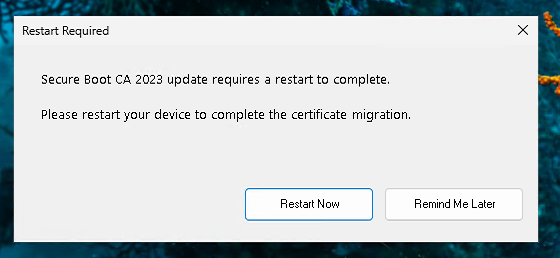
Unlike the Intune implementation, Configuration Manager remediation runs under the SYSTEM account. Since SYSTEM does not have access to the interactive desktop session, displaying a user-facing restart prompt requires an additional step.
To solve this, the remediation script creates a temporary scheduled task that runs in the context of the logged-on user and launches the restart notification within the active session. Once the notification has been displayed, the scheduled task is automatically removed.
The notification allows users to either restart immediately or postpone the restart until a more convenient time. This approach avoids unexpected reboots while still ensuring that users are informed when the Secure Boot certificate update requires a restart to complete.
Devices remain in the PendingRestart state until the restart has been performed and the next compliance evaluation confirms that the migration completed successfully.
Compliance Monitoring
After the baseline has been deployed, compliance can be monitored directly from the Configuration Manager console.
Navigate to:
Monitoring
→ Deployments
and locate the baseline deployment.
The deployment summary provides an overview of compliant, non-compliant, and error states across the targeted device collection. From there, you can drill down into individual devices and investigate systems that still require attention.
For more detailed troubleshooting, client-side logs such as DCMAgent.log and the remediation log generated by the script itself provide additional visibility into the evaluation and remediation process.
If you choose to enable event logging within the scripts, CMPivot can also be used to query devices in real time and identify systems that may still require remediation or a restart.
Operational Notes
Devices that enter the ManualReview state are not necessarily experiencing a script failure. In these cases, the registry indicates that the migration completed successfully, but the required certificate could not be validated within the UEFI Signature Database. Because this occurs at the firmware level, additional investigation may be required and remediation cannot always be completed through automation alone.
Similarly, devices that remain in the PendingRestart state for extended periods have already completed remediation but still require a restart before the migration can be validated. The restart notification mechanism helps guide users through this process while avoiding unexpected reboots.
If a device that was previously compliant later becomes non-compliant following a BIOS reset, firmware change, or major operating system upgrade, the baseline automatically evaluates the device again and can re-trigger remediation if required.
Closing
With this Configuration Manager implementation, Secure Boot certificate update detection, remediation, compliance tracking, and user restart notifications can all be delivered through a single Configuration Baseline deployment.
The approach works for SCCM-only environments and can also be adapted for co-managed devices, providing a consistent operational model across different management scenarios.
Combined with the Intune solution from Part 1, organizations now have a practical method for identifying devices that failed to complete the Secure Boot certificate update process, automatically triggering remediation where possible, and tracking overall migration progress through their existing endpoint management platform.
As always, successful deployment is only part of the story. Verification remains equally important. A device may receive the required updates and remediation actions, but validating that the Secure Boot certificate migration actually completed successfully is what ultimately reduces risk and ensures the environment is protected.
Part 1: Secure Boot Certificate Update Issues in Windows 11: How to Detect and Fix with Intune