How to Configure Windows 11 Administrator Protection with Intune
In September I wrote about Administrator Protection and how it compares to Intune EPM before it shipped. A lot has changed since then. Microsoft has now updated the Windows 11 26H2 security baseline and states that Administrator protection is generally available.
The feature is off by default unless policy enables it. The Windows 11 24H2, 25H2 and 26H2 security baselines include settings that enable it, so check your existing baseline and policy configuration before you deploy anything.
This post is the hands-on part. We configure Administrator protection with Intune and validate the elevation experience on a Windows 11 client. If you manage devices with on-premises Group Policy, the section near the end covers the ADMX templates and policies you need.
What Administrator Protection Does
When a user signs in, Windows gives them a deprivileged token. This is true even if the account is in the local Administrators group.
When an action needs admin rights, Windows asks the user to approve it. After approval, Windows creates a temporary admin token from a hidden, system-generated, profile-separated account. The token is destroyed when the elevated process ends.
How it behaves:
- There are no silent auto-elevations. Every elevation needs an interactive approval.
- The elevated session runs in a separate profile, so malware in the user context cannot reach it easily.
- The approval is integrated with Windows Hello.
Microsoft does not classify it as a formal security boundary. Treat it as a hardening feature.
It first reached Windows 11 24H2 and 25H2 through KB5120998 and is part of 26H2. This guide covers managed enterprise devices running Windows 11. Administrator protection is not supported on Windows 365 Cloud PCs, Azure Virtual Desktop session hosts or Windows Server.
Before You Start
- A supported Windows 11 device with KB5120998 or a later applicable update. Check the current servicing level before deployment. Microsoft documents fixes in KB5124010 for missing Start menu app icons and for Edge extensions that request elevation when they should not.
- Knowledge of which sign-in method your users will see at the prompt. Administrator protection is integrated with Windows Hello, and the prompt asks for credentials such as a password or a Windows Hello PIN. Check the method on a pilot device before rollout.
- A test user who is in the local Administrators group.
- A pilot device. Do not start with a production group.
Configure with Intune
There are two ways to configure this in Intune. The settings catalog is the main method. A custom OMA-URI profile is the optional alternative. Both configure the same two settings, so assign only one of them to a device.
Method A: Settings Catalog
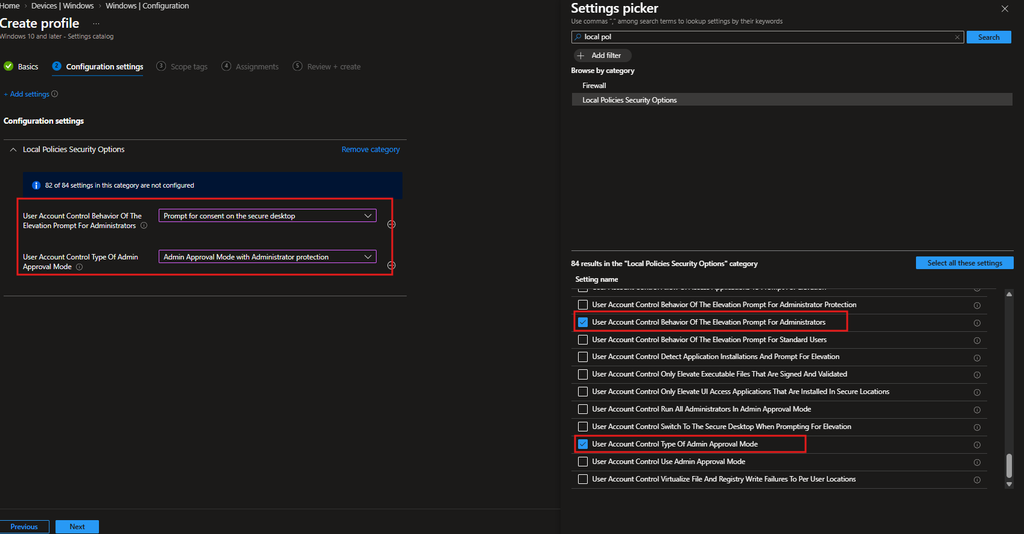
The two settings are in the Local Policies Security Options category of the settings catalog.
Step 1: Create the profile
- In the Intune admin center, go to Devices > Manage devices > Configuration.
- Select Create > New policy.
- Choose Windows 10 and later as the platform and Settings catalog as the profile type.
- Give it a clear name, for example Windows – Administrator Protection – Pilot.
Step 2: Add the two settings
Select Add settings, search for Local Policies Security Options, and add these two settings:
| Setting | Value |
|---|---|
| User Account Control Type Of Admin Approval Mode | Admin Approval Mode with Administrator protection |
| User Account Control Behavior Of The Elevation Prompt For Administrator Protection | Prompt for credentials on the secure desktop |
The first setting turns the feature on. The second sets the prompt to ask for credentials on the secure desktop.
Step 3: Assign to a pilot group
Assign the profile to a pilot device group or user group. Keep it small. Elevation prompts change daily workflows, and you want to find the problem apps before everyone does.
Microsoft Learn labels the Administrator protection option in the settings catalog as preview and says it rolls out gradually. If you cannot find these settings in your tenant, use Method B. Availability depends on the current rollout, so verify the options in your own tenant.
Method B (Optional): Custom OMA-URI
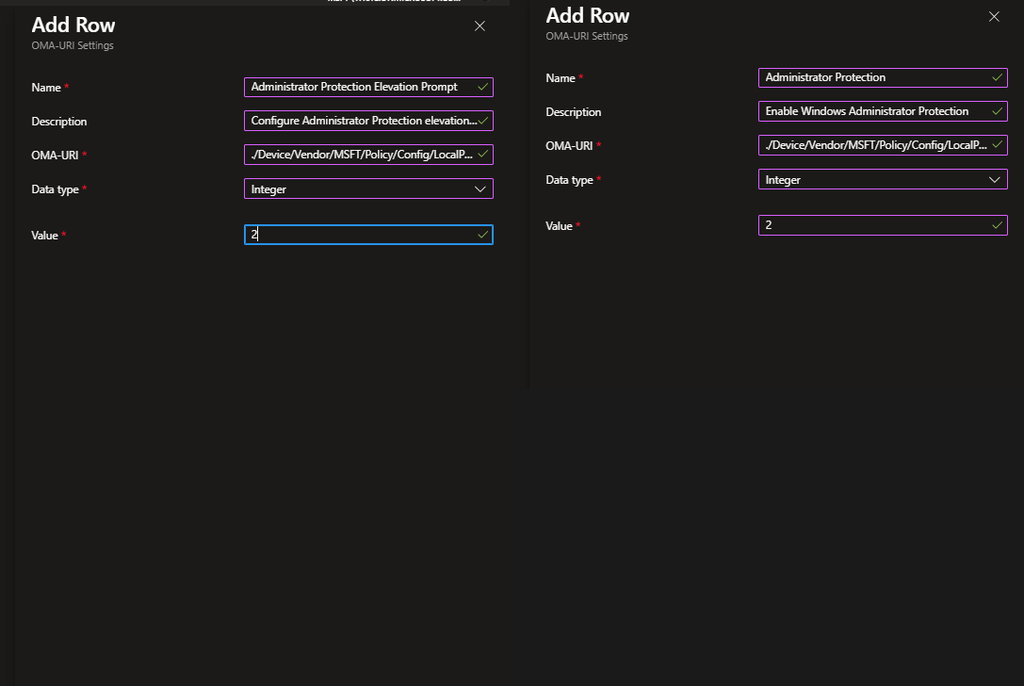
The same settings are available through the LocalPoliciesSecurityOptions CSP. Create a profile with Templates > Custom, add two OMA-URI rows, and assign it to the same kind of pilot group.
| Name | OMA-URI | Data type | Value |
|---|---|---|---|
| Admin Approval Mode type | ./Device/Vendor/MSFT/Policy/Config/LocalPoliciesSecurityOptions/UserAccountControl_TypeOfAdminApprovalMode | Integer | 2 |
| Elevation prompt behavior | ./Device/Vendor/MSFT/Policy/Config/LocalPoliciesSecurityOptions/UserAccountControl_BehaviorOfTheElevationPromptForAdministratorProtection | Integer | 1 |
Validating on the Client
Step 1: Sync and restart
Force a sync from Settings > Accounts > Access work or school > Info. Then restart the device. The policy does not apply without a restart.
A completed sync does not prove the settings applied. In the Intune admin center, open the profile and check the device and setting status for success, error or conflict.
Step 2: Check the authentication method
Administrator protection is integrated with Windows Hello. The prompt asks the user for credentials, and the method depends on what the user has available on the device. This can be a password or a Windows Hello PIN or biometric. Note which one your pilot users see, because it shapes the user experience you communicate before rollout.
Step 3: Trigger an elevation
Open Terminal and choose Run as administrator. Windows should show the Administrator protection prompt on the secure desktop and ask for your credentials.
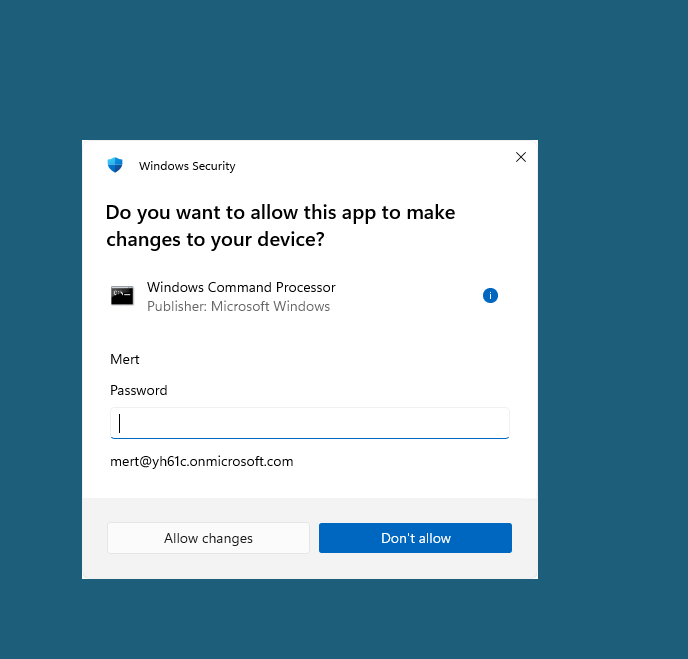
Approve it. The elevated window opens. Close it, and the elevated token is gone.
What to Know Before a Wider Rollout
Microsoft’s own troubleshooting notes list the main side effects:
- Profile separation. App settings do not carry over between the normal and elevated profiles. Only elevate apps you really need.
- No SSO in elevated sessions. Domain and cloud authentication must be repeated inside the elevated app.
- Network drives. Resources can be inaccessible from elevated apps because the standard session’s credentials are not available there. Install in the user context where possible, or copy the installer to a local drive before you elevate.
- WSL and Visual Studio. If you also run them elevated, you may need to reinstall and configure the environment, such as a WSL distro, in the elevated profile.
- Do not enable it on. Windows 365 Cloud PCs, Azure Virtual Desktop session hosts, devices that require Hyper-V, and devices running apps that access shared files across profiles.
- Not supported. Remote logon on Windows 365 and AVD session hosts, roaming profiles and backup admins.
If an app blocks an update, download the update elevated first and then install it. If that fails, temporarily disable Administrator protection on that device, then enable it again after the update.
On-Premises Environments: Group Policy
If your devices take policy from Active Directory instead of Intune, you can configure the same two settings with Group Policy.
The settings live in the Security Options node:
Computer Configuration > Windows Settings > Security Settings > Local Policies > Security Options
| Policy | Value |
|---|---|
| User Account Control: Configure type of Admin Approval Mode | Admin Approval Mode with Administrator protection |
| User Account Control: Behavior of the elevation prompt for administrators running with Administrator protection | Prompt for credentials on the secure desktop |
A restart is required before the change takes effect.
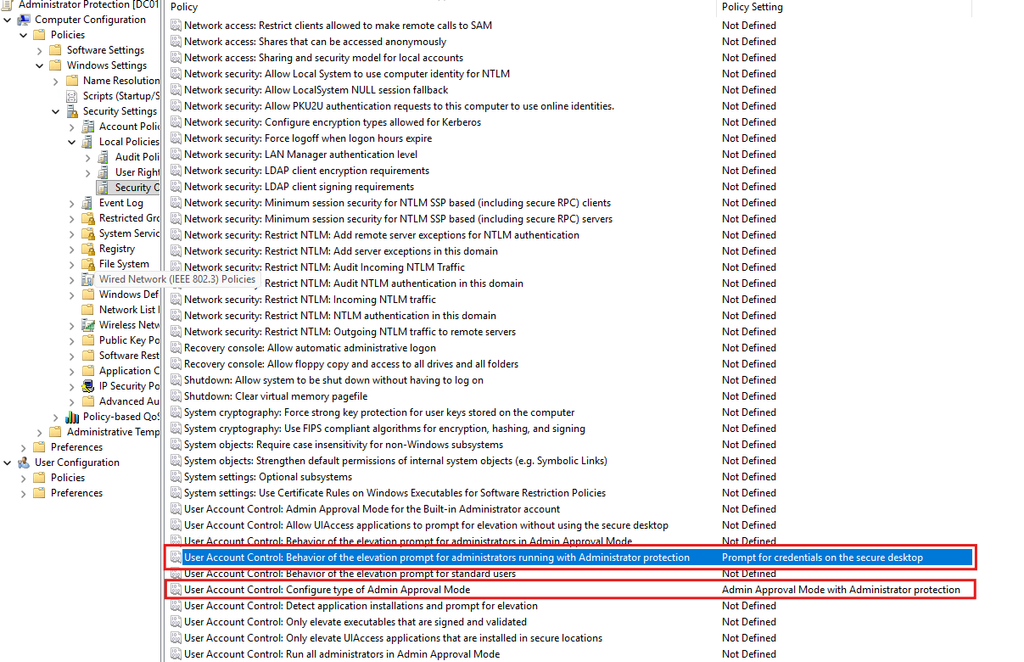
Install the 26H2 ADMX templates on the domain controller
The local policy editor on a current Windows 11 client shows these policies. If they do not appear in the domain Group Policy editor, update the Central Store with the Windows 11 26H2 administrative templates.
The package is Administrative Templates (.admx) for Windows 11 2026 Update (26H2), version 1.0, published on 29 September 2026. The file is Administrative Templates (.admx) for Windows 11 Sep 2026 Update.msi and it is about 14.6 MB.
Download: Administrative Templates (.admx) for Windows 11 2026 Update (26H2)
Steps:
- Download and run the MSI on an admin workstation. It extracts the templates to
C:\Program Files (x86)\Microsoft Group Policy\<version>\PolicyDefinitions. - Create a new versioned folder next to your existing Central Store, for example
\\<yourdomain>\SYSVOL\<yourdomain>\Policies\PolicyDefinitions-26H2. Do not replace the current Central Store yet. - Copy all
.admxfiles and the language folders (for exampleen-US) from the extractedPolicyDefinitionsfolder into the new folder. Merge any application templates your organization needs. Check that all.admxfiles and language folders are present, and test the new set in a test environment if you can. - Rename the existing
PolicyDefinitionsfolder so you keep it as a backup. Then rename the new folder toPolicyDefinitions, because Group Policy tools only read the Central Store from that name. If you do not have a Central Store yet, createPolicyDefinitionsand copy the files into it. - Wait for SYSVOL replication, then reopen the Group Policy Management Editor and search for “Administrator protection” to confirm the policies are available.
Do not mix files from different releases in the same folder. Copy a clean set.
Reference: Create and manage the Central Store
Closing Thoughts
Administrator Protection is easy to turn on. The harder part is the application testing that comes after.
Start with a small pilot group, watch events 15031 and 15032, and keep a list of apps that break. If you already use Intune EPM, keep it. Administrator Protection covers admin accounts and EPM covers standard users who need controlled elevation. I covered that difference in my earlier comparison post.
Sources
- Microsoft Learn: Administrator protection
- Windows 11, version 26H2 security baseline
- Microsoft Intune Settings Catalog updated to support Windows 11, version 26H2
- What’s new in Windows 11, version 26H2 for IT pros
- Administrative Templates (.admx) for Windows 11 2026 Update (26H2)
- KB5120998
- KB5124010
- Administrator Protection Is Coming to Windows 11: How Does It Compare to Intune EPM?