Practical Guide to Troubleshooting Unknown Deployment Results in SCCM
You deploy software to 150 machines and check back an hour later. 90 show Success, 15 Failed with error codes, 5 are still In Progress. But 40 machines show “Unknown” status they’re online, pingable, the SCCM client is running, yet you have no idea if the deployment succeeded or failed. This guide shows you how to identify the root cause and fix it.
Understanding Unknown Status
Unknown status is one of the most misunderstood states in SCCM. Let’s clarify what it actually means.
Unknown does NOT mean:
- The client is broken or offline
- The deployment definitively failed
- The software didn’t install
- The client can’t communicate with SCCM
Unknown MEANS:
- The client received the deployment policy
- The software may have installed successfully
- The client never sent a status message back to the Management Point, or the message was sent but never reached the server
Think of it as a confirmation receipt problem. You mailed a package, it was delivered (you can verify it arrived), but you never got the delivery confirmation back. The package is there, you just don’t have proof.
Why Only Some Clients Show Unknown
This is the critical question. If it were an infrastructure problem Management Point crashed, WSUS down, site server issues all clients would show Unknown. When only some clients show Unknown, each one has an individual issue preventing status reporting.
Common Root Causes
1. Boundary Group Misconfiguration
The scenario: Clients are in a subnet that’s not properly defined in boundary groups, or the boundary exists but no Software Update Point is assigned to it. Clients can’t find a SUP to report to.
How to identify: Check IP addresses of Unknown computers. If most are in the same subnet (e.g., 192.168.50.x), this is likely a boundary issue.
What to verify: In SCCM Console → Administration → Boundary Groups:
- Is this subnet defined in a boundary?
- Does that boundary group have a SUP assigned?
- Is fallback configured?
Log evidence: Open LocationServices.log on an affected client:
"Boundary lookup returned 0 results"
"No valid SUP found for current location"
"Using cached SUP from previous location"
2. State Message Queue Backlog
The scenario: The client has hundreds of old state messages queued up. New status messages get added to the back of the queue. Old messages keep failing to send, and the queue never clears.
How to identify: Check if the same computers show Unknown across multiple deployments (not just this one). If yes, they have chronic state message issues.
What to check: Check the WMI state message queue on the client:
$Messages = Get-WmiObject -Namespace root\ccm\StateMsg -Class CCM_StateMsg
$Messages.Count- 10-20 messages = Normal
- 50-100 messages = Minor backlog
- 100+ messages = Problem
- 500+ messages = Serious problem
3. Policy Corruption
The scenario: The client downloaded deployment policy during brief site maintenance. The policy file is corrupted or incomplete. Policy evaluation fails silently, and no state message is generated.
How to identify: Check if Unknown computers all downloaded policy around the same time, and if that time coincides with site maintenance, MP patching, or site backup.
Log evidence: Open PolicyAgent.log on the affected client:
"Failed to compile policy"
"Policy compilation error: Invalid XML"
4. Laptop/VPN/Roaming Clients
The scenario: A laptop evaluates the deployment at the office (connected to SUP-Office). The user goes home and connects via VPN. The VPN subnet isn’t in any boundary group. When the laptop tries to report status, it attempts to reach SUP-Office, which isn’t accessible from VPN. The status message fails.
How to identify: Check if most Unknown computers are laptops. In the SCCM console, add the “Chassis Types” column and filter your Unknown devices. If you see mostly Portable/Laptop/Notebook types, this is your issue.
Log evidence: Open LocationServices.log on an affected client:
"No valid SUP found for current location"
"Using cached SUP from previous location"
5. Network Timing Issues
The scenario: The deployment is large (500MB+) and the client is on a slow network. Download and installation take hours. By the time the client tries to send the status message, the timing window has passed or the Management Point deprioritizes the late message.
How to identify: Look at “Last Status Time” in deployment monitoring. If Unknown computers completed much later than successful ones (hours later), this could be timing-related.
Troubleshooting Workflow
Follow this systematic approach. Don’t skip steps or open random logs.
Step 1: Quick Health Check
Run these commands on the affected client before diving into logs:
# Check SCCM client version
Get-WmiObject -Namespace root\ccm -Class SMS_Client | Select-Object ClientVersion

# Test connectivity to Management Point
Test-NetConnection -ComputerName "YourMP.domain.com" -Port 443

# Verify MP web service accessibility
# Open browser: https://YourMP.domain.com/SMS_MP/.sms_aut?mplist
# Should return XML with MP list
Step 2: Log File Analysis (Priority Order)
Read logs in this specific order. Each log answers a specific question.
2.1 LocationServices.log
Question: Can the client find a Management Point and Software Update Point?
Location: C:\Windows\CCM\Logs\LocationServices.log
What you’re looking for:
GOOD:
Assigned MP: http://MP01.domain.com
SUP: http://SUP01.domain.com:8530

BAD:
Boundary lookup returned 0 results
No valid SUP found for client
Using cached SUP from previous location
If this log shows problems, stop here. Fix boundary groups before continuing.
2.2 StateMessage.log
Purpose: Shows if status messages are being generated and sent
Location: C:\Windows\CCM\Logs\StateMessage.log
What you’re looking for:
GOOD:
State message generated for deployment: {ABC-123}
Successfully sent state message to MP

BAD:
Failed to send state message to MP. Error: 0x87d00215
State message added to retry queue
Retry queue count: 247 messages
HTTP error 503: Service Unavailable
This is the most important log for Unknown status. If you see “Failed to send,” you’ve found your problem.
2.3 UpdatesDeployment.log
Purpose: Shows deployment evaluation and execution
Location: C:\Windows\CCM\Logs\UpdatesDeployment.log
What you’re looking for:
GOOD:
Assignment {ABC-123} received
Installation completed successfully
Raised state message for deployment success

BAD:
Error 0x87d00215 - Assignment not found
Unable to load assignment from WMI
Deployment evaluation failed
Error 0x87d00215 typically indicates corrupted policy.
2.4 PolicyAgent.log
Purpose: Shows policy download and evaluation
Location: C:\Windows\CCM\Logs\PolicyAgent.log
Check this only if UpdatesDeployment.log showed policy errors.
What you’re looking for:
GOOD:
Policy download completed
Compiling policy {ABC-123}
Policy evaluation completed successfully

BAD:
Failed to compile policy {ABC-123}
Policy compilation error: Invalid XML
Solution Methods
Based on your log analysis, apply the appropriate fix. Start with the simplest solution first.
Method 1: Force State Message Resend
When to use: Logs show no errors, client seems healthy, status just isn’t reporting.
Success rate: High (~80%)
$UpdatesStore = New-Object -ComObject Microsoft.CCM.UpdatesStore
$UpdatesStore.RefreshServerComplianceState()

# Wait 10-15 minutes, then check console
This forces the client to regenerate and send all pending state messages immediately. Try this first it resolves most cases.
Method 2: Clear Location Cache
When to use: LocationServices.log shows wrong/cached SUP or MP.
Stop-Service -Name CcmExec -Force

# Clear WMI location cache
Get-WmiObject -Namespace root\ccm\LocationServices -Class * -ErrorAction SilentlyContinue |
    Remove-WmiObject -ErrorAction SilentlyContinue

Start-Service -Name CcmExec

# Wait and trigger location refresh
Start-Sleep -Seconds 10
Invoke-WmiMethod -Namespace root\ccm -Class SMS_Client -Name TriggerSchedule `
    -ArgumentList "{00000000-0000-0000-0000-000000000021}"
This clears cached SUP and MP locations from WMI, forcing the client to rediscover its boundary group and find the correct infrastructure.
Method 3: Soft Policy Reset
When to use: PolicyAgent.log shows errors or corrupted policy.
# Force complete policy refresh
Invoke-WmiMethod -Namespace root\ccm -Class SMS_Client -Name ResetPolicy -ArgumentList 0
# Wait for policy refresh
Start-Sleep -Seconds 60
# Trigger policy retrieval
Invoke-WmiMethod -Namespace root\ccm -Class SMS_Client -Name TriggerSchedule `
 -ArgumentList "{00000000-0000-0000-0000-000000000021}"
ResetPolicy with parameter 0 = soft reset (clears policy cache but keeps client registration). The client downloads all policies fresh from the MP.
Method 4: Clear State Message Backlog
When to use: Client has too many queued state messages.
# Check current backlog
$Messages = Get-WmiObject -Namespace root\ccm\StateMsg -Class CCM_StateMsg -ErrorAction SilentlyContinue
Write-Host "Current state messages in queue: $($Messages.Count)"

# If over 100, clear old ones
if ($Messages.Count -gt 100) {
    Stop-Service -Name CcmExec -Force

    # Clear state message queue from WMI
    Get-WmiObject -Namespace root\ccm\StateMsg -Class CCM_StateMsg -ErrorAction SilentlyContinue |
        Remove-WmiObject -ErrorAction SilentlyContinue

    Start-Service -Name CcmExec

    # Trigger state message resend
    Start-Sleep -Seconds 10
    $UpdatesStore = New-Object -ComObject Microsoft.CCM.UpdatesStore
    $UpdatesStore.RefreshServerComplianceState()

    Write-Host "State message queue cleared and refresh triggered"
}
This removes old stuck state messages from WMI, then forces the client to regenerate current deployment status and send fresh messages.
Server-Side Verification
If only some clients show Unknown (not all), it’s typically a client-side issue. However, verify server health when patterns suggest infrastructure problems.
Management Point Health
Check MP logs: Location: <SCCMInstallDir>\Logs\MP_Relay.log
Look for patterns:
Failed to process state message
SQL connection failed
Database timeout
Too many pending messages
Check MP performance:
You can check if the Management Point is handling state messages properly by monitoring the performance counter \SMS MP\State Messages Pending. If this counter shows consistently high values (over 1000), it indicates the MP is overloaded and can’t process state messages fast enough.
If the MP is consistently overloaded:
- Scale MP resources (more CPU/RAM)
- Add additional Management Points
- Reduce client load (stagger maintenance windows)
Database Issues
Sometimes state messages reach the MP but fail to write to the database. Check SQL logs for:
- Connection timeout errors
- Deadlocks on state message tables
- TempDB space issues
If you see database errors during the timeframe when clients report Unknown, this could be the root cause.
Prevention Strategies
Preventing Unknown status is better than fixing it. Implement these best practices.
1. Proper Boundary Group Configuration
Critical rule: Every boundary group that contains clients MUST have a SUP assigned.
Additional configuration:
- Configure the Default Site Boundary Group with a SUP (safety net for roaming clients)
- Set fallback time of 30 minutes for SUP
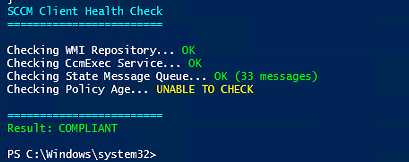
2. Client Health Monitoring
Deploy this as a Configuration Baseline to catch issues proactively: SCCM_Client_Health_Check
3. Stagger Client Operations
Don’t have all clients scan simultaneously. Create multiple collections with different maintenance windows:
- Collection A: 08:00-09:00
- Collection B: 09:00-10:00
- Collection C: 10:00-11:00
This prevents Management Point and infrastructure overload.
Real-World Example
Situation: Deployed Adobe Reader DC to all workstations. Next morning, 47 computers showing Unknown status. These weren’t random – same 47 computers kept showing Unknown on every deployment for the past month.
Investigation: Picked 3 Unknown computers and checked their state message queue:
$Messages = Get-WmiObject -Namespace root\ccm\StateMsg -Class CCM_StateMsg -ErrorAction SilentlyContinue
Write-Host "Queued messages: $($Messages.Count)"
Results: PC-0156 had 342 messages, PC-0201 had 289 messages, PC-0445 had 411 messages.
Checked StateMessage.log on PC-0156:
Failed to send state message to MP. Error: 0x87d00215
State message added to retry queue
Retry queue count: 342 messages
Root Cause: These 47 computers had chronic state message backlog. Old messages never sent, new messages stuck behind them. Adobe Reader actually installed successfully – we verified by checking Add/Remove Programs – but status never reported back.
Solution: Ran cleanup script on all 47 computers:
Stop-Service -Name CcmExec -Force
Get-WmiObject -Namespace root\ccm\StateMsg -Class CCM_StateMsg -ErrorAction SilentlyContinue | Remove-WmiObject -ErrorAction SilentlyContinue
Start-Service -Name CcmExec
Start-Sleep -Seconds 10
$UpdatesStore = New-Object -ComObject Microsoft.CCM.UpdatesStore
$UpdatesStore.RefreshServerComplianceState()
Result: Within 20 minutes, all 47 computers reported correct status. Adobe Reader showed “Success” in console. Problem solved for future deployments too – these computers stopped showing Unknown consistently.
Time: 30 minutes total vs. checking 47 computers individually (would’ve taken hours).
Common Mistakes to Avoid
- Never assigning SUP to boundary groups – This is non-negotiable. Every boundary group needs a SUP.
- Disabling fallback completely – Fallback is a safety net, not a weakness. Configure it properly.
- Not monitoring state message queues – Check WMI regularly for backlog. Implement automated monitoring.
- Running all clients on the same scan schedule – This overwhelms infrastructure. Always stagger schedules.
- Assuming “Active” client means everything is fine – A green checkmark just means the agent is running. It says nothing about deployment status.
- Reading logs randomly – Follow the priority order: LocationServices → StateMessage → UpdatesDeployment → PolicyAgent.
- Ignoring the Software Update Health Dashboard – If available in your environment, check this dashboard first. It identifies common issues automatically.
Version Notes
This guide applies to supported ConfigMgr versions. As of December 2025:
- ConfigMgr 2509 – Current version
- ConfigMgr 2503 – Supported until October 2026
- ConfigMgr 2409 – Supported until March 2026 (upgrade soon)
- ConfigMgr 2403 or older – OUT OF SUPPORT
If you’re on 2403 or older, upgrade to 2509 before troubleshooting. Many Unknown status issues are already fixed in current versions.
Important: ConfigMgr 2503 and later have 300+ bug fixes, including state message processing improvements. If you’re on older versions, you may be troubleshooting issues that are already solved.
Unknown status in SCCM may seem mysterious at first, but it becomes straightforward once you understand the mechanics. It doesn’t indicate failure only that the status message never reached the Management Point. In the end, SCCM administration is about mastering the communication flow between clients and site systems, and Unknown status is simply a minor break in that flow one that’s usually easy to resolve once you know where to look.