How to Configure Intune Self-Deploying Autopilot: The Complete Guide
Self-deploying mode is a userless Windows Autopilot deployment that provisions devices automatically without any user interaction during OOBE (Out-of-Box Experience). Unlike user-driven mode where an employee logs in with their credentials, self-deploying mode configures the device and joins it to your Microsoft Entra ID tenant completely automatically.
When to Use Self-Deploying Mode?
Self-deploying mode is best suited for devices that are shared, unattended, or have no assigned owner. In these scenarios, requiring a user to sign in during setup adds no value and only complicates deployment. Devices can be powered on, connect to the network, and complete provisioning automatically, making self-deploying mode the most practical choice for kiosks, public access terminals, digital signage, testing labs, and hot-desking environments.
How Zero-Touch Deployment Works
Ever wondered how a device “knows” to connect to your organization without any configuration? Here’s the magic:
The Hardware Hash (Device Fingerprint)
Every Windows device has a unique hardware hash – a 4096-character cryptographic fingerprint generated from:
- TPM 2.0 chip data
- BIOS/UEFI information
- Motherboard serial number
- Disk identifiers
When you register this hash with Microsoft, it creates a permanent binding:
Hardware Hash → Your Tenant ID → Your Autopilot Profile
What Happens During First Boot?
Let me break down the automatic process step by step:
1. Device Powers On
- Windows OOBE (Out-of-Box Experience) starts
- No user interaction required yet
2. Network Connection
- Ethernet auto-connects (recommended), OR
- User selects Wi-Fi network and enters password (minimal interaction)
3. Hardware Hash Generation
- Windows automatically generates the device’s unique hardware hash
- Happens in background – completely invisible
4. Contact Microsoft’s Zero Touch Deployment (ZTD) Service
- Device automatically connects to:
ztd.dds.microsoft.com - Sends hardware hash: “Hey Microsoft, who do I belong to?“
- This connection is built into Windows – no configuration needed
5. Microsoft Database Lookup
- Microsoft checks: “Is this hash registered to any tenant?“
- If YES: Returns your Tenant ID and Autopilot Profile ID
- If NO: Proceeds with standard consumer Windows setup
6. Connect to Your Intune Tenant
- Using Tenant ID, device connects to:
enrollment.manage.microsoft.com - Authenticates using TPM 2.0 attestation (no credentials needed!)
7. Download Autopilot Profile
- Downloads your self-deploying mode profile from Intune
- Gets device naming template, policies, and app list
8. Automatic Entra ID Join
- Device joins your organization’s Microsoft Entra ID
- Creates device object in cloud
- No user credentials required!
9. MDM Enrollment & Configuration
- Enrolls in Microsoft Intune
- Applies device-level policies
- Installs required applications
- Enables BitLocker encryption (if configured)
- Names device using your template (e.g.,
KIOSK-1234)
10. Ready for Use
- Windows login screen appears
- No user logged in (unlike user-driven mode)
- Ready for ANY authorized user to log in
Security: How Device Ownership is Enforced
Once you register a device’s hardware hash, Microsoft creates a permanent binding:
- Even if someone factory resets the device, it will ALWAYS try to join your tenant
- No one else can register it to their tenant without you deleting it first
- Prevents device hijacking and ensures organizational control
User-Driven vs. Self-Deploying: Key Differences
Before we start configuring, let’s understand the fundamental differences:
| Feature | User-Driven | Self-Deploying |
|---|---|---|
| User Login During OOBE | Required | Not needed |
| Primary User Assignment | Yes – First user becomes primary | No – Shared device |
| App Deployment | Device + User apps | Device apps only |
| Re-enrollment | Automatic | Manual device deletion required |
| Best For | Personal laptops, remote workers | Kiosks, conference rooms, shared PCs |
Simple Rule:
- “This is YOUR device” → User-Driven Mode
- “This is OUR device” → Self-Deploying Mode
Important Licensing Note: Devices deployed without a primary user (such as kiosk devices) require an Intune Device License instead of a user-based Intune license to remain compliant. This is particularly important for shared device and kiosk scenarios where no specific user owns the device.
Step-by-Step Configuration
In my previous guide, I showed you how to register devices in Windows Autopilot using PowerShell, CSV import, and OEM direct registration methods. For this guide, I’ve already registered my test device, so we can jump straight into configuring the self-deploying profile.
Step 1: Create Self-Deploying Autopilot Profile
Now let’s create the deployment profile:
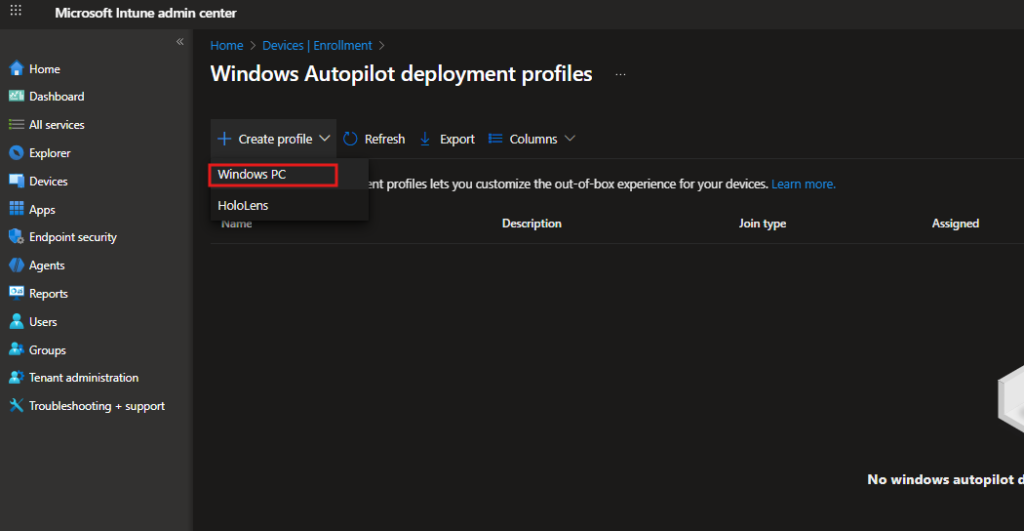
- Navigate to Intune admin center → Devices → Enrollment
- Select Windows enrollment → Deployment Profiles
- Click Create profile → Windows PC
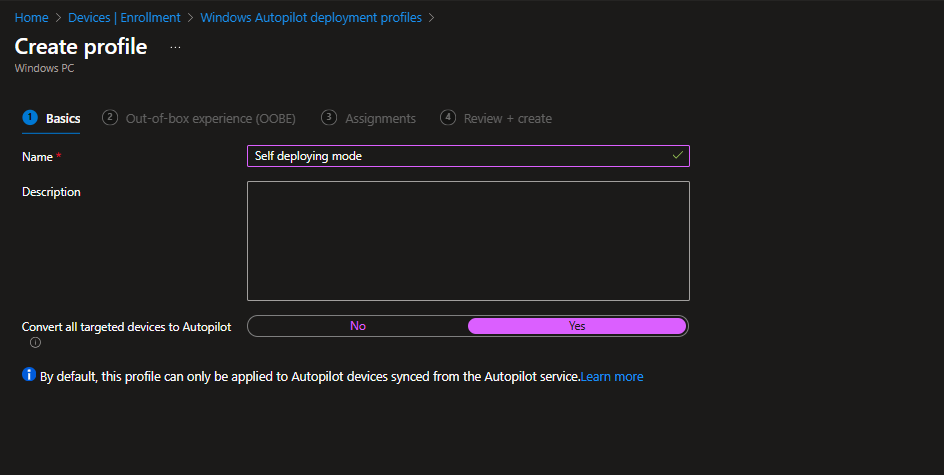
Configure:
- Name: Self deploying mode
- Description: (Optional)
Autopilot profile for shared devices and kiosks - Convert all targeted devices to Autopilot: Yes
What “Convert to Autopilot” does:
- Yes: Devices can auto-register during OOBE even without pre-registered hash
- No: Only pre-registered devices will use this profile
Click Next
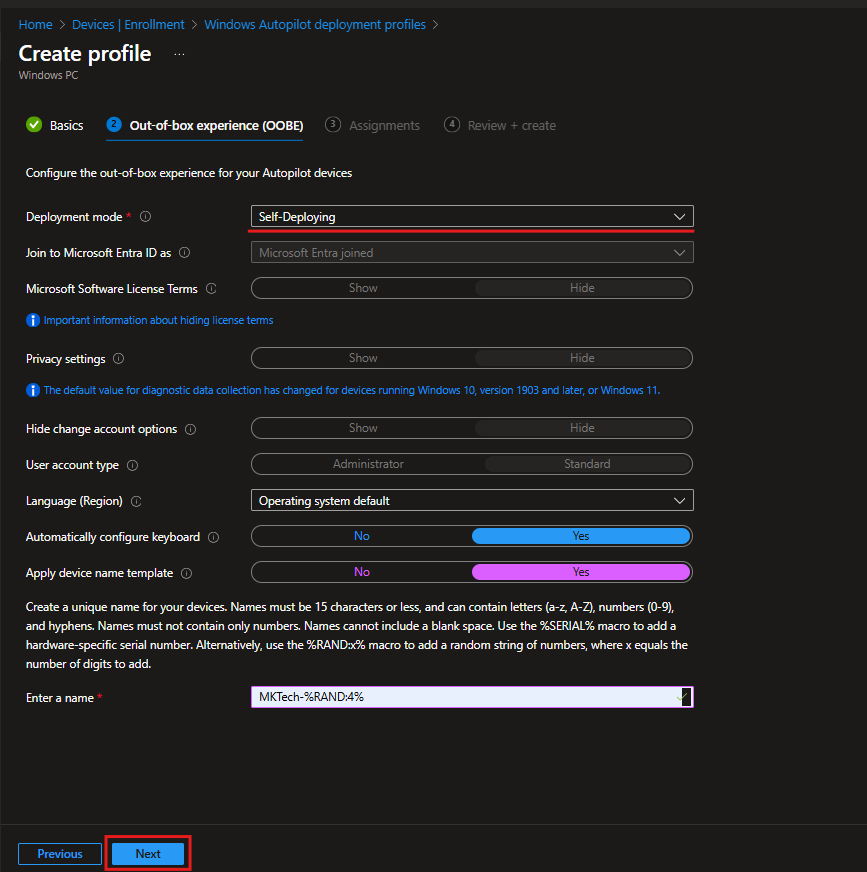
Out-of-Box Experience (OOBE)
Primary Configuration:
| Setting | Value | Notes |
|---|---|---|
| Deployment mode | Self-Deploying | This is the key setting |
| Join to Microsoft Entra ID as | Microsoft Entra joined | (Auto-locked) |
| Microsoft Software License Terms | Hide | (Auto-locked) |
| Privacy settings | Hide | (Auto-locked) |
| Hide change account options | Hide | (Auto-locked) |
| User account type | Standard | (Auto-locked) |
Why are most settings greyed out?
Self-deploying is userless, no one logs in during OOBE. Microsoft automatically hides all user-interaction settings.
Configurable Settings:
| Setting | My Value | Recommendation |
|---|---|---|
| Language (Region) | Operating system default | Or select specific language |
| Automatically configure keyboard | Yes | Highly recommended for zero-touch |
| Apply device name template | Yes | Essential for management |
| Device name template | MKTech-%RAND:4% | Creates names like MKTech-1234 |
Step 2: Assign Profile to Group
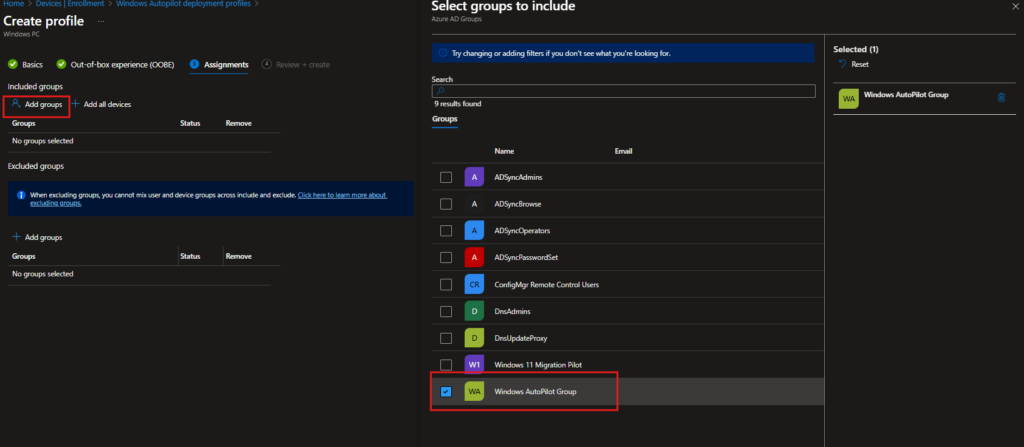
Assignments
- Under Included groups, click Add groups
- Search for: < Your Device Group >
- Select the group
- Click Select
Verification:
Your profile should appear in the list with:
- Name: Self deploying mode
- Assigned: Yes
- Join type: Microsoft Entra joined
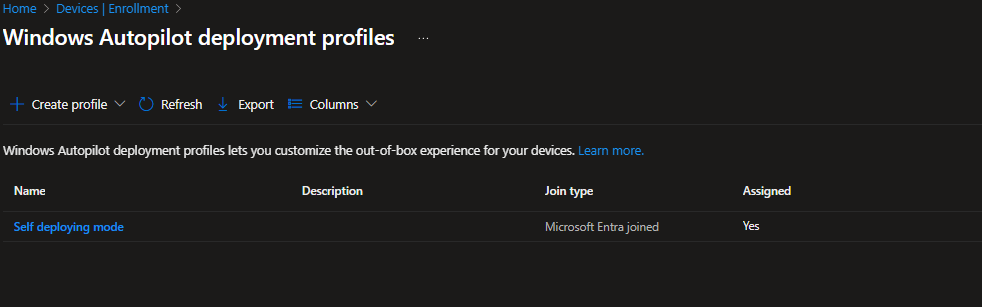
Perfect! Profile is now active and ready to deploy devices.
Deployment & Testing
Physical Device Preparation
- Factory reset the device (or use brand new device)
- Settings → System → Recovery → Reset this PC
- Power on device
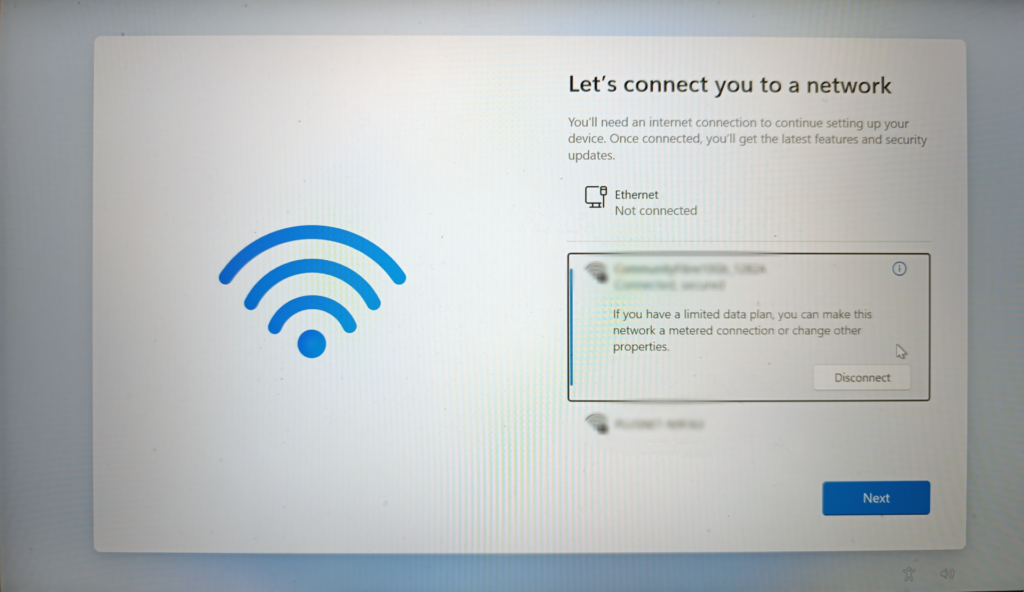
- Connect to network:
- Ethernet: Auto-connects (recommended for zero-touch)
- Wi-Fi: Select network, enter password (minimal interaction)
OOBE Deployment Experience
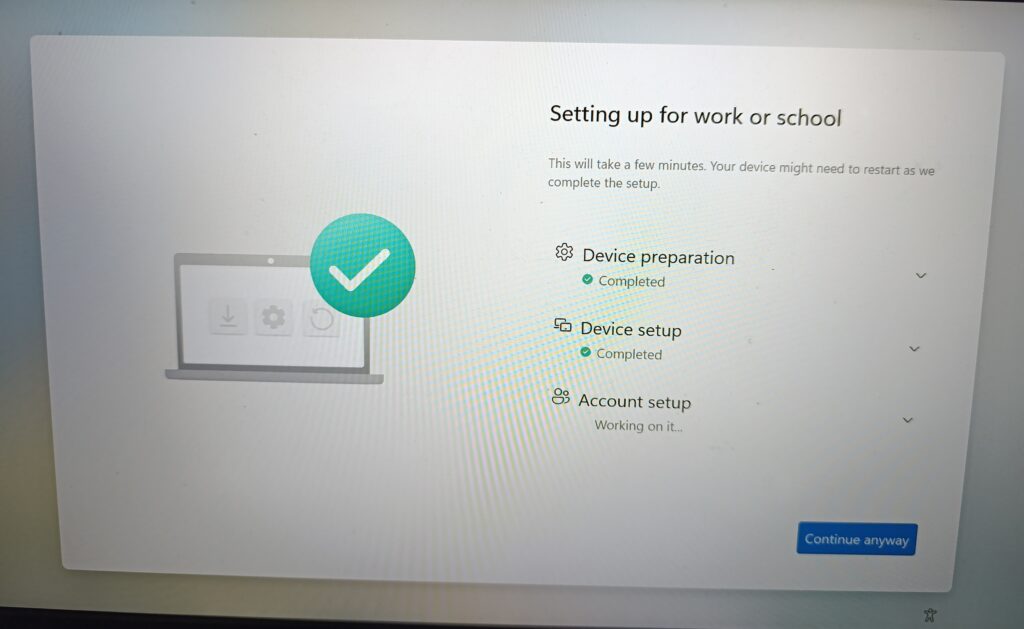
“Setting up for work or school”
The device detects Autopilot and begins automated provisioning.
Typical Timeline:
- Minimal setup: 5-10 minutes
- Standard deployment (10-15 apps): 15-25 minutes
- Complex deployment (20+ apps): 30-45 minutes
Windows Login Screen (Deployment Complete)
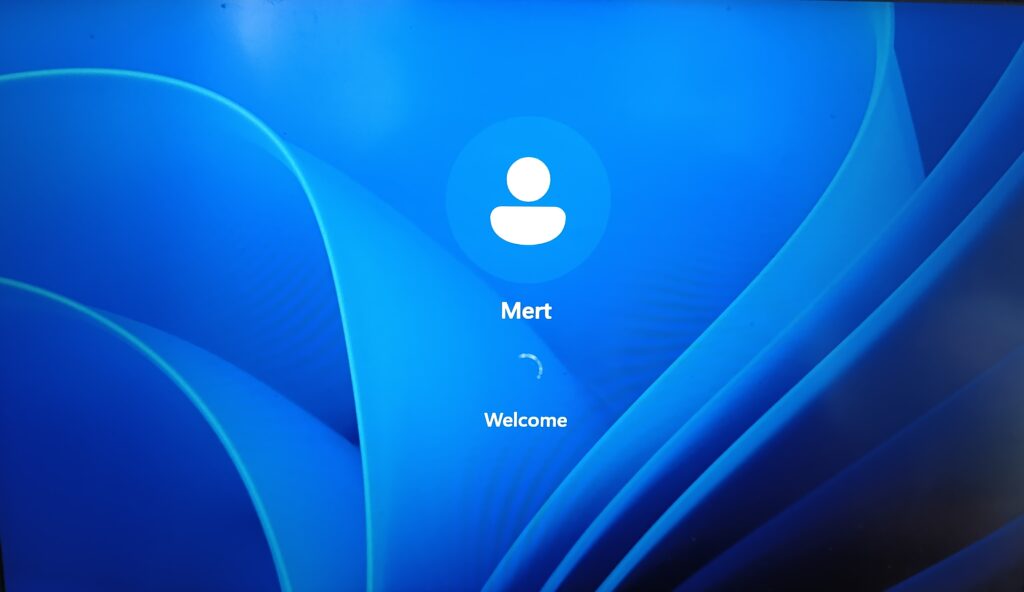
Success! Device shows Windows login screen.
Key Observations:
- User account shown: “Mert” (this is my existing account)
- Message: “Welcome”
- No automatic login (unlike user-driven mode)
- Device is ready for ANY authorized user to log in
Device State:
- Fully joined to Microsoft Entra ID
- Enrolled in Intune MDM
- Device-level policies applied
- Required apps installed
- Named using template:
MKTECH-8931 - BitLocker encrypted (if configured)
- Ready for production use
Post-Deployment Verification in Intune
Let’s verify everything worked correctly:
Navigate to: Intune admin center → Devices → Windows Devices
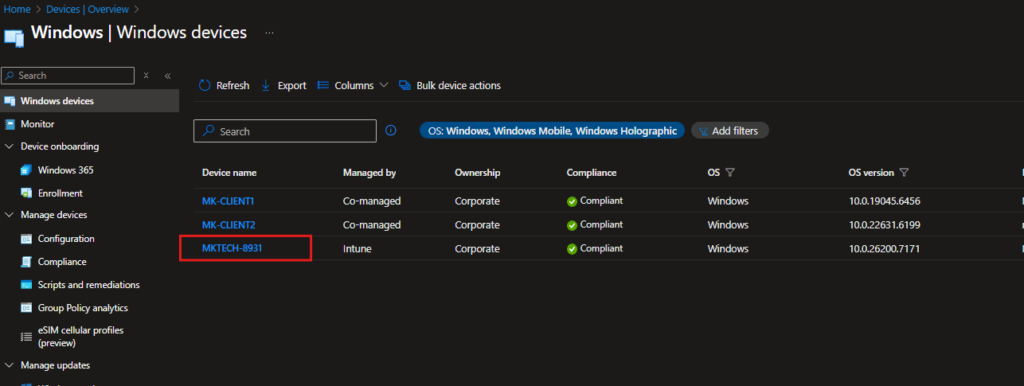
Perfect! Device is fully provisioned and compliant.
Windows Autopilot Self-Deploying Mode is built for true zero-touch deployment scenarios where no user interaction is expected during setup. For shared and unattended devices, it allows provisioning to complete automatically from power-on to sign-in without IT intervention.
When used in the right scenarios, it simplifies deployment at scale and removes the need for hands-on device preparation, making it a practical choice for modern, cloud-managed environments.
Next in my Autopilot series: Autopilot for Existing Devices .Stay tuned!You can read my previous post here: How to Configure Intune Pre-Provisioned Autopilot: The Complete Guide