How to Set Up SCCM Cloud Management Gateway (CMG)
Remote and hybrid endpoints are fine until the SCCM client stops behaving like an SCCM client. As soon as the device is off-network, you start relying on VPN for basic things like policy refresh, app installs, inventory, and compliance. That’s where Cloud Management Gateway (CMG) makes life easier.
CMG is basically an internet-facing management channel for ConfigMgr. It allows clients to communicate securely over HTTPS without publishing your on-prem management roles directly to the internet. In real terms, CMG is a strong fit when you have:
- roaming laptops and hybrid users who aren’t always on VPN,
- multiple locations with unreliable site connectivity,
- internet-based client management needs (policy, inventory, app deployments),
- and you want a clean path to manage devices outside the corporate boundary.
In this post, I’m walking through a practical SCCM CMG setup using the VM Scale Set deployment model and a PKI-issued certificate, with Azure’s default endpoint naming.
Before you start (quick checklist)
- Azure subscription access (enough to deploy resources)
- ConfigMgr console access
- PKI/AD CS available to issue a web server certificate
- Management Point ready (and Software Update Point if you want updates over CMG)
1) Create a CMG certificate template (PKI)
CMG needs a certificate that you can export as PFX (private key included). The easiest way is duplicating the Web Server template and tailoring it for CMG.
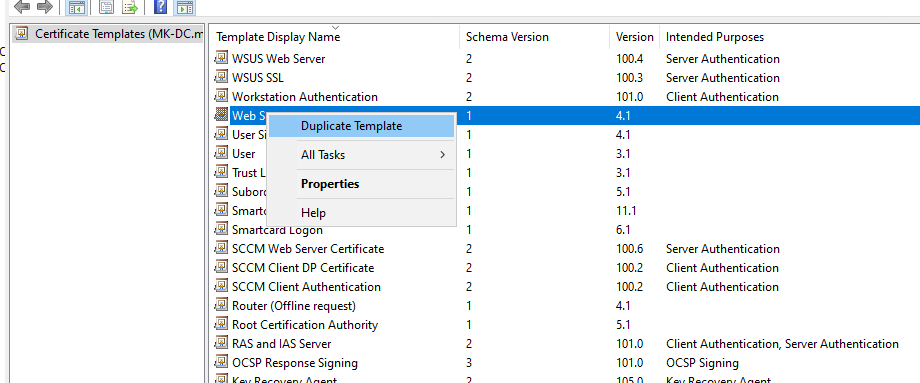
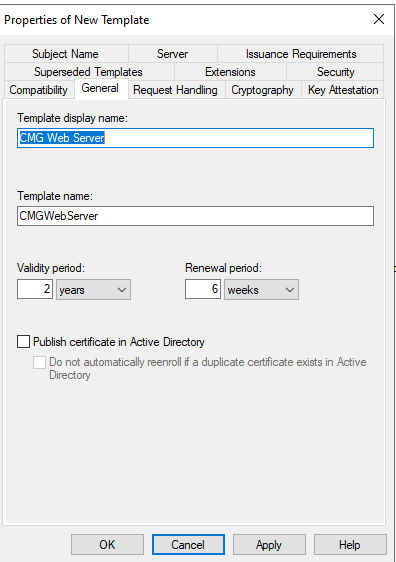
Give the template a clear name so it’s easy to find later.
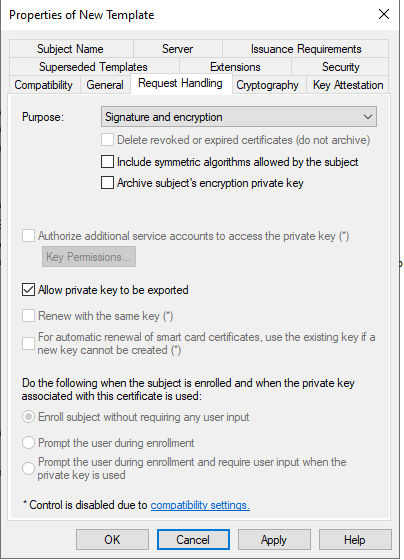
Make sure the private key is exportable. Without this, you’ll hit a wall when you try to create the PFX.
Grant Enroll permissions to the user or group that will request the certificate.
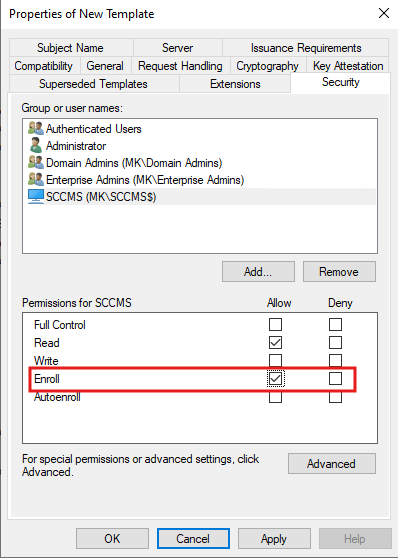
2) Request the CMG certificate and export it as PFX
Request the certificate in the Local Computer store.
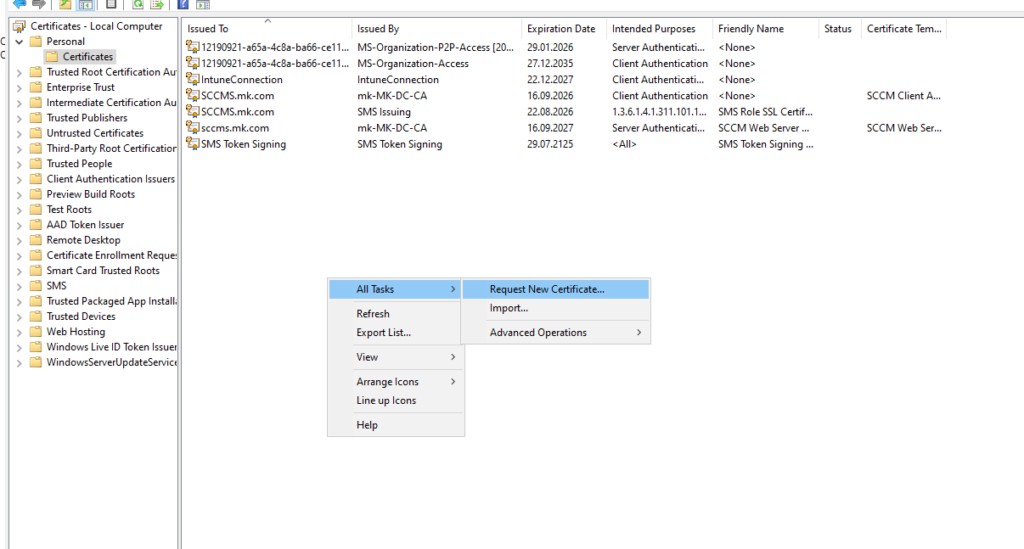
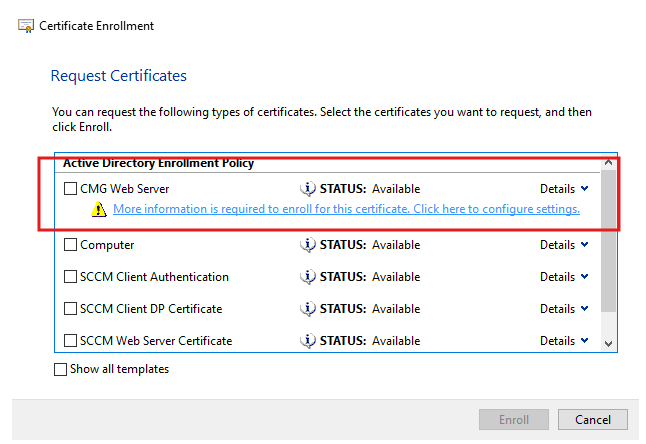
Select the CMG template.
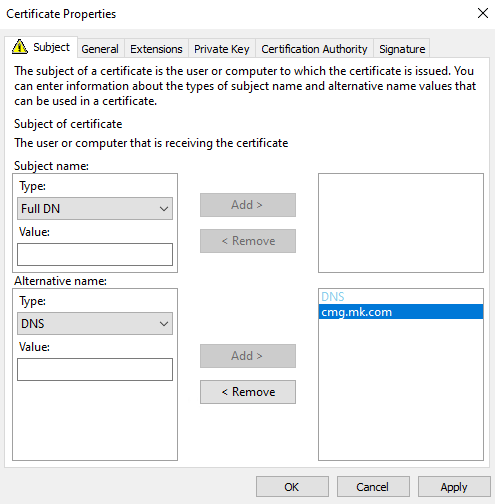
Add the DNS name under SAN (Alternative name). Keep it simple and consistent with what you plan to use for the CMG service name.
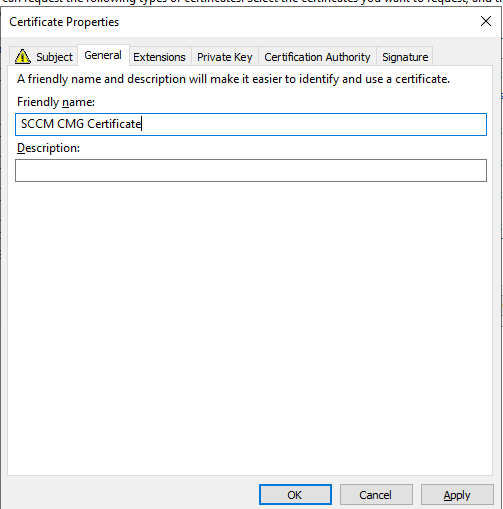
Set a friendly name so it doesn’t get lost among other SCCM/IIS certificates.
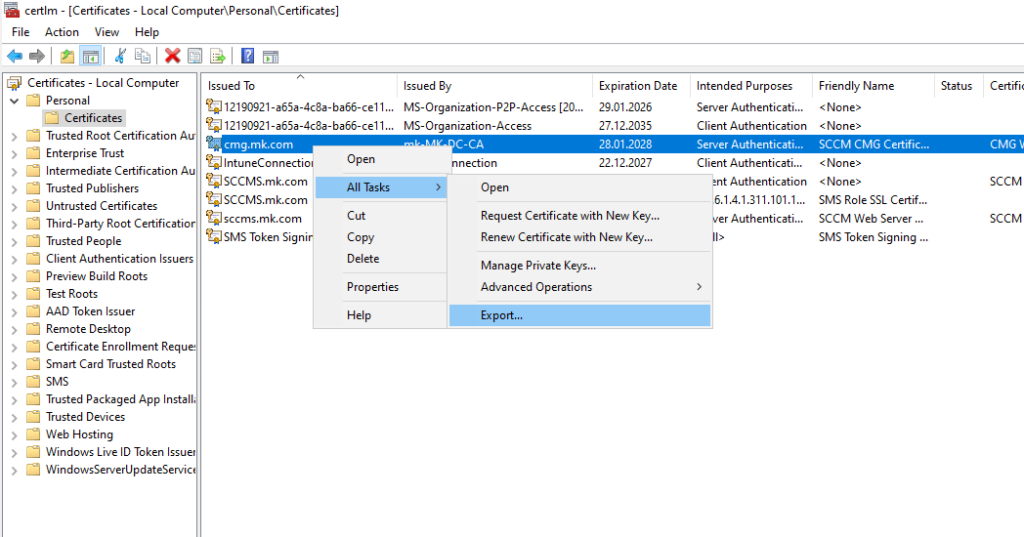
Export the certificate from Personal store.
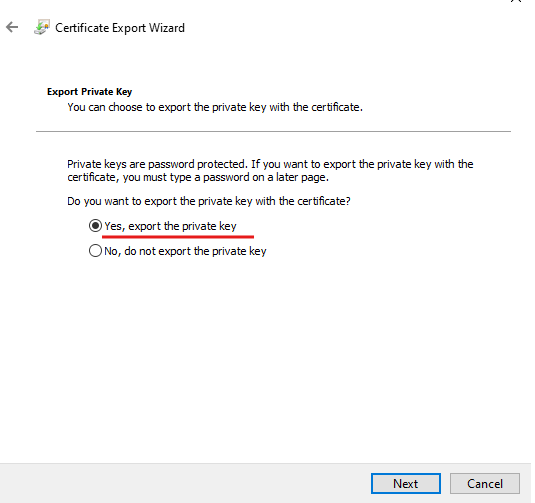
Export with the private key.
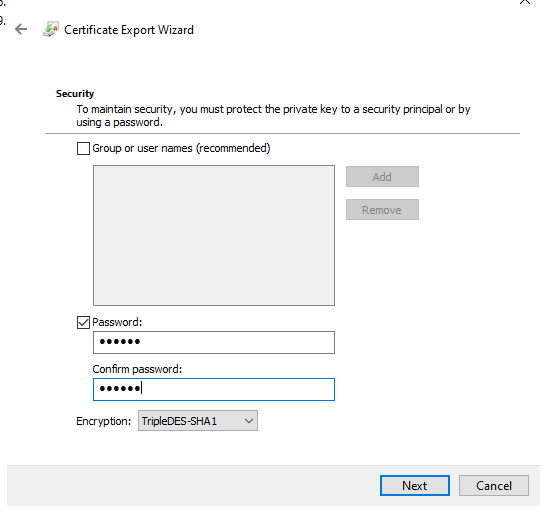
Protect the PFX with a password.
3) Configure Azure Services for Cloud Management
CMG relies on Azure Services configuration inside ConfigMgr. This is the part that prepares the tenant/apps used during CMG creation.
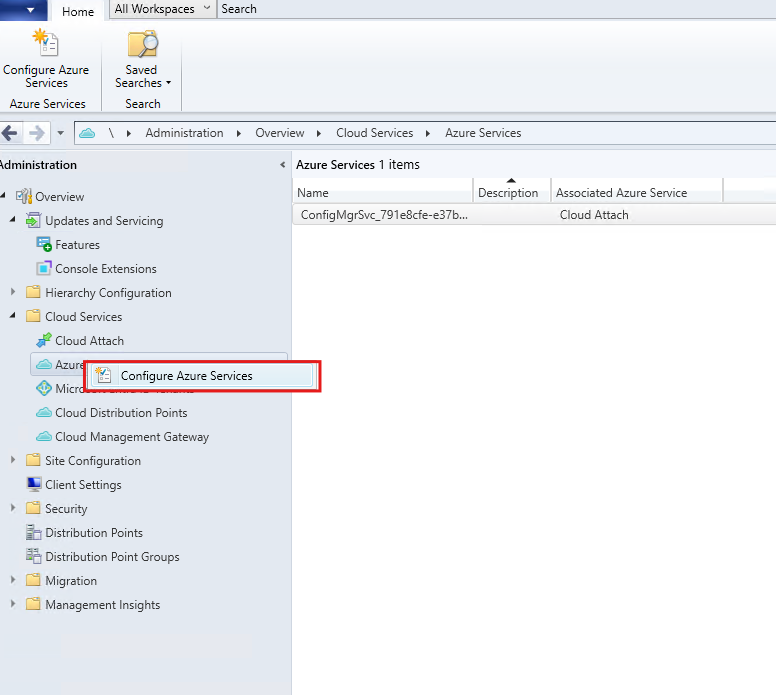
Start the Azure Services wizard.
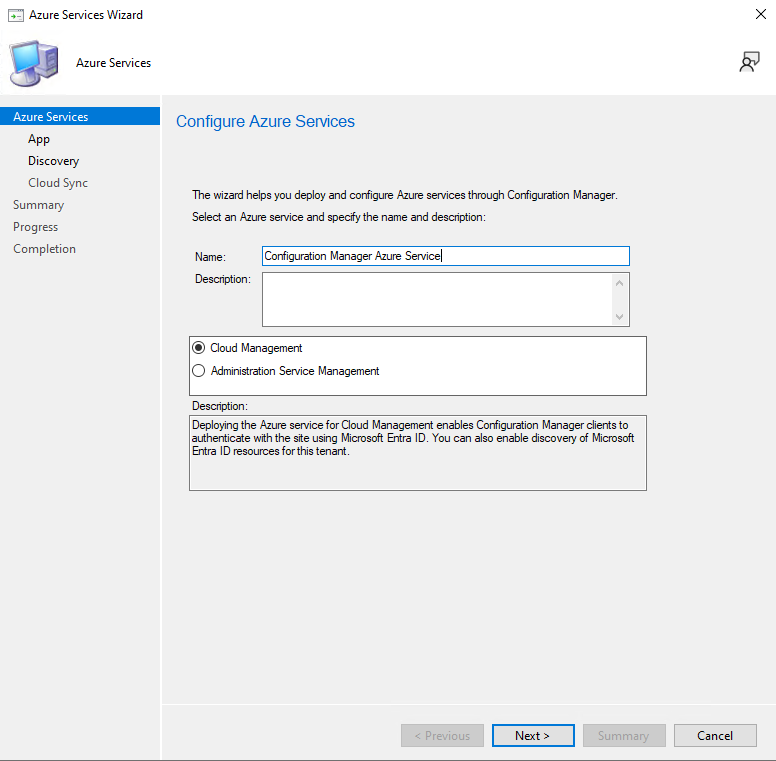
Select Cloud Management.
Create the required apps. Naming them clearly helps later when you troubleshoot or revisit the setup.
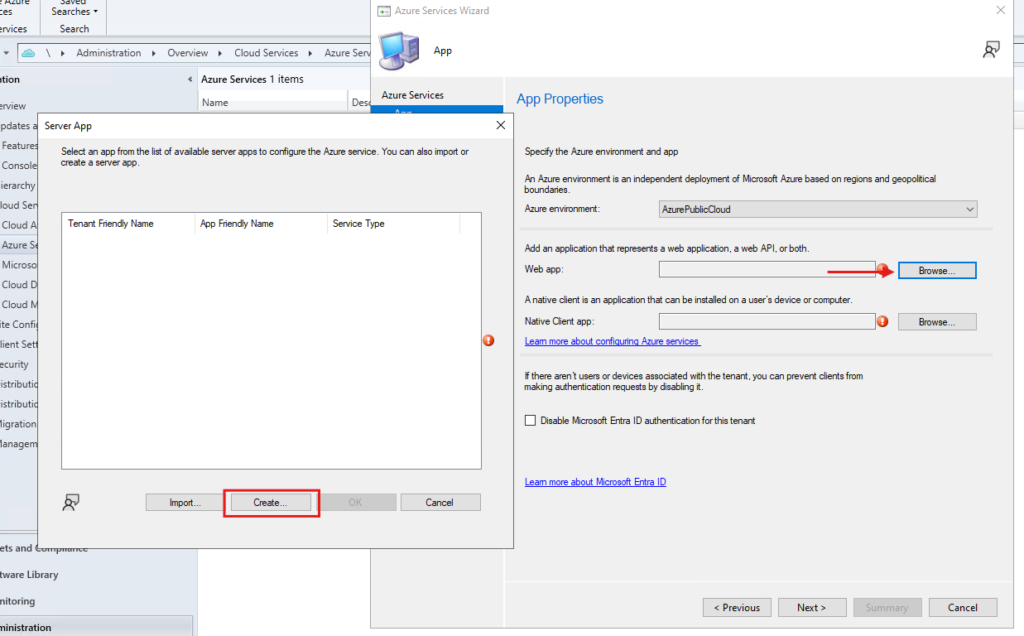
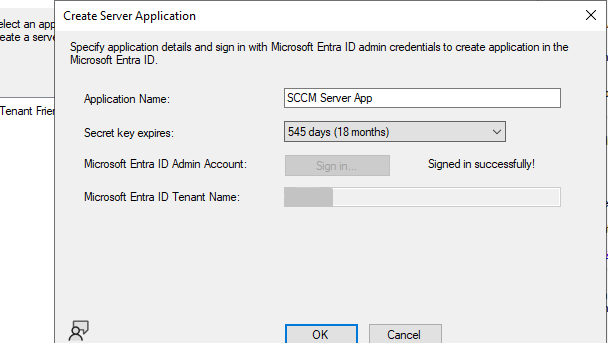
Create the server app.
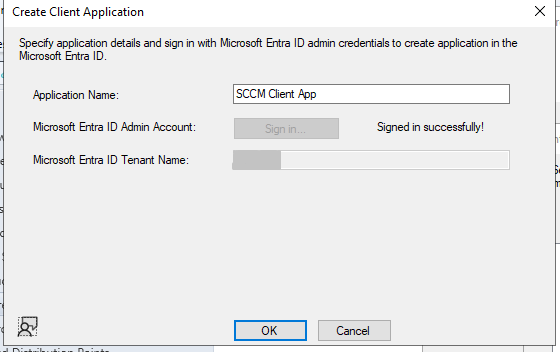
Create the Client app.
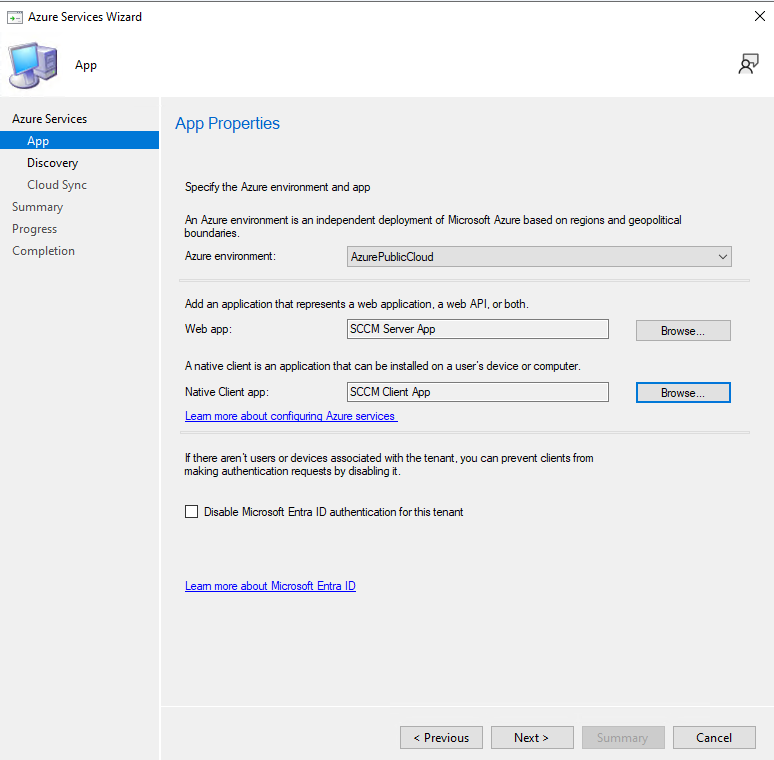
Confirm both apps are selected.
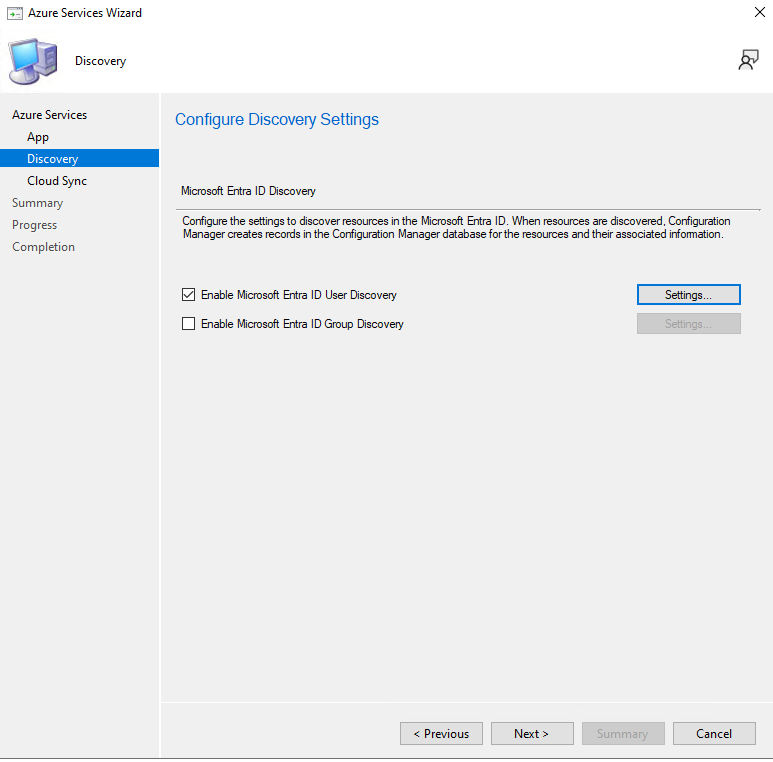
If you enable discovery/sync options in the same wizard, keep it lightweight and only enable what you actually plan to use.
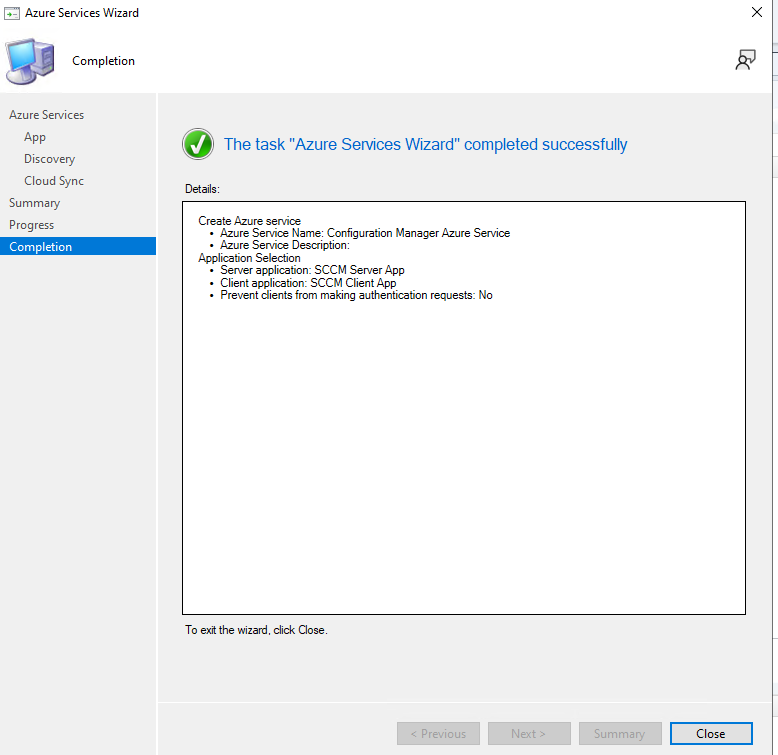
Finish and confirm the wizard completes successfully.
4) Create the Cloud Management Gateway (VM Scale Set)
Open the CMG creation flow.
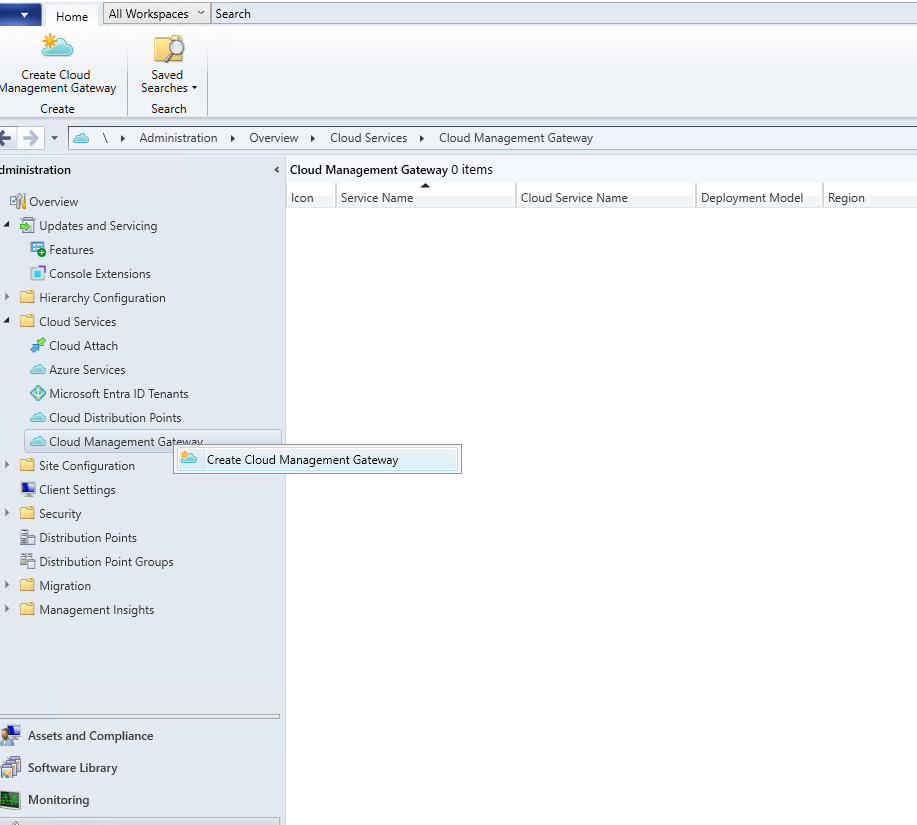
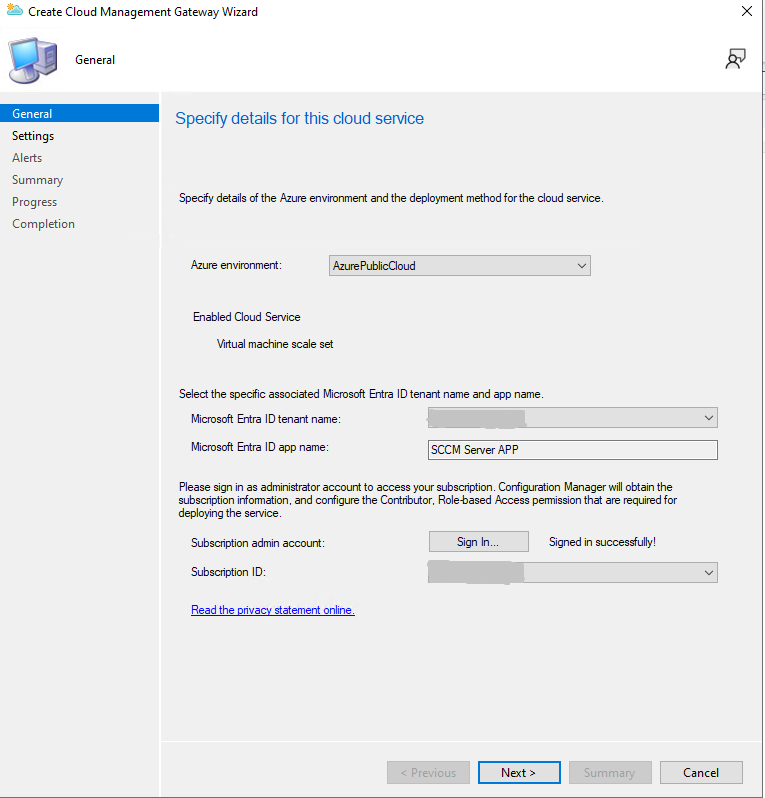
Sign in, select the tenant/app, and make sure the subscription is available.
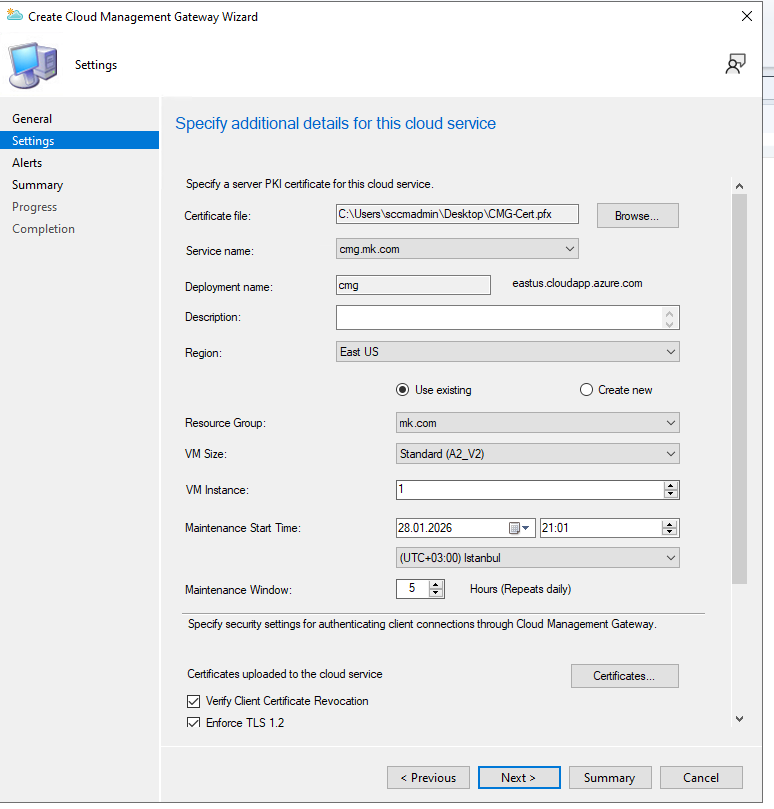
Point to the PFX, pick the region, and set the deployment details. For security, keeping TLS 1.2 enforced is a good baseline.
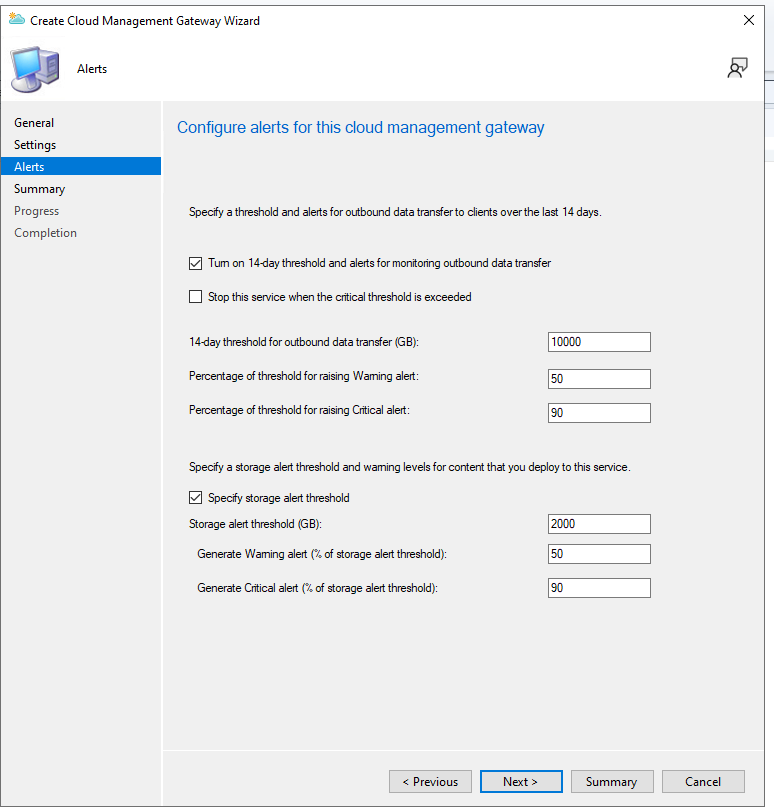
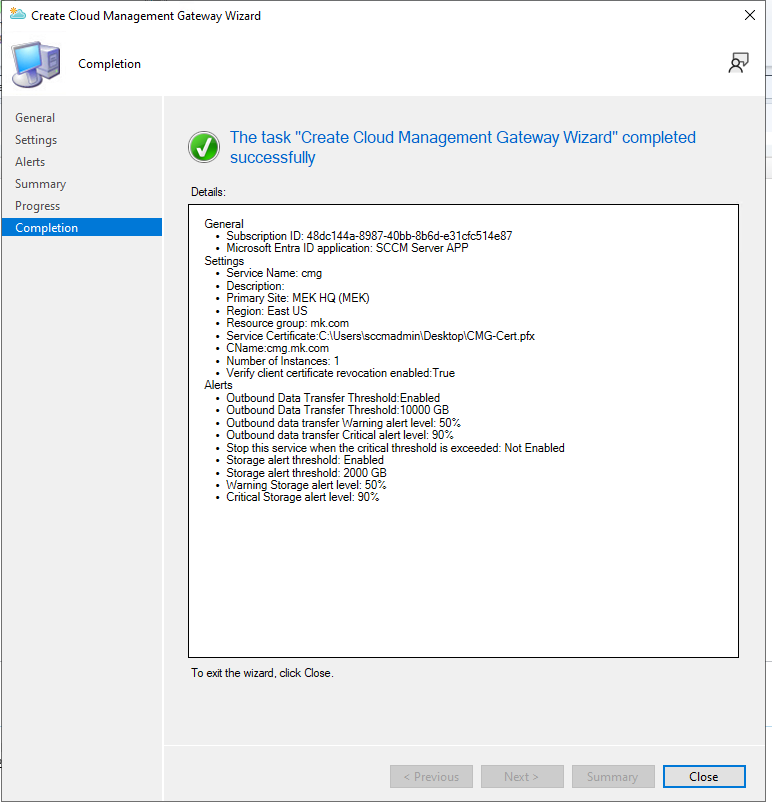
Set alert thresholds so you can monitor outbound traffic and storage usage over time.
Finish and confirm the wizard completes.
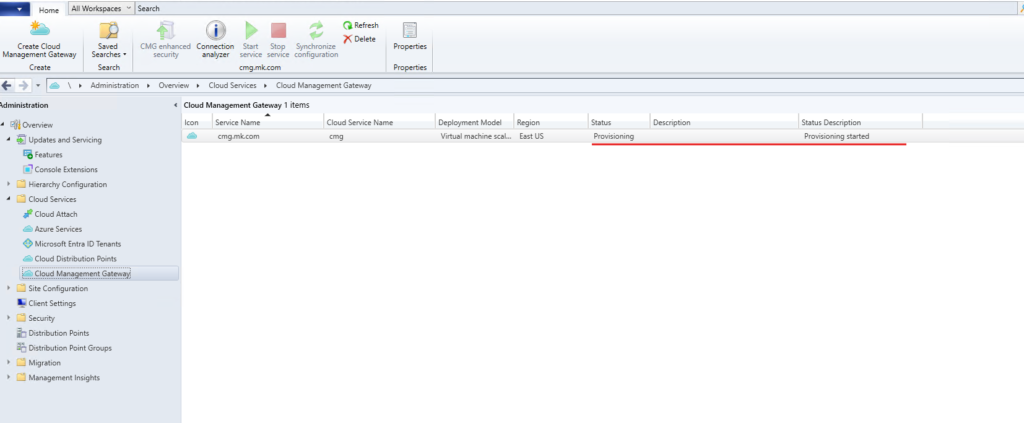
After that, CMG will show as provisioning until Azure finishes the deployment.
5) Allow CMG traffic on Management Point (and SUP if used)
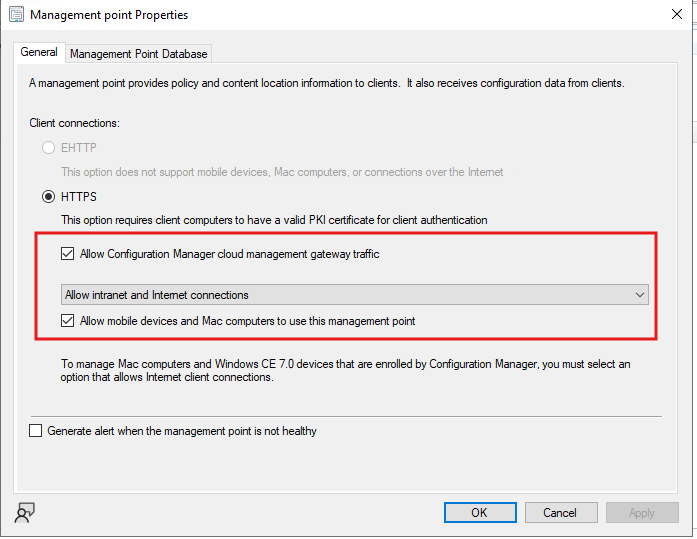
Enable CMG traffic on the Management Point and allow internet/intranet connections as required.
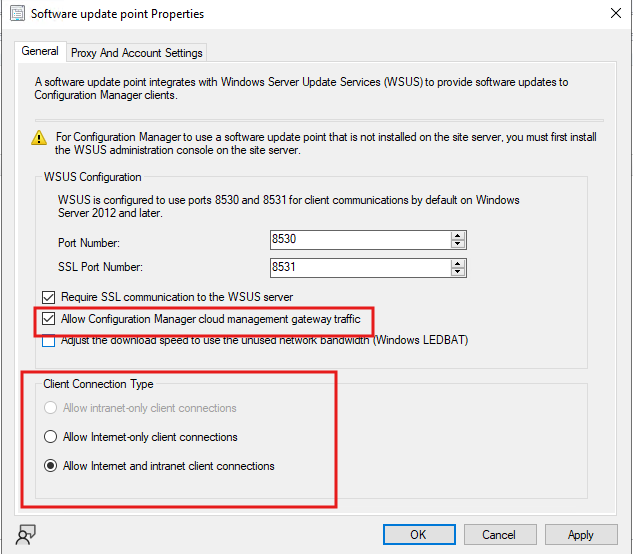
If you’re using Software Updates through CMG, align the SUP setting and connection type.
6) Install the CMG Connection Point role
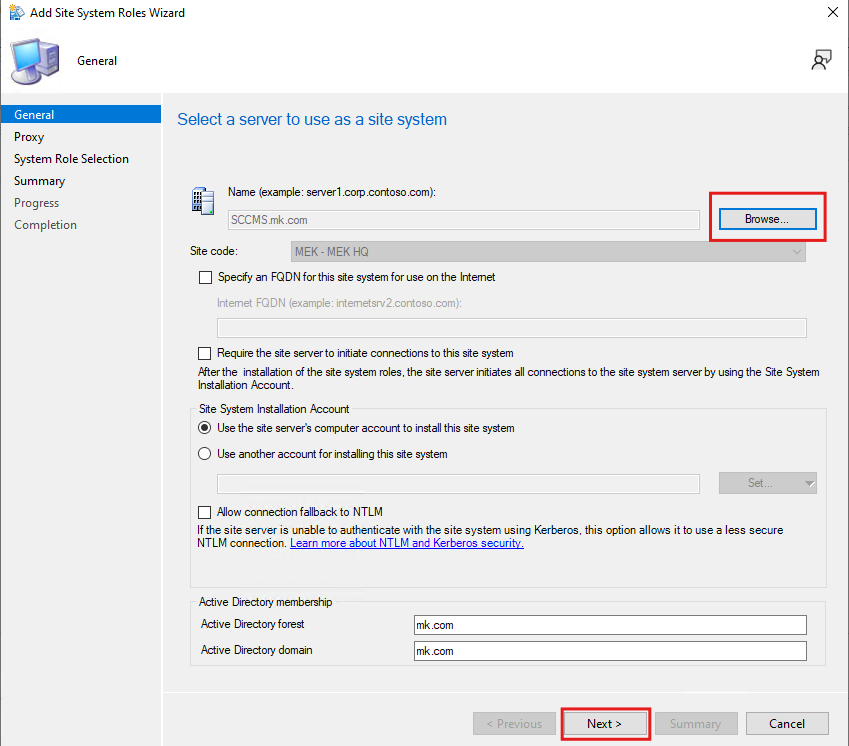
CMG needs the connection point role on a site system server. Add site system roles on the server that will host the connection point. Administration -> Site Configuration -> Sites -> Add Site System Roles
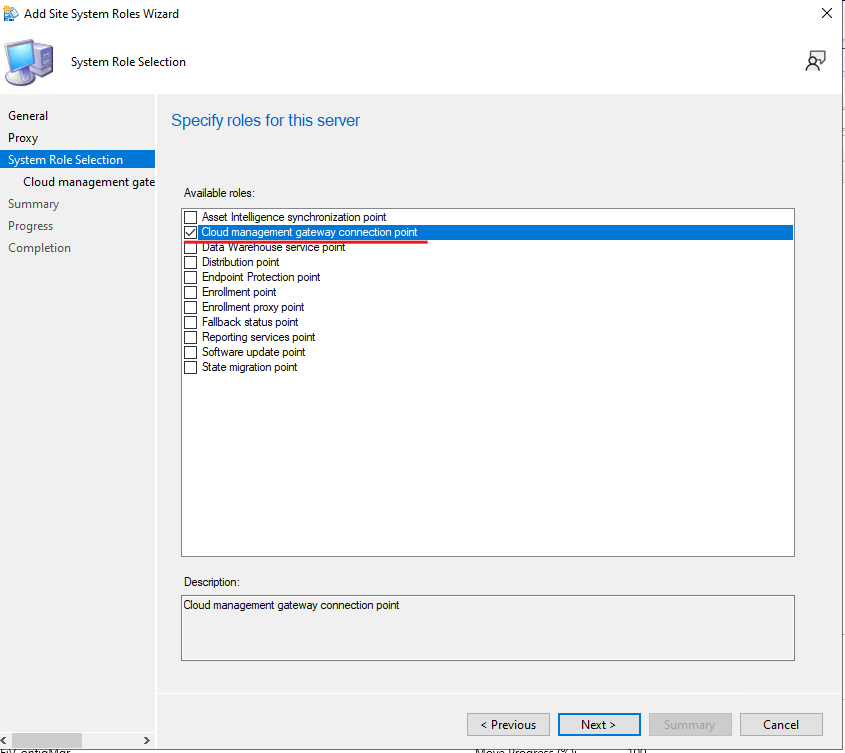
Select Cloud management gateway connection point.
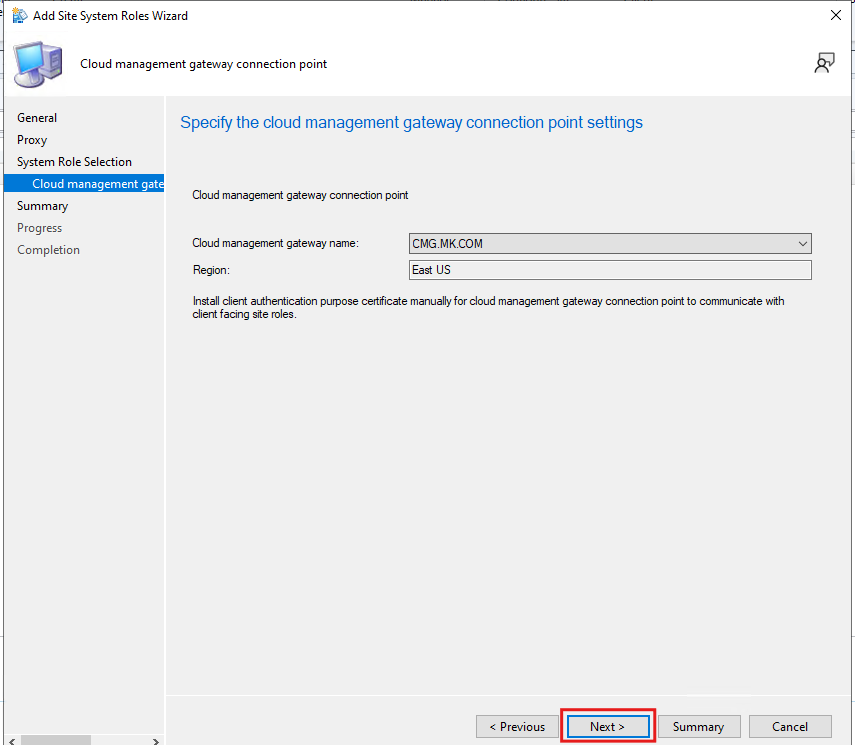
Choose the CMG instance and continue.
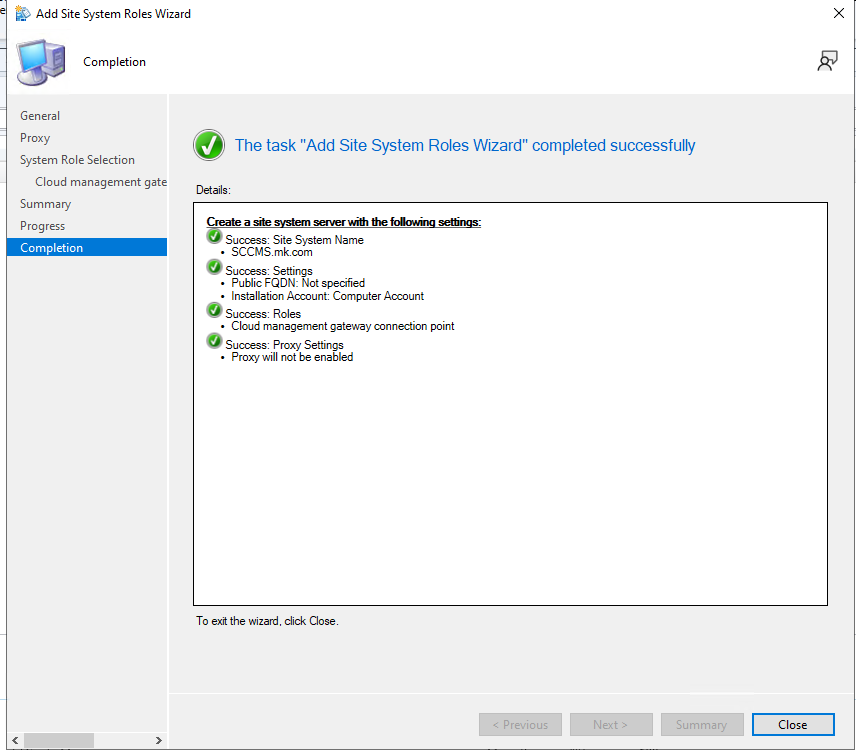
Finish and confirm it completes.
7) Client Settings: Enable cloud usage where needed
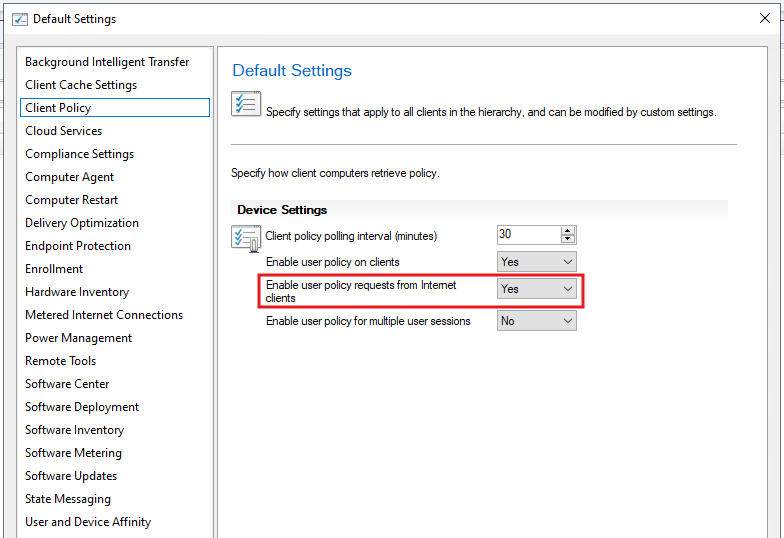
If you expect user-targeted deployments/policy while devices are outside the network, enable user policy requests from internet clients.
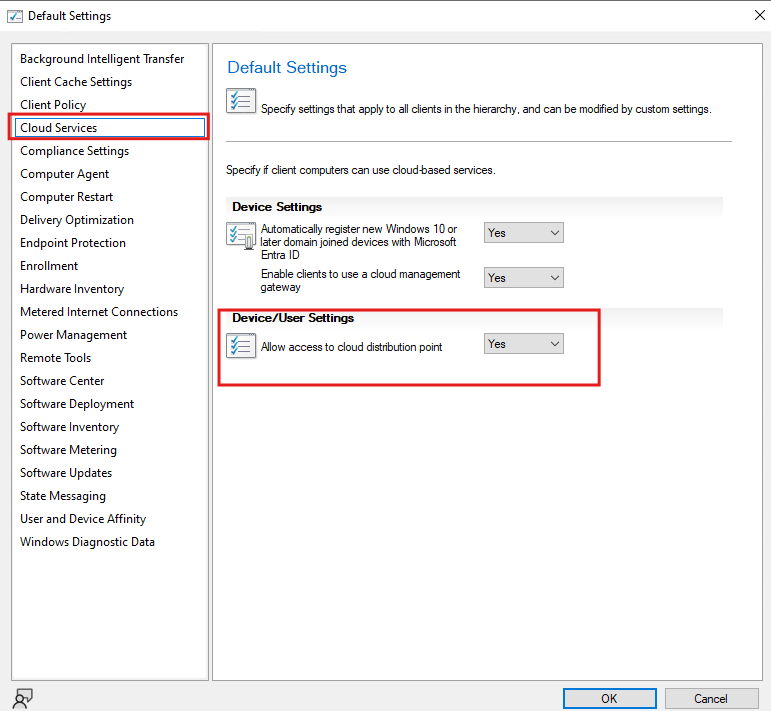
If you’re using cloud distribution points in your environment, allow access to cloud DP as needed.
Client-side checks (quick validation list)
You don’t need a long troubleshooting section, just a solid checklist:
- Trust: Clients must trust your internal CA
(Root CA in Local Computer → Trusted Root Certification Authorities) - Internet context: CMG kicks in when the client is effectively “internet” (not seeing intranet MP)
- Logs (fastest confirmation):
LocationServices.logCCMMessaging.logCloudMgr.log
If CMG is working, you’ll see the client discovering and using the CMG channel, and policy retrieval will start behaving like “normal SCCM”, just over the internet.
With CMG in place, you’ve now got a reliable way to manage off-network devices through ConfigMgr. Certificate prep, Azure services, CMG deployment, the connection point role, and the key client settings are all covered in this guide. Once everything is healthy, policies and deployments work without depending on VPN for every routine action.