How to Exclude Specific Devices from SCCM Application Deployments
When deploying applications through Microsoft Endpoint Configuration Manager (SCCM), you might encounter situations where an application needs to be deployed to a broad collection like “All Desktop and Server Clients,” but certain organizational units (OUs), specific computers, or device groups need to be excluded. Instead of creating complex collection queries or multiple collections, SCCM offers a cleaner solution through deployment requirements. This approach keeps your deployment structure simple while giving you granular control over which devices receive the application.
Why Use Requirements Instead of Collection Exclusions?
While you could create exclusion collections, using deployment requirements offers several advantages:
- Keeps your collection structure clean and manageable
- Provides more flexible filtering options beyond just OU membership
- Allows for dynamic exclusions without modifying collections
- Makes it easier to audit and understand deployment targeting
- Reduces the number of collections you need to maintain
Step-by-Step Guide to Exclude Devices Using OU-Based Requirements
Step 1: Navigate to Your Application Deployment
First, open the Configuration Manager console and navigate to your application deployment:
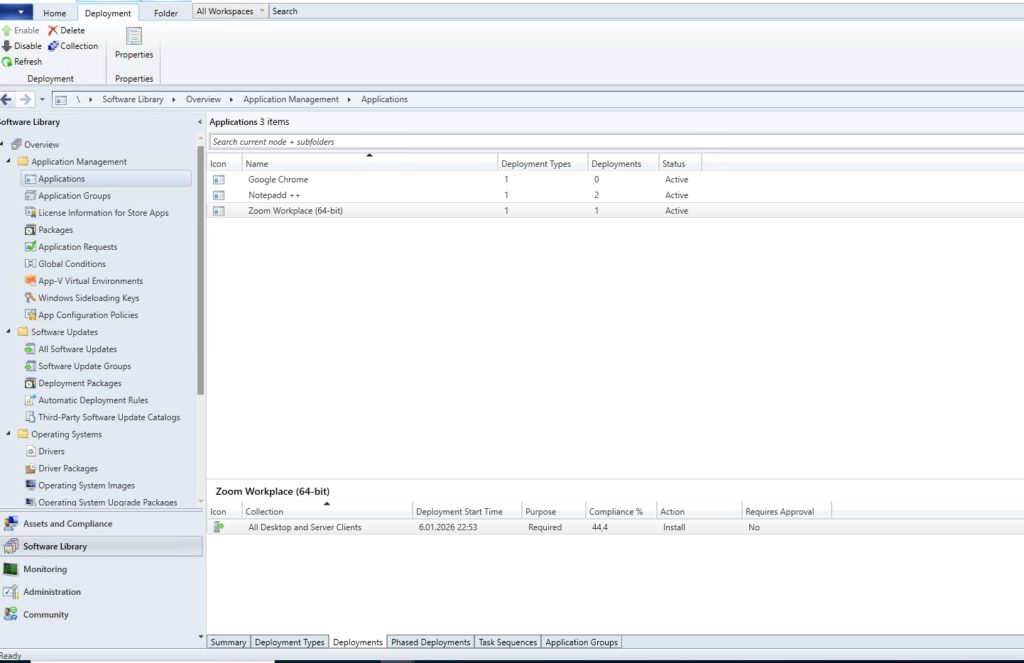
- Go to Software Library > Application Management > Applications
- Locate the application you want to configure (in our example, it’s “Zoom Workplace (64-bit)”)
- Select the application to view its deployment details at the bottom of the screen
Step 2: Access Deployment Type Properties
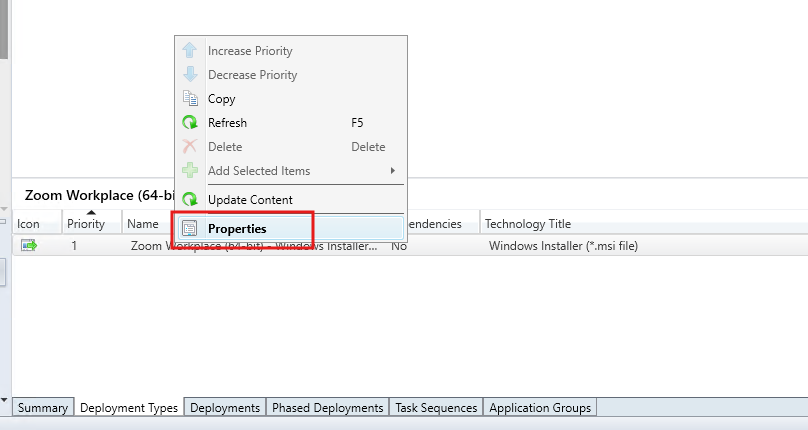
Right-click on the deployment type you want to modify and select Properties:
Step 3: Navigate to Requirements Tab
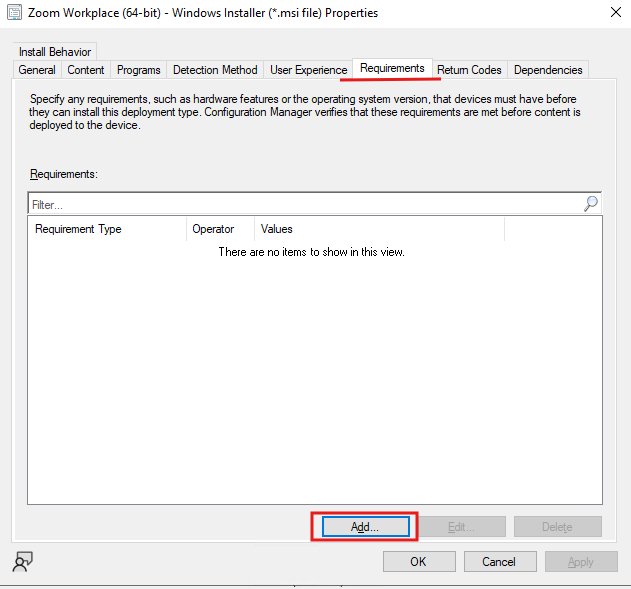
In the Properties window, click on the Requirements tab. This is where you’ll define conditions that devices must meet (or not meet) to receive the deployment.Click the Add button to create a new requirement rule. The “Create Requirement” dialog will open.
Step 4: Configure the OU-Based Exclusion
Now comes the crucial part – setting up the exclusion logic:
- Category: Select “Device”
- Condition: Choose “Organizational unit (OU)”
- Rule type: Select “Value”
- Operator: Choose “None of” (this is key for exclusion)
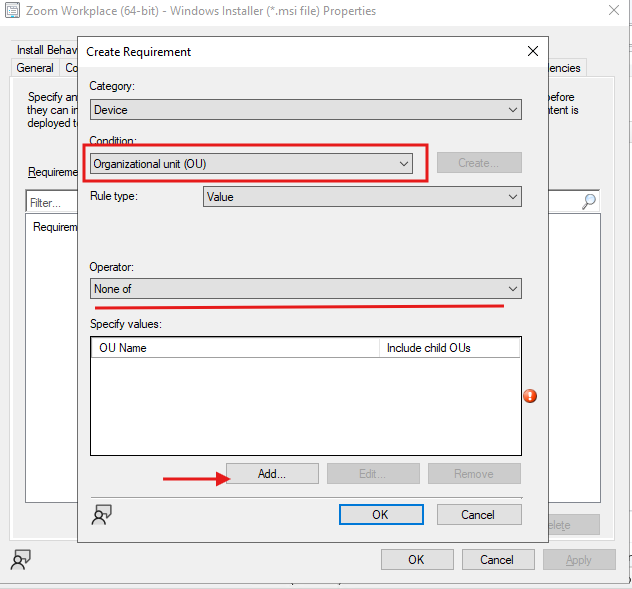
Step 5: Specify the OUs to Exclude
Click the Add button in the “Specify values” section to browse and select the OUs you want to exclude:
- Browse through your Active Directory structure
- Select the specific OU(s) you want to exclude
- Check “Include child OUs” if you want to exclude all sub-OUs as well
- Click OK to confirm
In this example, we’re excluding devices from the “Computers” OU under the HQ/Sales path.
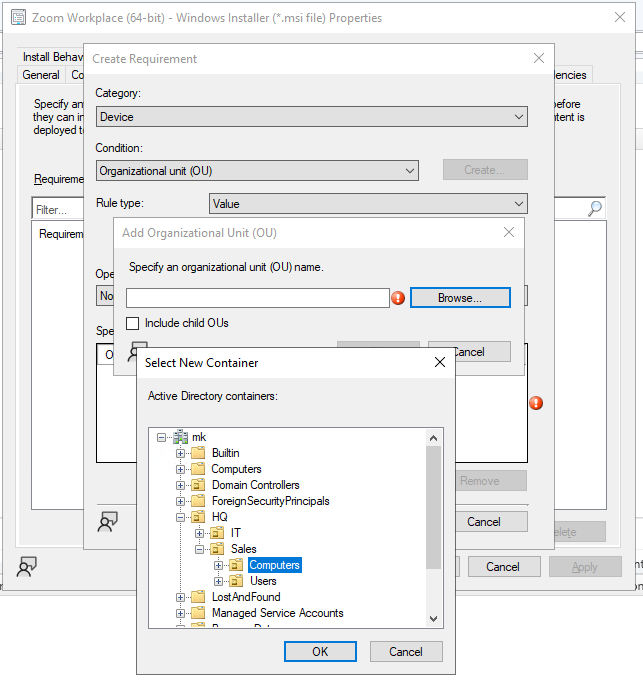
Verifying the Configuration Works
After configuring the requirement, you can verify it’s working correctly by checking device properties in SCCM:
Checking Device OU Membership
Navigate to Assets and Compliance > Devices > All Desktop and Server Clients and examine the properties of different devices. Look at the “System OU Name” property to see which OU each device belongs to.
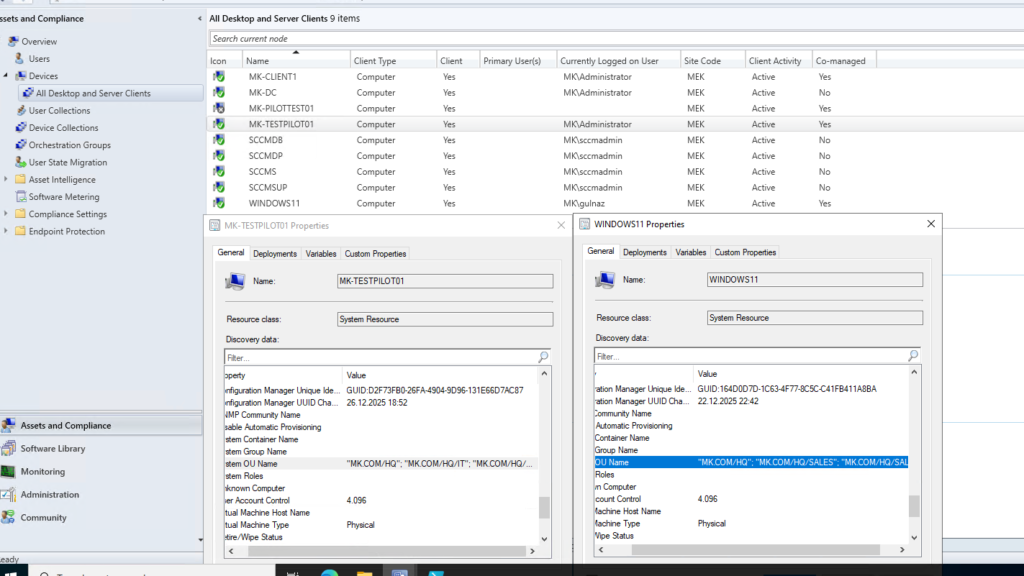
Viewing Deployment Status in SCCM
Before checking end-user devices, let’s verify the deployment status in the Configuration Manager console. Navigate back to your application’s deployment details to see which devices have successfully received the application and which have been excluded by the requirement rule.
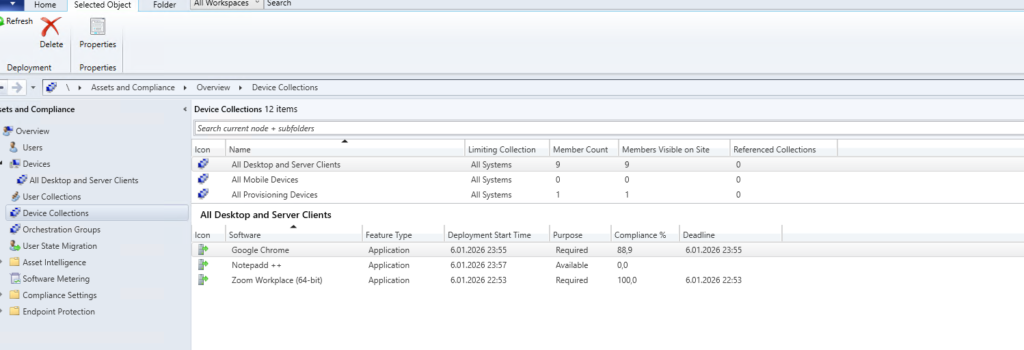
Testing on End-User Devices
Now let’s verify the requirement exclusion is working correctly by checking the actual devices. In this example, Zoom Workplace is deployed as Required to the “All Desktop and Server Clients” collection, but with an OU-based requirement that excludes certain devices.
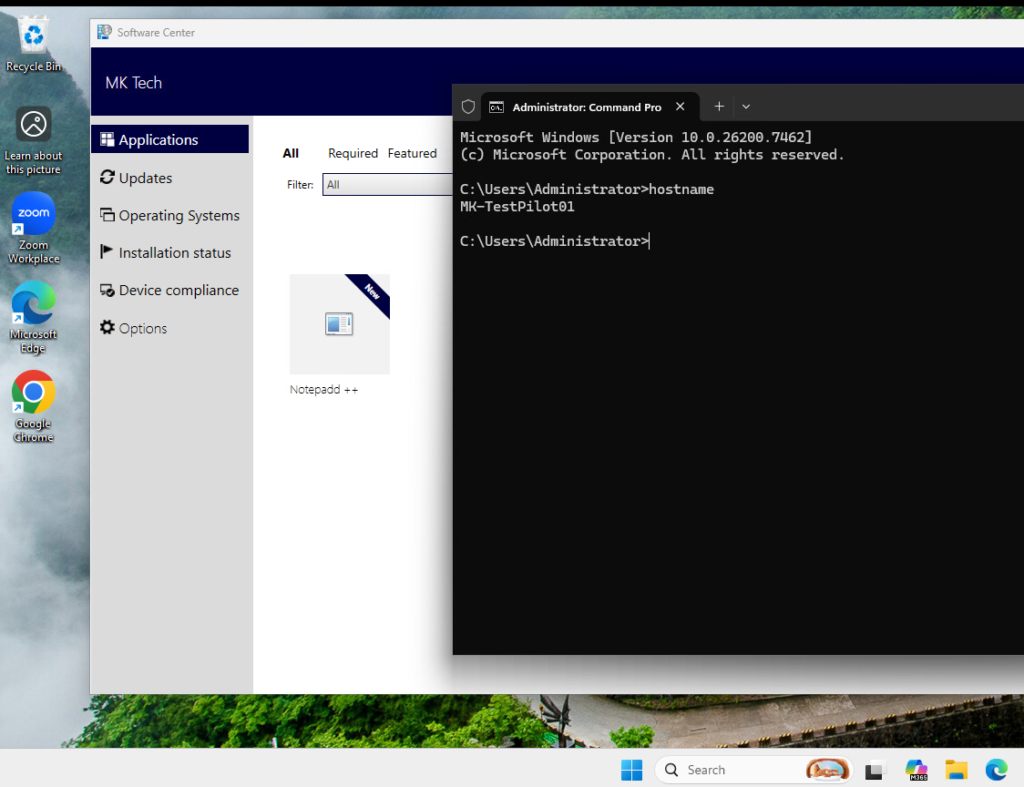
Device included in deployment (MK-TestPilot01):
On the MK-TestPilot01 device, which is not in the excluded OU, the Zoom Workplace application has been automatically installed as a required application. You can see the Zoom desktop icon, confirming the deployment was successful. Software Center shows other available applications like Notepad++.
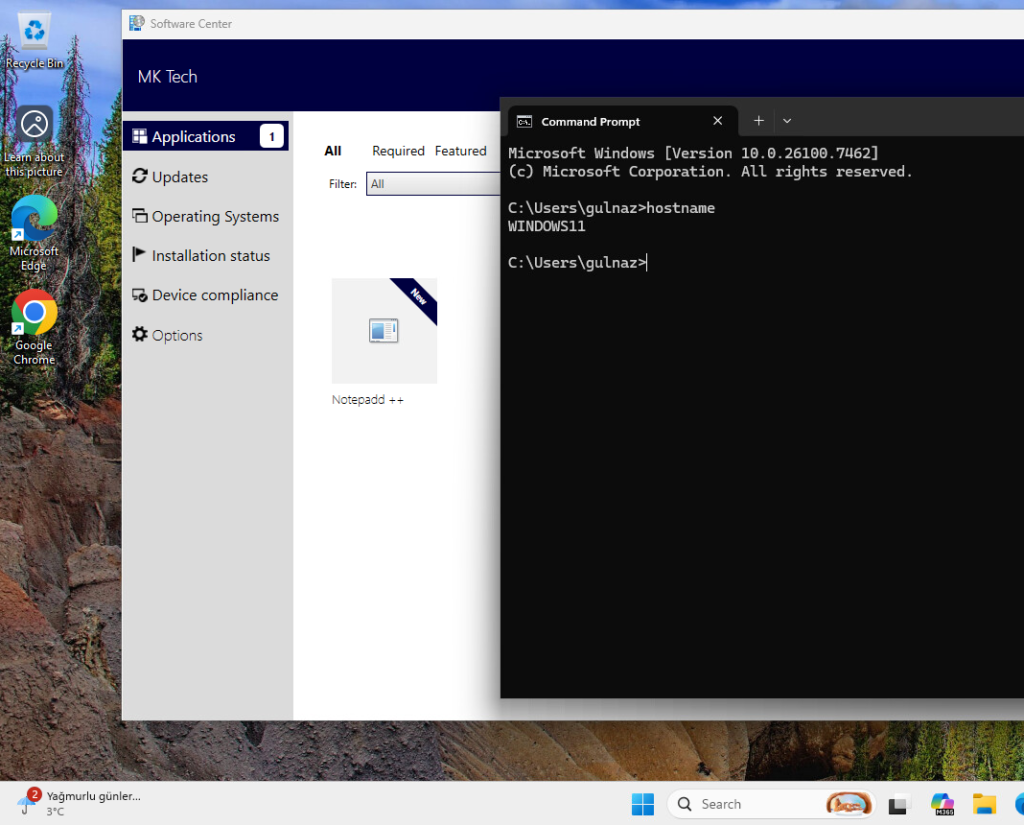
Device excluded by requirement (WINDOWS11):
On the WINDOWS11 device, which belongs to the excluded OU, the Zoom Workplace application was not installed. The requirement rule successfully prevented the deployment from reaching this device. Only the available applications (like Notepad++) appear in Software Center, and there’s no Zoom icon on the desktop. The required deployment was filtered out before it ever reached this device.
This demonstrates that the OU-based requirement is working exactly as intended – the same application deployed to the same collection behaves differently based on each device’s OU membership.
Other Available Requirement Conditions
While we focused on OU-based exclusion in this guide, SCCM provides several other built-in requirement conditions that you can use for deployment targeting. Here’s what’s available in the Condition dropdown:
Device-Based Conditions:
- Total physical memory: Filter based on device RAM
- Active Directory site: Target or exclude specific AD sites
- Co-managed device: Filter co-managed devices
- Configuration Manager site: Target specific SCCM sites
- CPU speed: Set minimum or maximum CPU requirements
- Disk space: Ensure adequate disk space before deployment
- Microsoft 365 apps managed by Microsoft Intune: Filter devices with M365 apps managed by Intune
- Number of processors: Set processor count requirements
- Operating system: Target specific OS versions
- Operating system language: Deploy based on OS language
- Ownership: Filter by device ownership (Corporate/Personal)
Custom Options:
- Windows Store Global Condition: For Windows Store app requirements
- Custom Global Conditions: Create your own conditions using WMI queries, scripts, registry values, or file properties for more advanced filtering scenarios
These conditions can be combined with different operators like “Equals”, “Not equals”, “Greater than”, “Less than”, “One of”, “None of” to create flexible deployment rules. You can also add multiple requirements to a single deployment type, and all conditions must be met for the application to install (AND logic).
When you need to exclude specific devices from SCCM deployments, using requirements is cleaner than managing multiple collections. The OU-based method we covered works great, but you can also use other device conditions depending on your needs. It’s a simple solution that keeps your deployment structure organized and your targeting precise.