
How to Configure Intune and SCCM Co-Management – Step by Step Guide
Co-management is a key capability that allows organizations to simultaneously manage Windows devices with both Microsoft Intune and Configuration Manager (SCCM). This approach helps IT admins transition workloads to the cloud at their own pace while keeping existing SCCM infrastructure in place.
In this guide, I will walk you through the step-by-step process of configuring Intune and SCCM co-management in a demo environment. I’ve captured screenshots for each stage to make it easier to follow.
Step 1 – Create a Pilot Collection in SCCM
The first step is to create a pilot collection that will include devices you want to test with co-management before rolling out to production.
In the Configuration Manager console, go to Assets and Compliance > Device Collections>Right-click and choose Create Device Collection.

Use default settings for this demo collection.

After creating the collection, manually add the device that will be used for testing.

Step 2 – Verify Client Settings for Automatic Registration
Before enabling co-management, check if your client settings are properly configured.
- Go to Administration > Client Settings.
- Open the Default Client Settings (or custom one applied to your test collection).
- Under Compliance Settings > Device Settings, confirm that “Automatically register new Windows 10 or later domain joined devices with Microsoft Entra ID” is set to Yes.

Step 3 – Configure Cloud Attach (Co-Management)
Now we can configure co-management from the SCCM console.
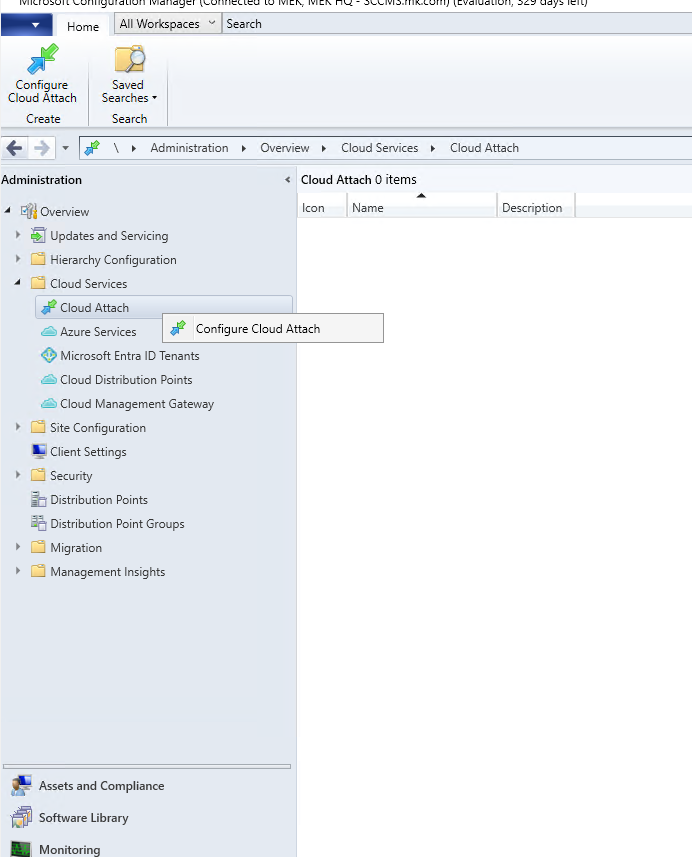
Navigate to Administration > Cloud Services > Cloud Attach>Configure Cloud Attach
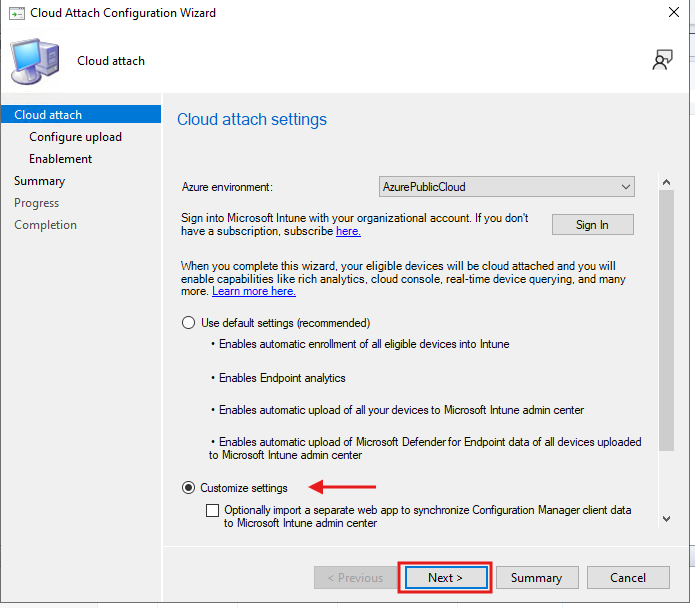
Sign in with your Intune tenant admin credentials.

Here, choose Customize settings instead of default configuration. This allows you to explicitly select the pilot collection and define which workloads will be managed by Intune.
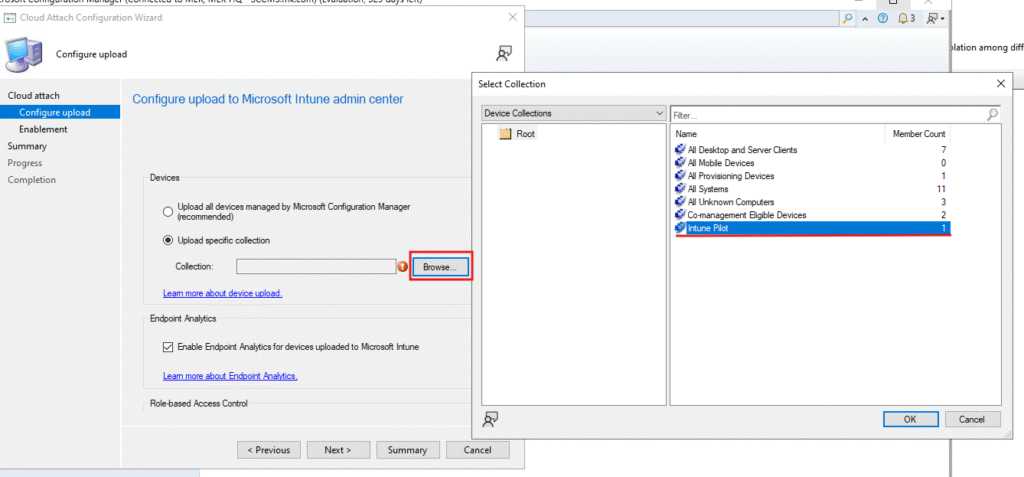
Select the Pilot collection created in Step 1
In the Enable co-management step, select Pilot mode. This ensures both Intune and SCCM can manage the device, but workloads will apply only to your pilot collection.

Step 4 – Select Workloads for Pilot
In the Co-management Properties wizard, choose which workloads you want to move to Intune. For the demo, we’ll move selected workloads into pilot mode.
Go to the Workloads tab.Switch desired workloads from SCCM to Pilot Intune.
Note: Resource access policies are, by default, managed fully by Intune and cannot be switched back to SCCM. For more details, check Microsoft Documentation.

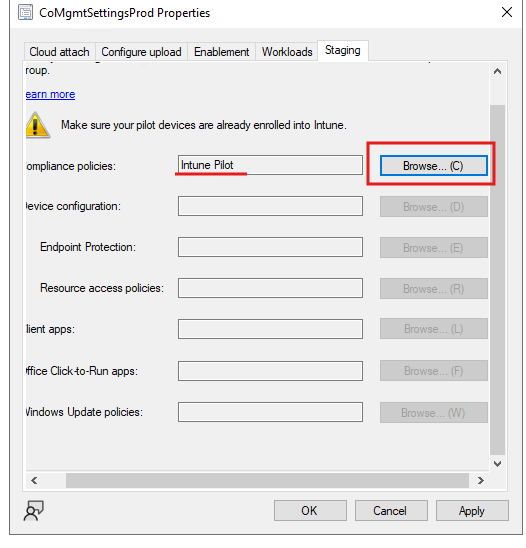
In the Staging section, select the pilot collection created earlier. This ensures that only the devices in that collection receive the selected workloads.
Step 5 – Verify Enrollment on the Client
After applying the co-management configuration, give the client around 10 minutes to process the changes.
Open C:\Windows\CCM\Logs\CoManagementHandler.log on the client device. Verify that the enrollment request was processed successfully.

You can also check the Intune portal to confirm that the device has been onboarded.

Step 6 – Validate Co-Management State on the Client
Even though the device is enrolled, the ConfigMgr Properties window may not immediately show co-management capabilities.
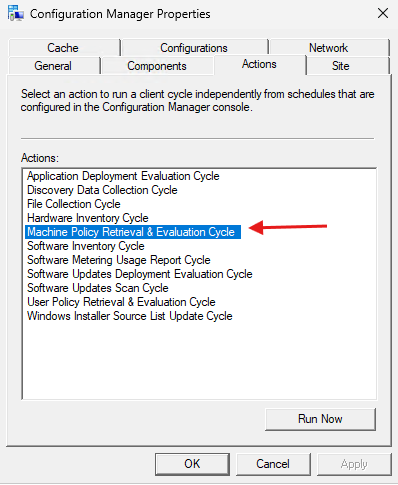
Open Configuration Manager Properties on the client.

Go to the Actions tab and trigger Machine Policy Retrieval & Evaluation Cycle.
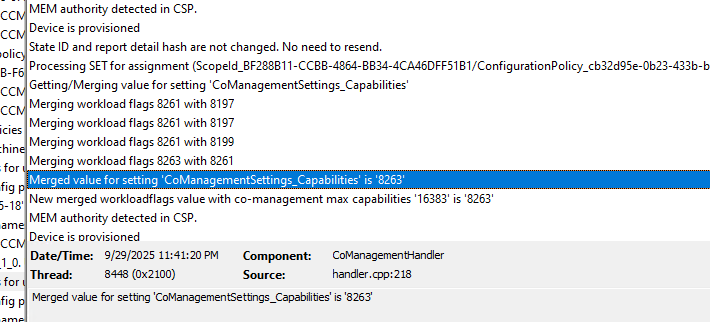
Recheck CoManagementHandler.log – you should now see updated values.
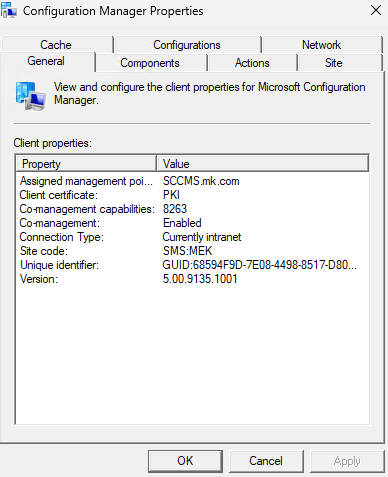
In the ConfigMgr Properties General tab, confirm that co-management capabilities are listed.
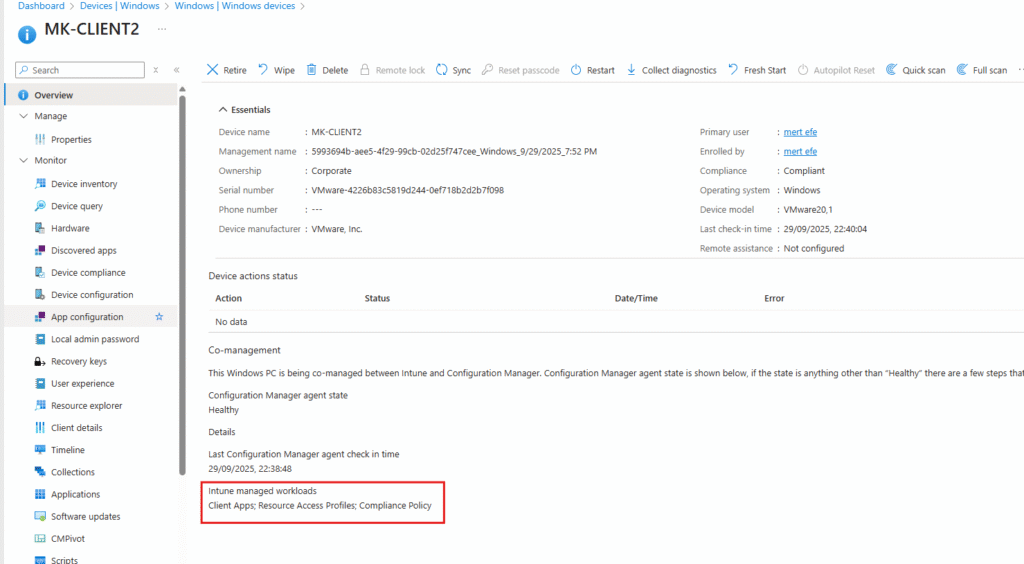
Finally, check the Intune device details to see which workloads are managed by Intune.
Co-Management Capabilities – Value Reference
When checking co-management state, you will see numerical values representing enabled capabilities. Below is a reference table:
| Value | Capability Description |
|---|---|
| 1 | Compliance Policies |
| 2 | Resource Access Policies |
| 4 | Windows Update Policies |
| 8 | Endpoint Protection |
| 16 | Device Configuration |
| 32 | Office Click-to-Run Apps |
| 64 | Modern Apps |
| 128 | Client Apps (Win32) |
| 256 | Scripts |
| 512 | Windows Updates for Business |
(These values are combined; for example, if you see 3, it means Compliance Policies (1) + Resource Access Policies (2).)
By completing these steps, you have successfully configured a pilot for Intune and SCCM co-management.
- You started with a pilot collection and verified client registration settings.
- You then configured Cloud Attach, selected Pilot workloads, and staged them to a test collection.
- Finally, you validated enrollment both on the client side logs and in the Intune portal, confirming workloads moved to Intune management.
Co-management is an effective way to gradually shift workloads to the cloud without disrupting your existing SCCM processes. Using a pilot approach ensures controlled testing, log verification, and confidence before moving into production.


Hello just wanted to give you a quick heads up. The words in your article
seem to be running off the screen in Internet explorer.
I’m not sure if this is a formatting issue or something to do with
browser compatibility but I figured I’d post to let you know.
The style and design look great though! Hope you get the issue solved soon. Cheers
Thank you for your response. The issue didn’t appear in browsers other than Internet Explorer, but I will check it.