How to Check Windows 11 Upgrade Readiness in SCCM and Create a Custom Report (Step-by-Step Guide)
Planning a Windows 11 migration with SCCM (ConfigMgr) can feel overwhelming if you don’t know where to start. One of the most common questions IT administrators ask is:
“Which of our existing devices are actually ready for Windows 11?”
In this step-by-step guide, you’ll learn how to:
- Use a custom SQL query in SCCM to check Windows 11 upgrade eligibility.
- Identify devices that don’t meet requirements like TPM, Secure Boot, and UEFI.
- Build a custom report in Report Builder to track and share upgrade readiness with stakeholders
Step 1: Run the Windows 11 Upgrade Readiness SQL Query in SCCM
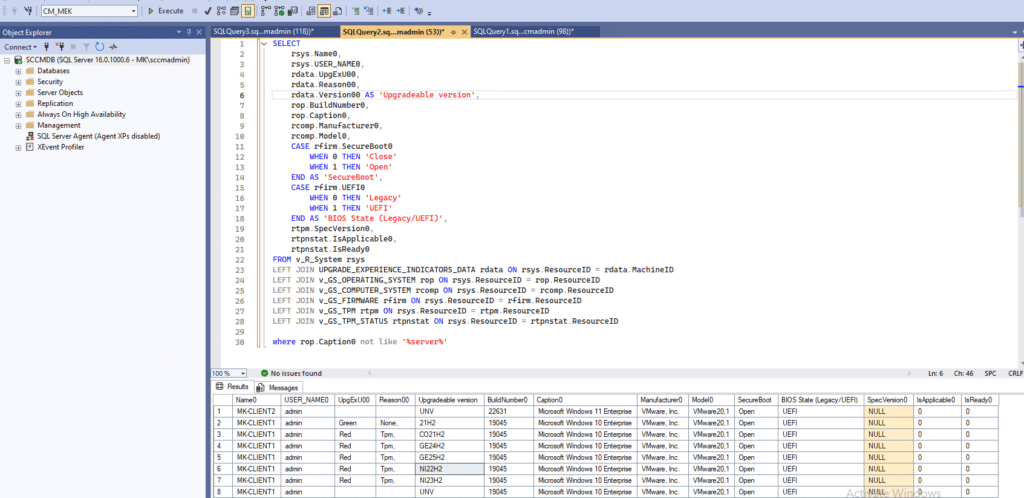
SCCM already collects the hardware and firmware data you need for Windows 11 compatibility checks. You can query that data directly with SQL.
Here’s a sample SQL query you can run against your SCCM database:
SELECT
    rsys.Name0,
    rsys.USER_NAME0,
    rdata.UpgExU00,
    rdata.Reason00,
    rdata.Version00 AS 'Upgradeable version',
    rop.BuildNumber0,
    rop.Caption0,
    rcomp.Manufacturer0,
    rcomp.Model0,
    CASE rfirm.SecureBoot0
        WHEN 0 THEN 'Close'
        WHEN 1 THEN 'Open'
    END AS 'SecureBoot',
    CASE rfirm.UEFI0
        WHEN 0 THEN 'Legacy'
        WHEN 1 THEN 'UEFI'
    END AS 'BIOS State (Legacy/UEFI)',
    rtpm.SpecVersion0,
    rtpnstat.IsApplicable0,
    rtpnstat.IsReady0
FROM v_R_System rsys
LEFT JOIN UPGRADE_EXPERIENCE_INDICATORS_DATA rdata ON rsys.ResourceID = rdata.MachineID
LEFT JOIN v_GS_OPERATING_SYSTEM rop ON rsys.ResourceID = rop.ResourceID
LEFT JOIN v_GS_COMPUTER_SYSTEM rcomp ON rsys.ResourceID = rcomp.ResourceID
LEFT JOIN v_GS_FIRMWARE rfirm ON rsys.ResourceID = rfirm.ResourceID
LEFT JOIN v_GS_TPM rtpm ON rsys.ResourceID = rtpm.ResourceID
LEFT JOIN v_GS_TPM_STATUS rtpnstat ON rsys.ResourceID = rtpnstat.ResourceID
WHERE rop.Caption0 NOT LIKE '%server%'
This query returns:
- Device name and primary user
- Upgrade eligibility status (and reason if not eligible)
- Current OS build and edition
- Manufacturer and model details
- Secure Boot and BIOS mode (Legacy/UEFI)
- TPM version and readiness
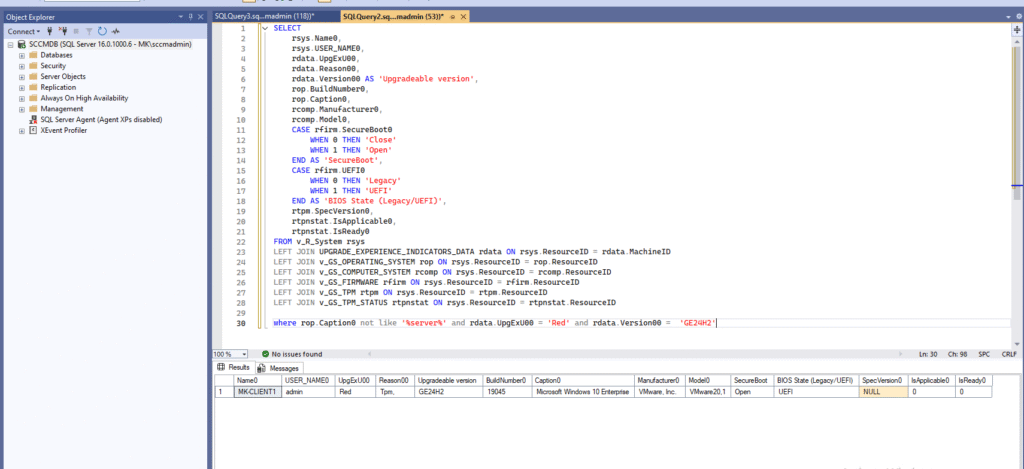
Before moving forward, it’s often useful to focus only on the devices that cannot be upgraded to Windows 11 24H2. By applying a simple filter in SQL, we can narrow down the results to just those non-eligible machines
Step 2: Create a Custom Windows 11 Readiness Report in Report Builder
After running the SQL query, the next step is to turn it into a reusable custom report in SCCM. This allows you to share upgrade readiness results with your team directly from the browser.
Here’s how you can build the report step by step:
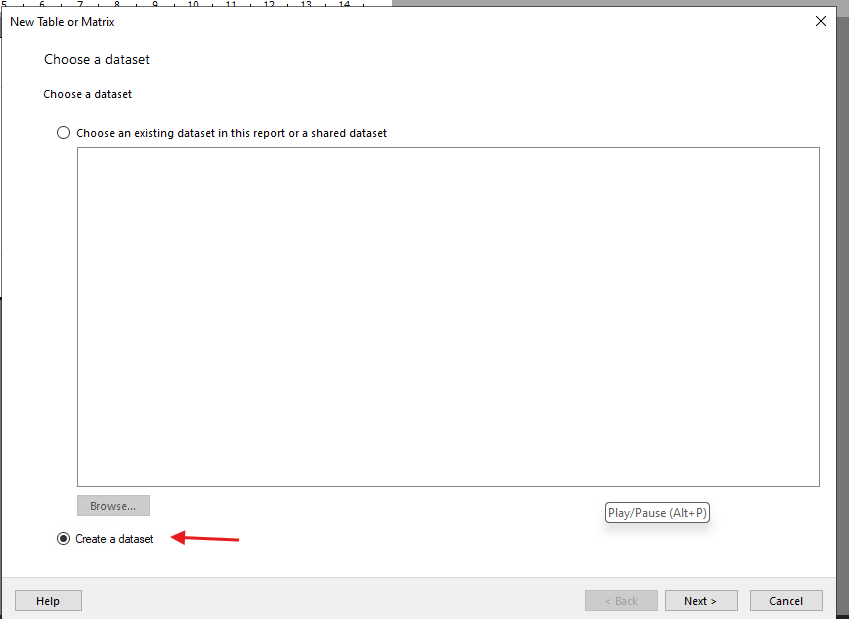
Open Report Builder and select “Table or Matrix Wizard.”

Create a new dataset.
In the data source section, click Browse.

Select your ConfigMgr (SCCM) database
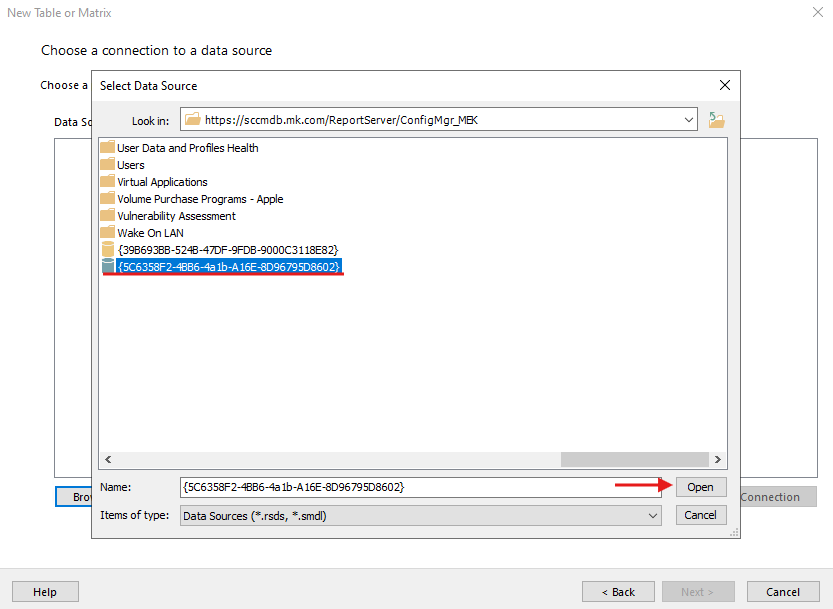
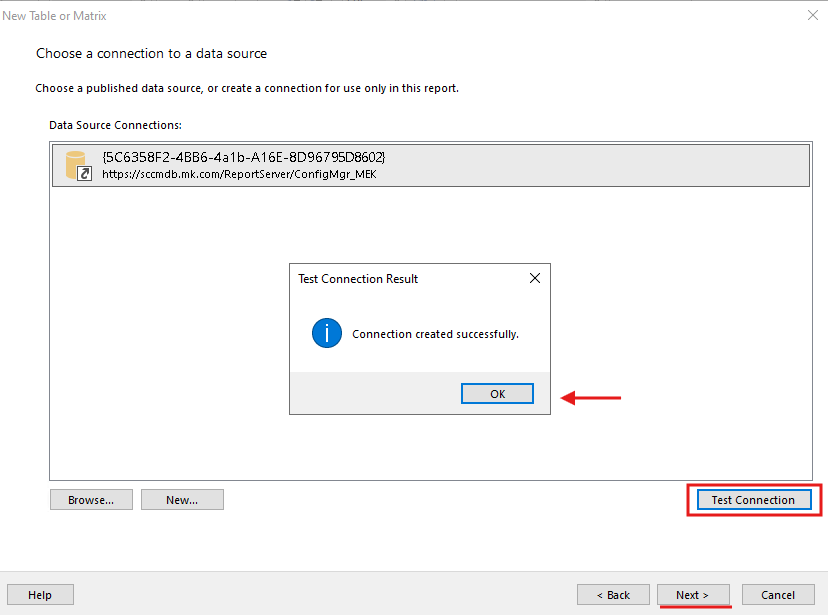
Test the connection to confirm access, then continue.
In the Design and Query section, choose “Edit as Text.”
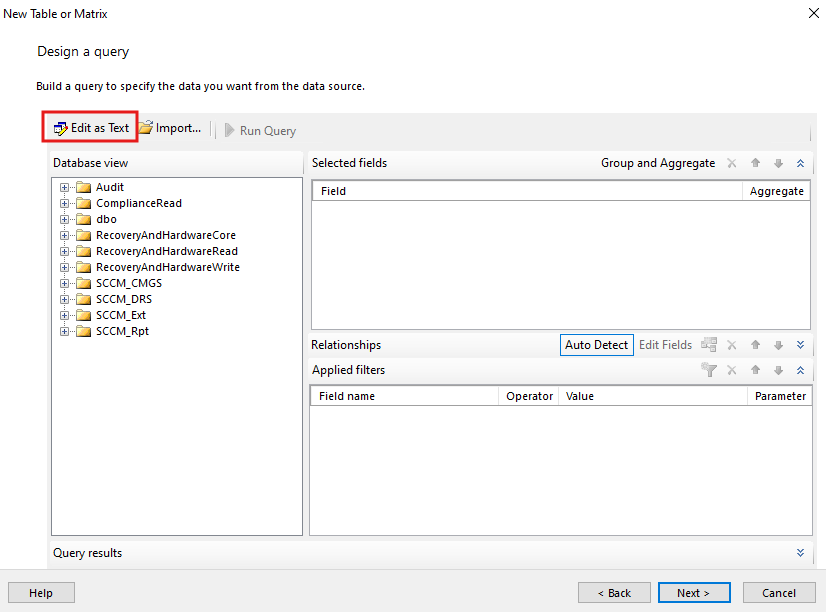
Paste the SQL query from Step 1, then validate it with (!) before continuing

Add the available fields to the Values area

Click Next, review settings, and then Finish.

Open your SCCM reporting portal (example:https://sccmdb.domain.com/Reports/browse/Site) and create a new folder for your custom reports.
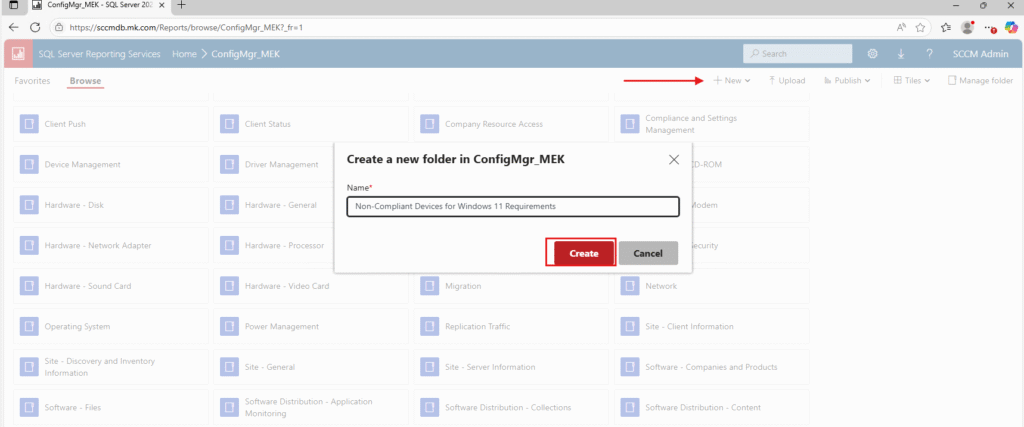
In Report Builder, adjust the column headers as needed, then click Save As, choose the new folder you created, and give the report a descriptive name.
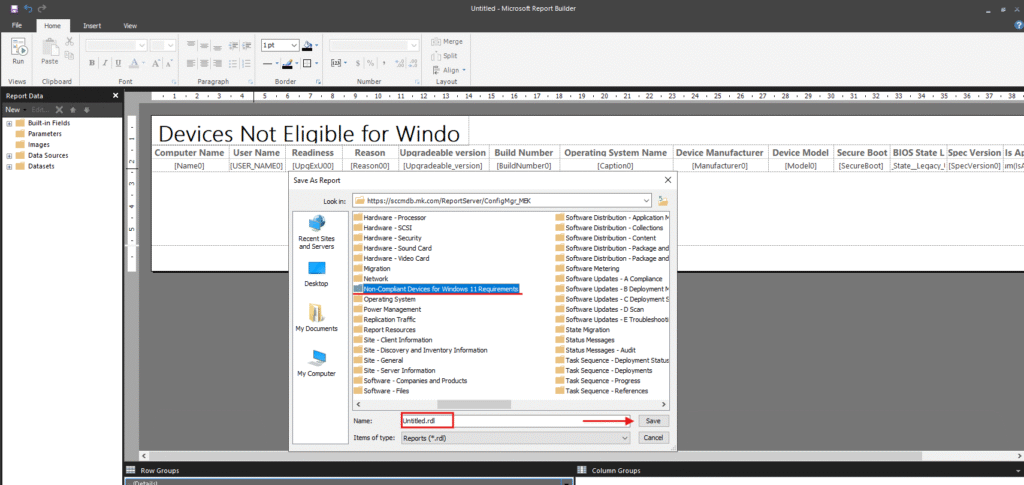
Once saved, the report will be available through the browser-based SCCM Reporting Services portal, where you can view, filter, and share it anytime.
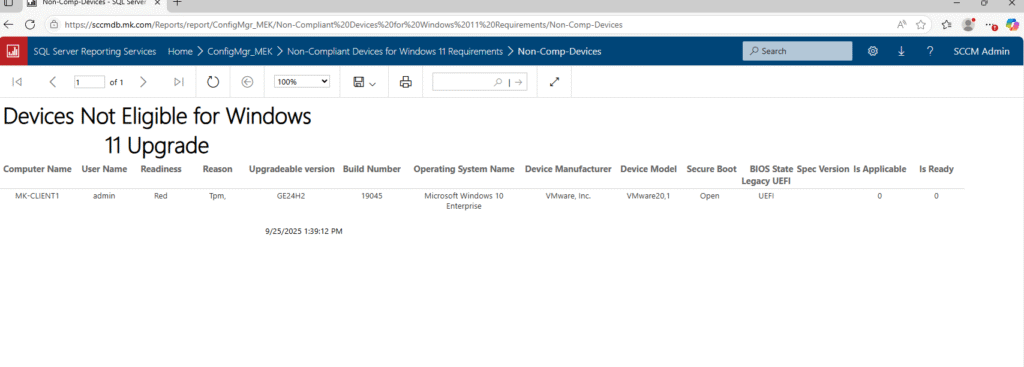
Note: Understanding the Upgradeable Version Values
In the SQL query results, the Upgradeable Version column may display numeric codes. These numbers correspond to specific Windows 11 release versions such as 21H2, 22H2, 23H2, and 24H2.
Here is a reference mapping (see table below):
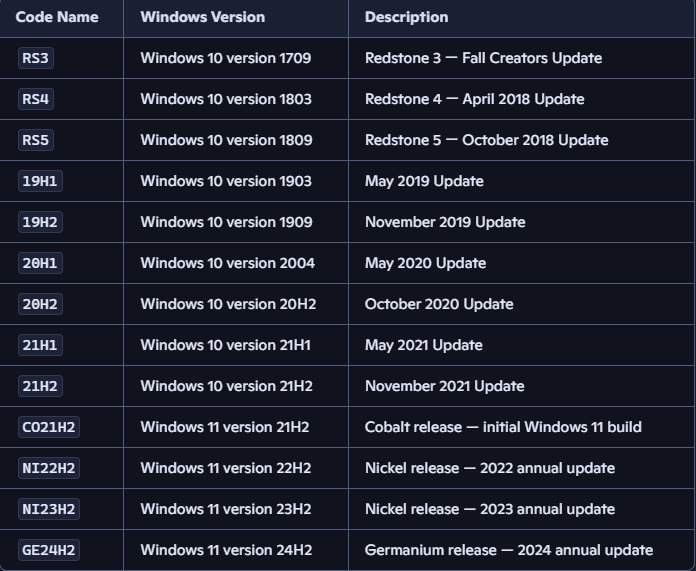
In SCCM, these are often labeled with names like GE21H2, GE22H2, GE23H2, GE24H2, which makes it easier to understand which Windows 11 feature update a device is ready for.
If the values don’t match expectations, double-check that your environment is synchronized with the latest Windows servicing data.
This guide helps you quickly determine Windows 11 upgrade readiness with SCCM, turning raw data into a clear, shareable report. With this approach, you can save time, identify blockers early, and plan a smoother migration path for your organization.